
SalesMind AI uses AI in many places — scoring leads, drafting replies, writing sequence messages and more. You should always be able to tell when you're looking at something the AI made, and you should stay in control of your data. This guide shows the small "AI" markers around the app, and how to accept, change, or withdraw your cookie consent.
When this helps
- You want to know whether a reply, score, or insight came from AI or from a person.
- A teammate asks, "Is this an AI message?"
- You need to accept or reject cookies — or change your choice later.
Telling what's AI
The AI marker
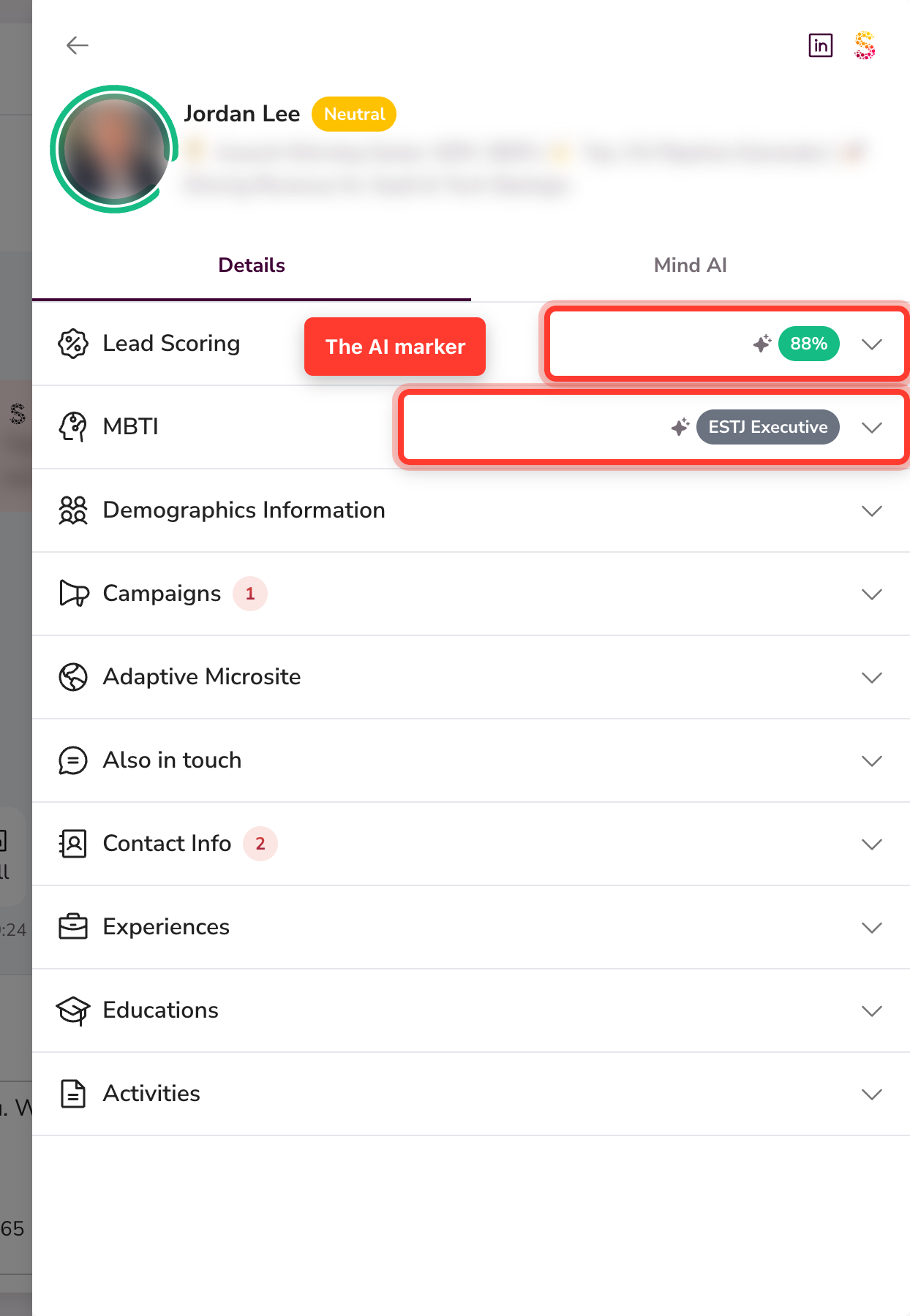
Anywhere SalesMind AI shows something the AI created, you'll see a small, subtle marker — a sparkle icon or a short "AI Generated" label. Hover over it and a short note confirms the content was made by AI. You'll see it on:
- Lead scores
- Personality insights
- Draft replies in your inbox
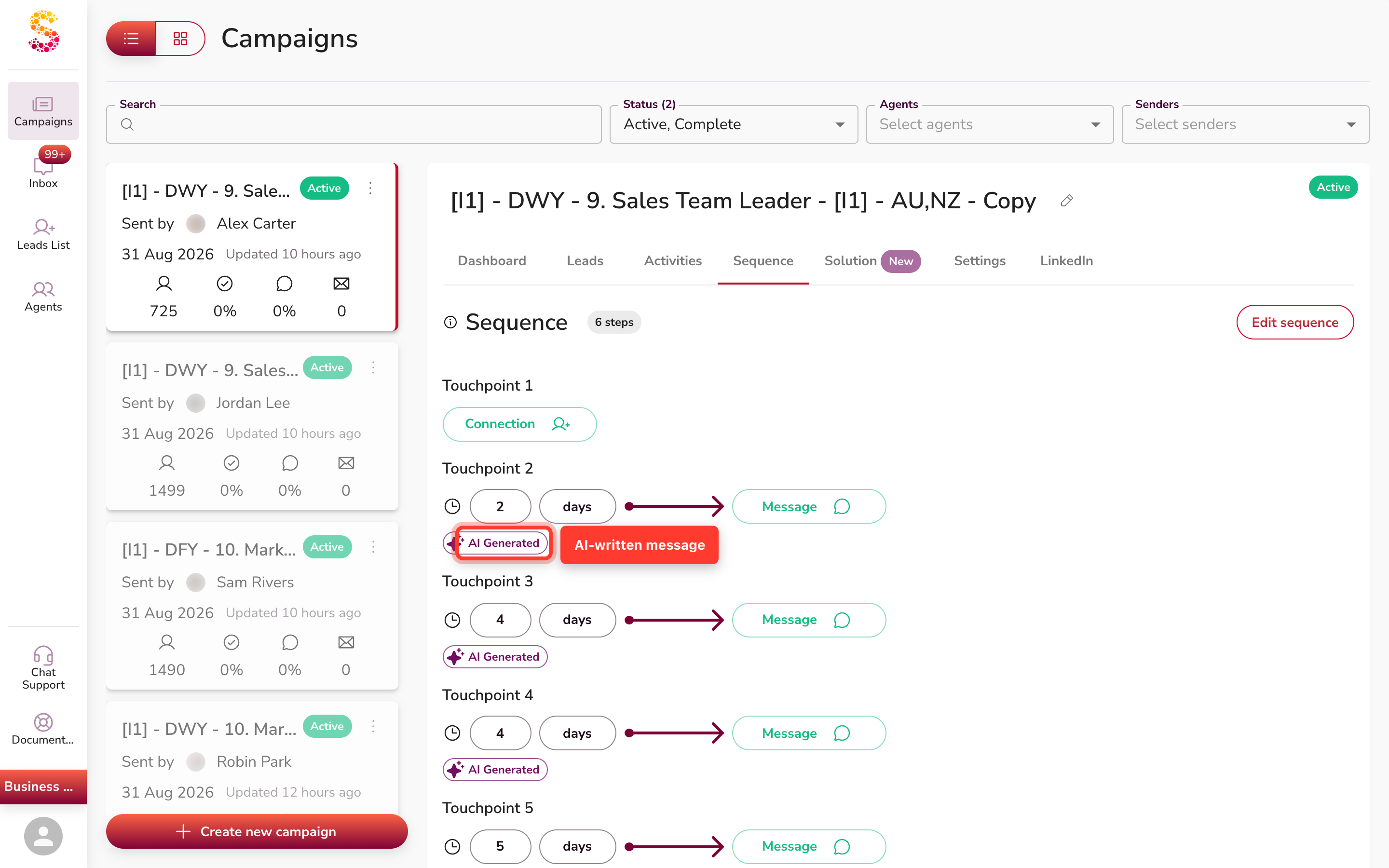
- Sequence messages
- Adaptive microsites
…and other AI output.
The Mind AI assistant
When you chat with the Mind AI assistant, it tells you clearly that you're talking to an AI, and that it can make mistakes. Treat its answers as helpful suggestions, and double-check anything important.
AI or human in the sequence editor
In the sequence editor, each message shows whether it was written by AI or by a human. If you write or edit a message yourself — or use Don't Rewrite to send it exactly as typed — it counts as human-written and won't carry the AI marker.
Statuses you set yourself
Lead statuses are usually AI-generated, so they show the AI marker. But when you set a status by hand, SalesMind AI knows it was you — and drops the AI label for that status.
Confirming AI replies sent in bulk
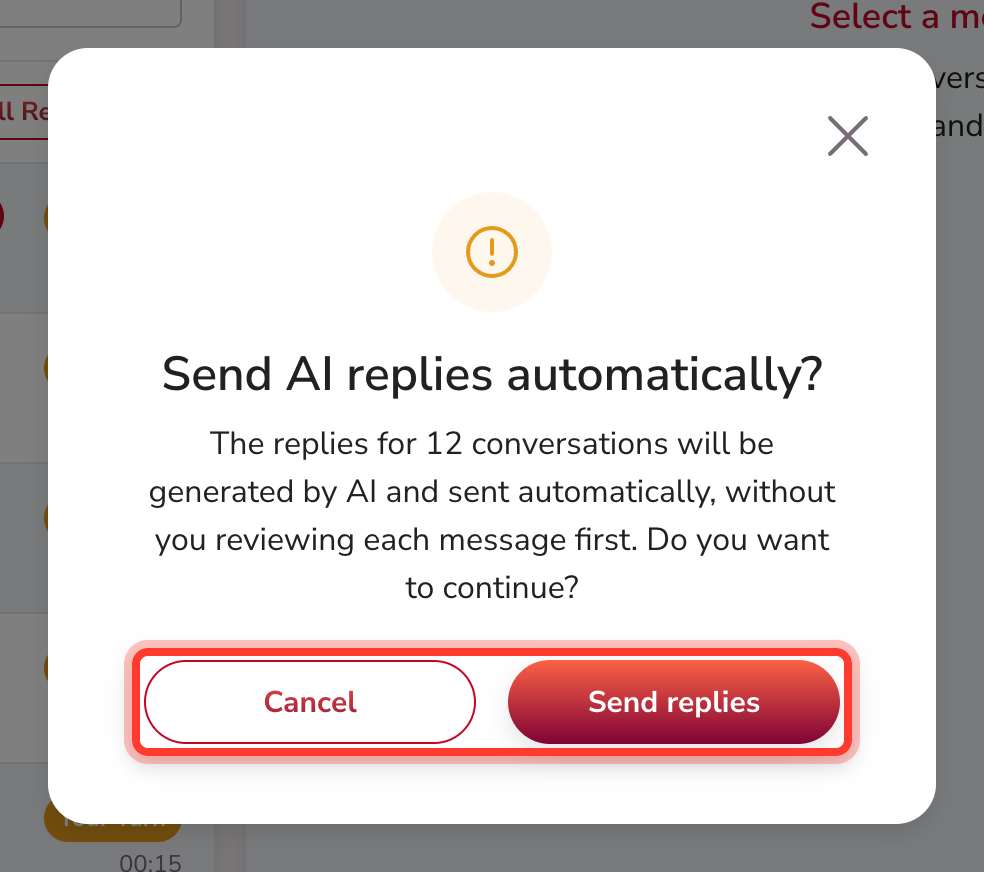
Sending or regenerating AI replies one at a time lets you review each message. In bulk, those messages go out without individual review — so SalesMind AI asks you to confirm first. Read the prompt, then continue when you're ready.
Cookies and consent
The consent banner
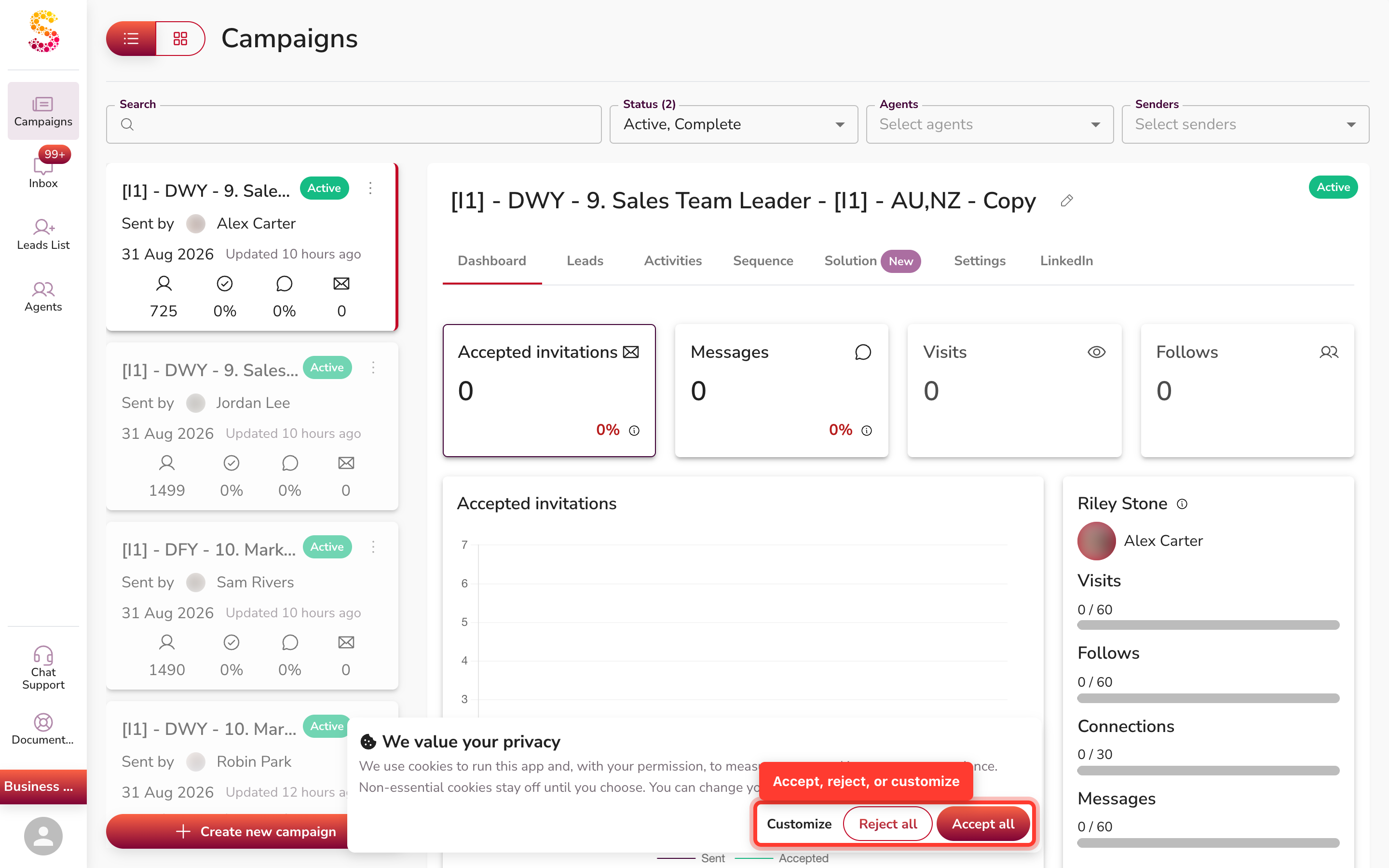
The first time you visit, a banner asks about non-essential cookies (analytics, marketing, and support tools). You can:
- Accept all — allow every category.
- Reject all — allow none of the non-essential cookies. This is just as easy as accepting.
- Customize — choose category by category.
Nothing non-essential is pre-selected. Essential cookies, needed to run the app, are always on and can't be switched off.
Choosing by category
Open Customize to turn each category on or off:
- Analytics — helps us understand how the app is used.
- Marketing — supports our marketing tools.
- Support — powers live chat and support tools.
Save your choices when you're done.
Changing or withdrawing consent
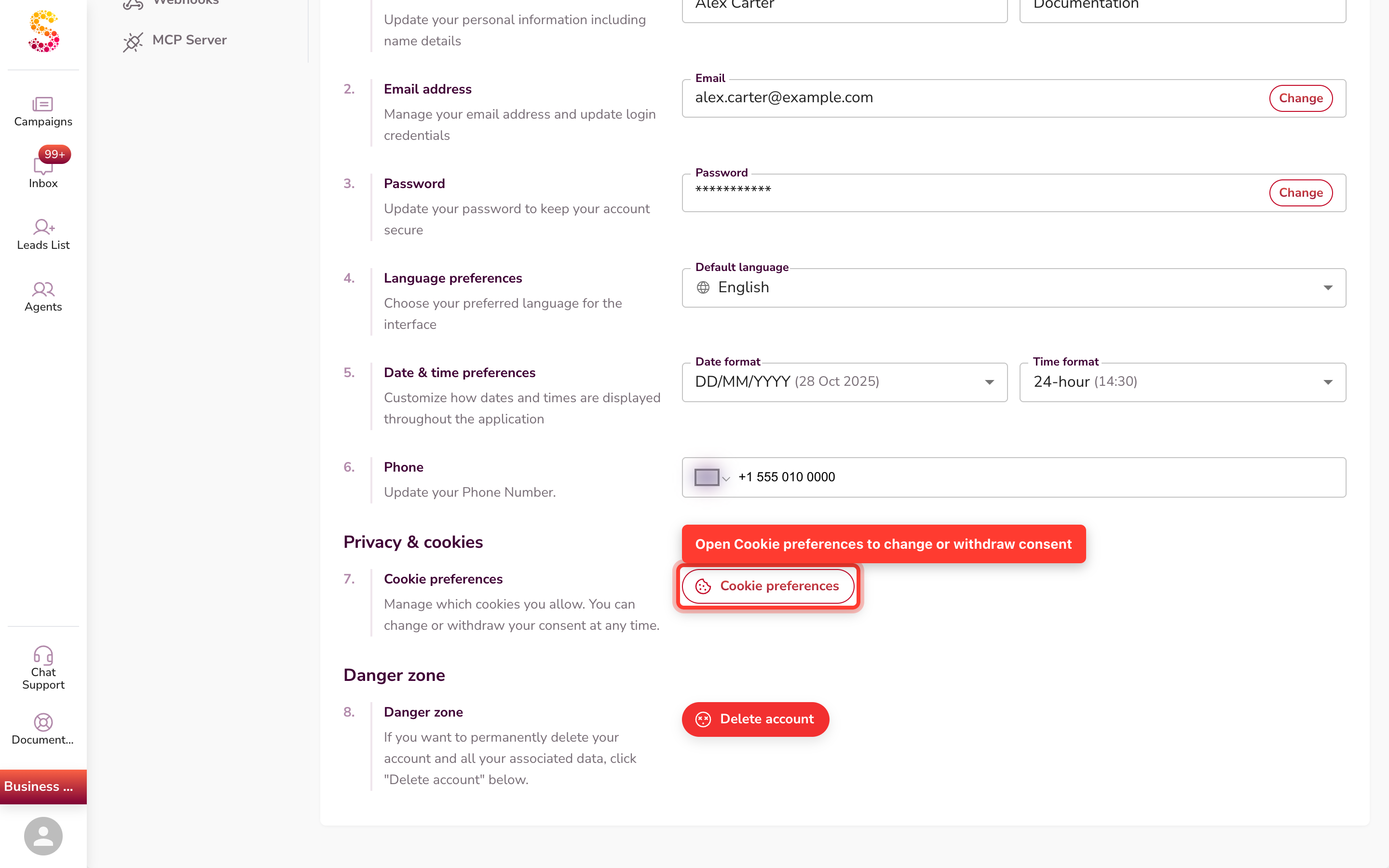
You can change your mind at any time. Open your account settings and go to Cookie preferences to review, update, or withdraw your consent.
What happens when you withdraw
Withdrawing consent doesn't just stop new tracking — SalesMind AI genuinely shuts the tools down and clears the cookies they left behind. Analytics, marketing, and support tools load only once you've agreed, and stop when you take that agreement away. Unused third-party trackers have also been removed from the product.
Good to know
- The AI marker is meant to be subtle — a small sparkle or short label — so it informs you without getting in the way.
- Rejecting cookies is always as easy as accepting them.
- Withdrawing consent may reload the page so the change takes effect right away.
FAQ
How do I know if a message was written by AI or a person? Look for the AI marker (a sparkle icon or an "AI Generated" label). In the sequence editor, each message also shows whether it was written by AI or a human. Anything you write or edit yourself counts as human-written.
Why did a lead status lose its AI label? Because you set that status by hand. SalesMind AI only labels a status as AI-generated when the AI set it.
Why am I asked to confirm before sending AI replies in bulk? Bulk replies go out without individual review, so the confirmation step gives you a chance to check before they send.
Can I reject cookies as easily as accepting them? Yes. The banner gives "Reject all" the same weight as "Accept all," and nothing non-essential is pre-selected.
How do I change or withdraw my cookie consent later? Open your account settings and go to Cookie preferences. You can update or withdraw consent there at any time, and any tools you turn off are shut down.