
SalesMind AI can turn the links you share with prospects into tracked short links, so you can see exactly which resources get clicked, how often, and by whom. Tracking is powered by the built-in Kutt integration and, once enabled, works across the links you send in outreach.
Turn on link tracking
Tracking is off until you switch it on:
- Open an agent and go to the Integrations tab.
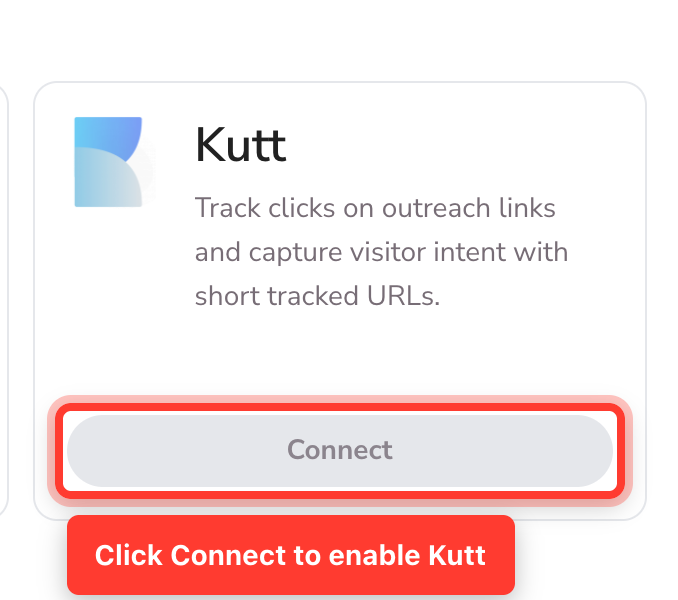
- On the Kutt card, click Connect.
- Switch Link Tracking on.
From now on, links in your outreach are automatically converted into tracked short links. You don't need to configure anything else: tracking runs on a default tracking domain out of the box. If you turn Link Tracking off again, your original links are sent as-is and no clicks are recorded. (Once you've connected a custom domain — see below — the Kutt card button reads Manage instead of Connect.)

See clicks in the inbox
Once tracking is on, each message that contains a tracked link shows a click count next to that link, updating live as prospects click — so a conversation you're reading reflects real-time engagement without a refresh. It's a quick way to spot a warm lead: someone who opened your pricing deck three times is a very different follow-up from someone who never clicked.
See clicks per resource (Information tab)
On an agent's Information tab, your links are listed in a table with a Clicks column, so you can see at a glance how each resource is performing. A dash (—) means no clicks recorded yet.

Dig into the numbers — Click Analytics
For the full picture, open View Click Analytics from the Information tab. The analytics panel shows:
- Total clicks and total links for that resource.
- Clicks over time — a chart you can view by Day, Week, Month, or Year, so you can tie spikes to a specific send or campaign.
- Countries — a world map of where your links were opened.
- Referrers, browsers, and operating systems — breakdowns of how prospects reached and opened your links.
- Link performance — a table of each tracked link with its conversation, click count, and last click, so you can jump straight to the lead who's engaging.
Use your own branded domain (optional)
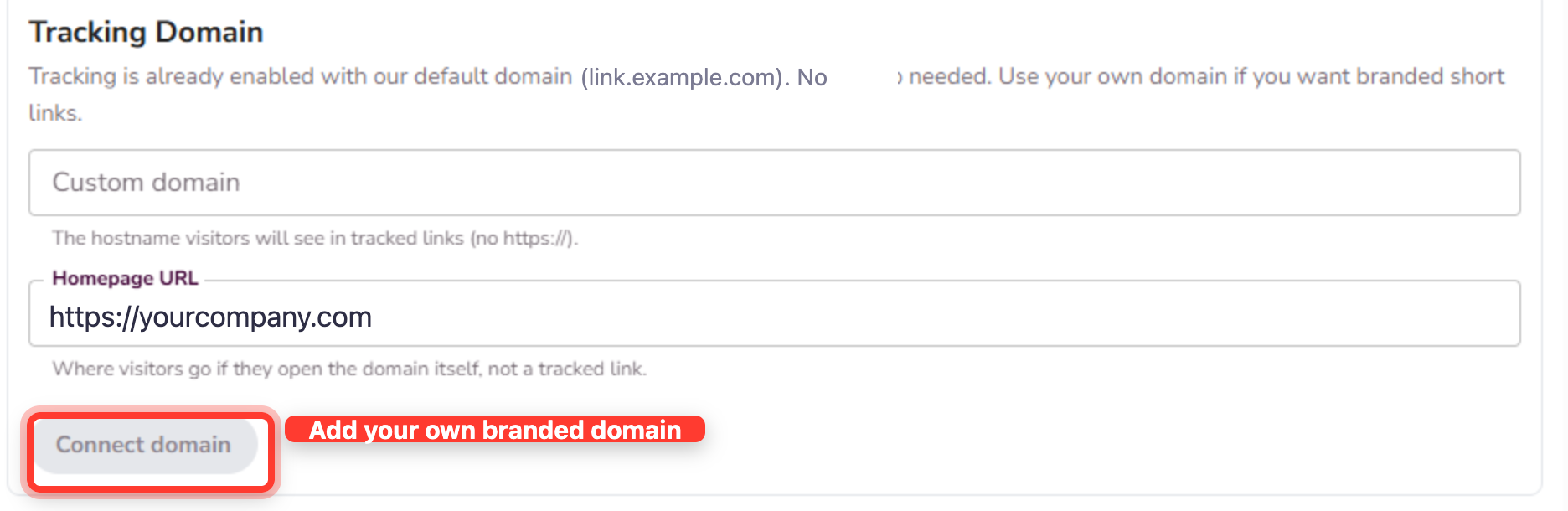
By default, tracked links use SalesMind AI's tracking domain — no setup needed. If you'd rather links show your own brand, connect a custom domain in the Tracking Domain section of the Kutt card:
- Enter your Custom domain — the hostname visitors will see in tracked links (e.g.
links.yourcompany.com, nohttps://). - Enter a Homepage URL — where visitors go if they open the domain itself rather than a tracked link (e.g.
https://yourcompany.com). - Click Connect domain.
- SalesMind AI shows you a DNS record (type, name, and value) to add at your domain provider. Add it there, using the copy buttons to avoid typos.
- The status checks your DNS automatically. Once the record is found, the domain verifies and activates on its own, and new tracked links start using it.
DNS changes can take a little time to propagate. If the status doesn't verify right away, wait a few minutes and refresh. Existing tracked links keep working while you switch domains.
Add UTM parameters (optional)
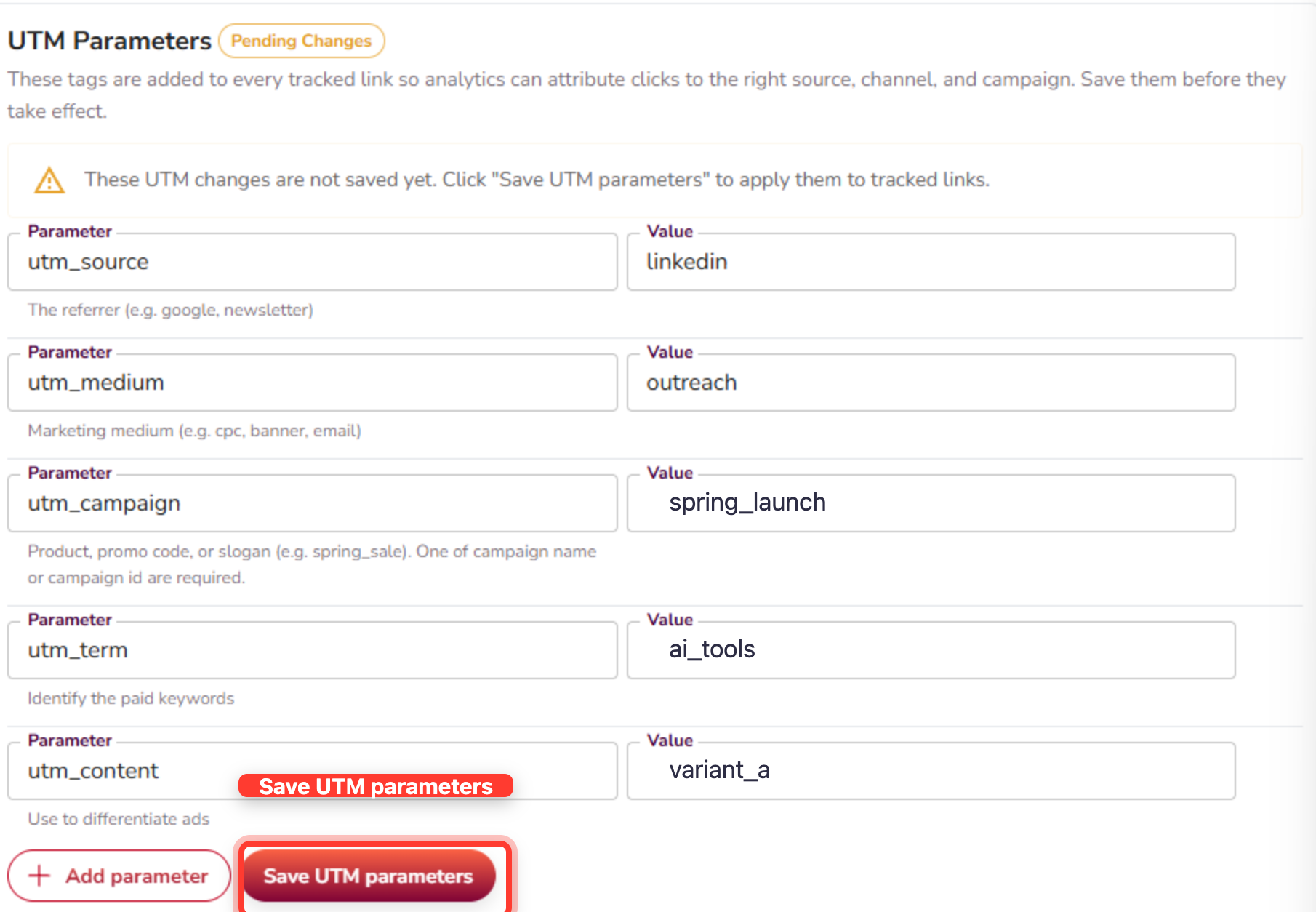
In the UTM Parameters section you can attach UTM tags to every tracked link so your analytics tools attribute clicks to the right source, medium, and campaign. A few defaults are pre-filled; edit or add rows (source, medium, campaign, content), then click Save UTM parameters — changes show as Pending Changes until you save. The term value is set automatically from the sender's name, so it adapts per sender and isn't edited here.
Label your links (Link Type)
When you add or edit a link, the Link type field suggests common categories (deck, booking, testimonial, competitor, and more) as you type. Pick a suggestion or type your own — consistent labels make the analytics easier to read.
Managing this for your team (admins)
Global administrators can manage link-tracking settings on agents they don't personally own (in Senders & settings), so you can configure domains and tracking behaviour centrally without being the owner of each sender.
FAQ
Do I need to turn link tracking on, or does it happen automatically? You turn it on once. Open an agent, go to the Integrations tab, click Connect on the Kutt card, and switch Link Tracking on. After that, the links you share in outreach are automatically turned into tracked short links.
How do I see how many people clicked a link I sent? Three places: a live click count next to the link on each message in the inbox, a Clicks column on the agent's Information tab, and the full View Click Analytics panel for trends, top links, and locations.
Can I use my own domain for the tracked links? Yes. Tracking works right away on SalesMind AI's default domain, but you can use your own in the Tracking Domain section: enter your domain and a homepage URL, click Connect domain, add the DNS record it shows you, and it verifies and activates on its own.
Does link tracking work for every resource I share? Yes — any link you share in a message (decks, PDFs, booking links, testimonials, competitor pages, and more) becomes a tracked short link while Link Tracking is on.
Can I add UTM parameters to my tracked links? Yes. Use the UTM Parameters section to attach tags like source, medium, and campaign to every tracked link, then click Save UTM parameters. The term value is filled in automatically from the sender's name.
Related
- How to Share PDFs and Files With Your Leads — how to get resources in front of leads in the first place.