
You want to send a PDF — a brochure, a case study, a one-pager — to your leads. LinkedIn supports PDF and file attachments in messages. The trick is knowing where attachments work, where they don't, and how to do it well so you don't look like spam.
Quick Answer
| What you want to do | Can you do it? |
|---|---|
| Attach a PDF to a LinkedIn connection request | ❌ No — a connection request carries only a short text note, no files. |
| Attach a PDF in a regular LinkedIn message (to a connection) | ✅ Yes — LinkedIn supports it natively, up to 20 MB. |
| Attach a PDF in a Sales Navigator InMail | ✅ Yes — up to 50 MB per file. |
| Attach a file automatically inside a SalesMind AI sequence | ❌ No — automated messages send text and links, not file uploads. |
| Let the AI share your PDF link at the right moment | ✅ Yes — add it as a resource in your Agent. |
| Share a link to your PDF in the message body | ✅ Yes — host the file and paste the link. |
| Use a flyer or PDF as the campaign Website URL | ❌ No — the Website URL field requires a publicly accessible web page, not a file. |
What LinkedIn Actually Allows
LinkedIn allows file attachments in messages — this is a built-in feature. On a standard message to one of your connections you can attach documents (PDF, Word, PowerPoint, Excel), images, and video up to 20 MB. With Sales Navigator, InMail lets you attach files up to 50 MB each — even to prospects you're not connected with yet.
There are only two real limits:
- Connection requests can't carry files. You only get a short note. To send a file, wait until you're connected (or use InMail).
- Automated sequences send text and links, not file uploads. This is a tooling choice, not a LinkedIn rule — sharing a link is more trackable and lets the AI time it. The best way to share your PDF inside SalesMind AI is through your Agent's resources or a hosted link (Options 1–3 below).
💡 Tip: LinkedIn free accounts can only message 1st-degree connections directly. To attach a file to someone you're not connected to, you need Sales Navigator InMail.
Can I Use a Flyer or PDF Instead of a Website URL?
No — the campaign Website URL field requires a publicly accessible web page URL. You cannot upload a file or paste raw text into it.
Why the field needs a web page URL
The Website URL is not a link your leads ever see. The AI reads it to understand your offer — your product, its benefits, and its selling points — so it can write relevant, personalized messages for each lead. This is what feeds the Campaign Solution content pool described in How the AI Reads Your Content. Prospects never see this link.
Because the AI needs to read the page, the link must lead to a publicly accessible web page. A file upload, a PDF attachment, or plain pasted text does not work here.
What works in the Website URL field:
- A public Google Doc with your product or event information
- A Notion page (set to public)
- A landing page about your offer
- Any publicly accessible web page that describes what you do or what you are inviting people to
If you only have a PDF flyer: copy the key information into a public Google Doc and use that link. This is the most reliable approach — the AI can read a Google Doc directly.
Three link fields — which is which?
These three settings are separate. Mixing them up is one of the most common campaign setup questions.
| Field | Where it lives | Who sees it | What it's for |
|---|---|---|---|
| Website URL | Campaign setup → Step 3 "Define Your Objective" | AI only — prospects never see it | Tells the AI about your offer so it writes better messages |
Landing Page URL (landingPageUrl) | Campaign setup → Step 4 "Conversion Links" | Your leads — placed in the call-to-action message they receive | The actual link you want leads to click (booking page, event page, demo) — this is the only link sent to prospects |
Booking link (calendarURL) | Agent settings → Agent Information; also settable per campaign | Your leads — only the campaign-level Landing Page URL is sent to prospects | A reference link for your sender; set it in Agent Information as your default, then manually paste it into the campaign's Landing Page URL field when you need it |
The Website URL feeds the AI before the campaign runs. Only the campaign's Landing Page URL reaches your leads when messages are sent.
Running an event-invitation campaign
If you are inviting people to an event:
- Website URL → paste the event's public web page, or a public Google Doc with event details. The AI reads this to write relevant invitation messages.
- Landing Page URL → paste your booking or registration link. This is the link your leads actually receive in the call-to-action.
Option 1: Add the PDF as a Resource in Your Agent (Recommended) ✨
This is the smartest option. You add the link to your PDF inside your Agent's Information tab, and the AI decides when to share it based on the conversation.
How it works
Your Agent's Information tab holds everything the AI knows about your business — your services, case studies, decks, booking links. When a lead asks for more info or shows clear interest, the AI picks the right resource and weaves it into the next message. You do not pick which lead gets which file. The AI does.
How to add a PDF link
- Open your Agent in SalesMind AI.
- Click the Information tab.
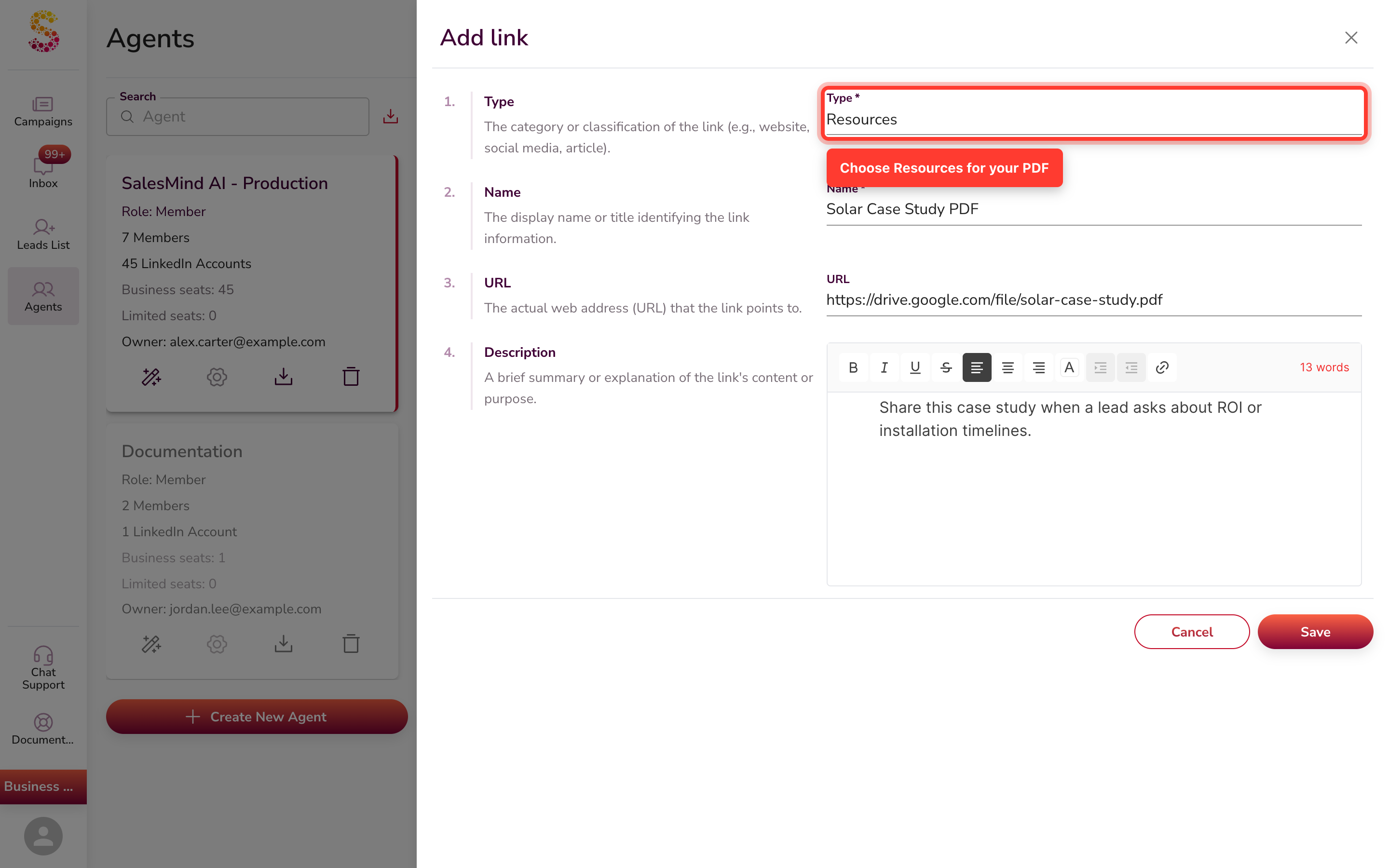
- Click the + Add button. The Add link dialog opens.
- Fill in the four fields:
- Type — choose Resource for a PDF.
- Name — a clear title, such as "Solar Case Study PDF".
- URL — the link to your hosted PDF.
- Description — what the file is and when the AI should share it.
- Save.
💡 Tip: The Description is how you teach the AI when to use the link. Be specific — for example, "Share this case study when a lead asks about ROI or installation timelines." That is how the AI knows the right moment to send it.
What else to add to the Information tab
You can add anything that helps the AI represent your business — just pick the right Type for each:
- Sales decks, case studies, brochures, and one-pagers
- Booking links and demo pages
- Blog posts and how-to guides
- Your main website and social media pages
- Competitor profiles, so the AI knows who you compete against
The more your Agent knows, the smarter the AI is when it picks what to share with each lead.
Option 2: Share a Link to Your Hosted PDF
If you want to paste the same link to every lead yourself, host it online and add the link to your message template.
Where to host your PDF
| Service | Good for | Cost |
|---|---|---|
| Google Drive | Easy share, simple view tracking | Free |
| Dropbox | Clean view links, lots of storage | Free tier available |
| Notion | Nicely styled, easy to update | Free tier available |
| Your own website | Fully on-brand | Depends on your site |
| DocSend | Page-by-page view tracking | Paid |
How to add the link to your messages
- Upload your PDF to one of the services above.
- Copy the public share link.
- Open your campaign in SalesMind AI.
- Edit the sequence instruction below the message where you want the link to appear.
- Paste the link into the instruction and save.
⚠️ Warning: Do not send a link in your very first message. Wait until after the lead accepts your connection. A link in a cold message often looks like spam, and LinkedIn may flag your account.
Option 3: Send a Link from Your SalesMind AI Inbox
Once a lead replies, the sequence stops for that conversation. Continue the chat from your SalesMind AI Inbox and share your PDF link at the right moment — all without leaving SalesMind AI.
- Open the Inbox in SalesMind AI.
- Find the conversation with the lead who replied.
- Type your message and paste the link to your hosted PDF.
- Send.
When this makes sense
- The lead has shown clear interest and asks for more info.
- You are in a back-and-forth conversation already.
- You want to share something specific that fits this lead's exact question.
Key Takeaways
- LinkedIn allows PDF/file attachments in messages (up to 20 MB) and InMail (up to 50 MB).
- You cannot attach a file to a connection request, and SalesMind AI automated sequences send links, not file uploads.
- The campaign Website URL is for the AI only — it must be a publicly accessible web page. Your leads never see it.
- If you only have a flyer, copy the key information into a public Google Doc and use that link as the Website URL.
- Smartest play: add the PDF as an Agent resource and let the AI share the link at the right time; attach the raw file manually when a lead asks.
Happy prospecting!
FAQ
Can I add a flyer or PDF directly to the campaign Website URL field? No — the Website URL field needs a publicly accessible web page the AI can read. You cannot upload a file or paste text into it. If you only have a flyer, copy the key information into a public Google Doc and paste that link into the field.
I only sent a flyer — what does the team actually need to set up my campaign? The team needs a link to a publicly accessible web page about your product or event. A public Google Doc, Notion page, or landing page all work. A flyer image or PDF file on its own is not enough — the AI needs a page it can read to write personalized messages.
Which link do my leads actually receive — Website URL or Landing Page URL? Your leads receive the Landing Page URL (set in Step 4 under "Conversion Links"). The Website URL is only for the AI — prospects never see it. Set the Landing Page URL to the page you want leads to visit: your booking page, event registration, or demo link.
Can I upload a PDF or image file directly instead of pasting a link? No — the Website URL field only accepts a web link. There is no file upload option for this field. Host your content on a publicly accessible page and paste the URL.
My business doesn't have a website — what can I put in the Website URL field? Any publicly accessible page that describes your offer works. A free public Google Doc or Notion page is the simplest option — write a short description of what you do, make it public, and paste the link.
Can I attach a PDF straight to a LinkedIn connection request or message? You can attach a PDF to a regular LinkedIn message once you're connected (up to 20 MB), and to a Sales Navigator InMail (up to 50 MB). You cannot attach a file to a connection request — that only allows a short text note. Inside SalesMind AI, automated sequences share your PDF as a link or Agent resource rather than a file upload.
How do I get the AI to share my case study with the right leads? Add the file as a Resource in your Agent's Information tab, with a clear description of when to use it. The AI then shares it at the right moment in the conversation.
A lead replied — how do I send them the file now? Continue the conversation from your SalesMind AI Inbox and share your hosted PDF link at the right moment. If you'd rather send the raw PDF file, you can attach it manually in a regular LinkedIn message to that connection (up to 20 MB).