
Your plan, seats, invoices, and receipts all live in one place inside SalesMind AI. This guide shows you where the billing page is and what each part does.
Prerequisites
- An active SalesMind AI account
- Admin access to manage billing on the account
💡 Note: The Billing page is available to account admins only. If you do not see it, ask your account admin to check.
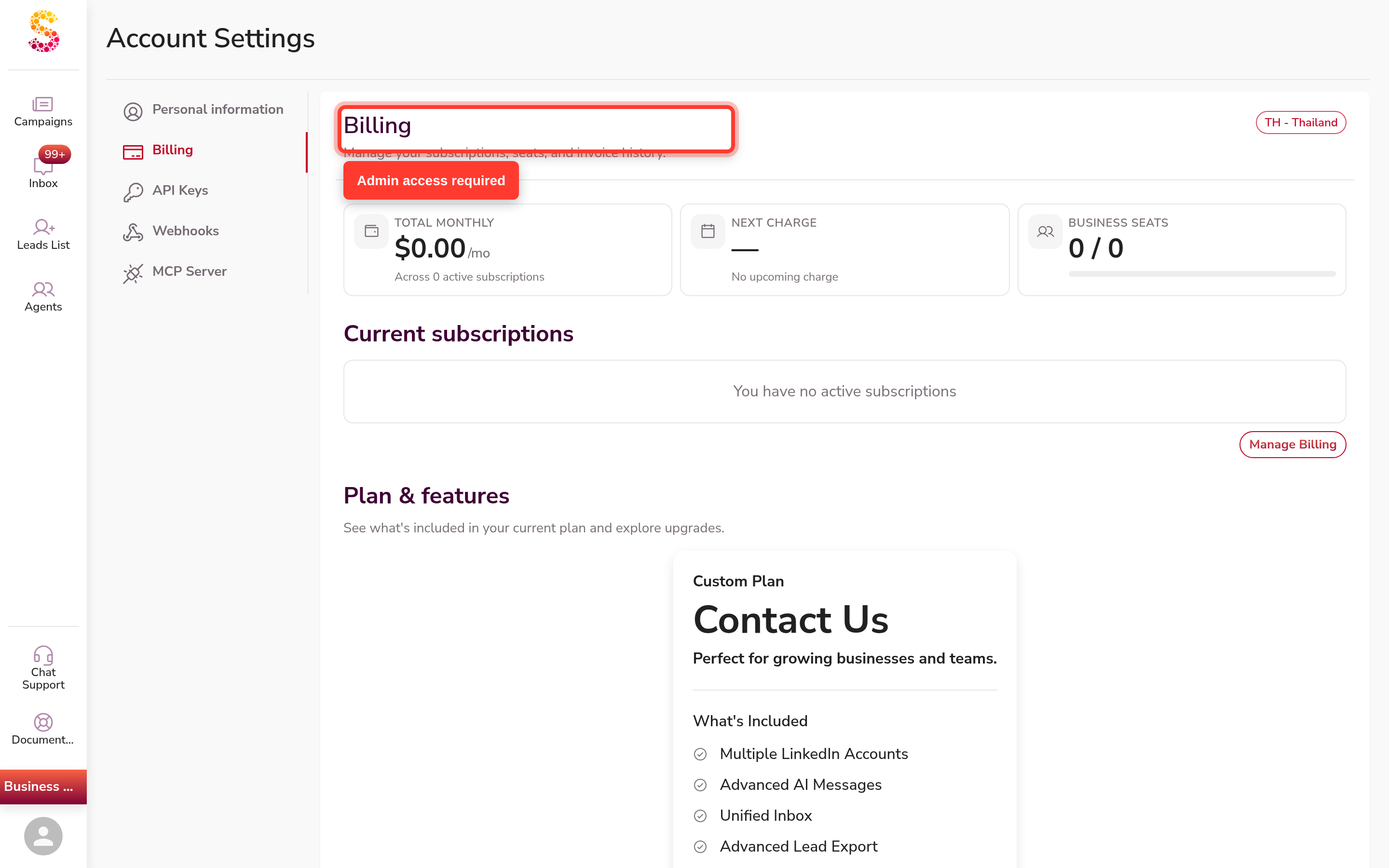
Where to find your billing page
Your billing page lives in your account settings. You can reach it in three short steps.
- Open SalesMind AI and find the left side panel.
- Click your profile at the bottom of the panel.
- Click Billing.
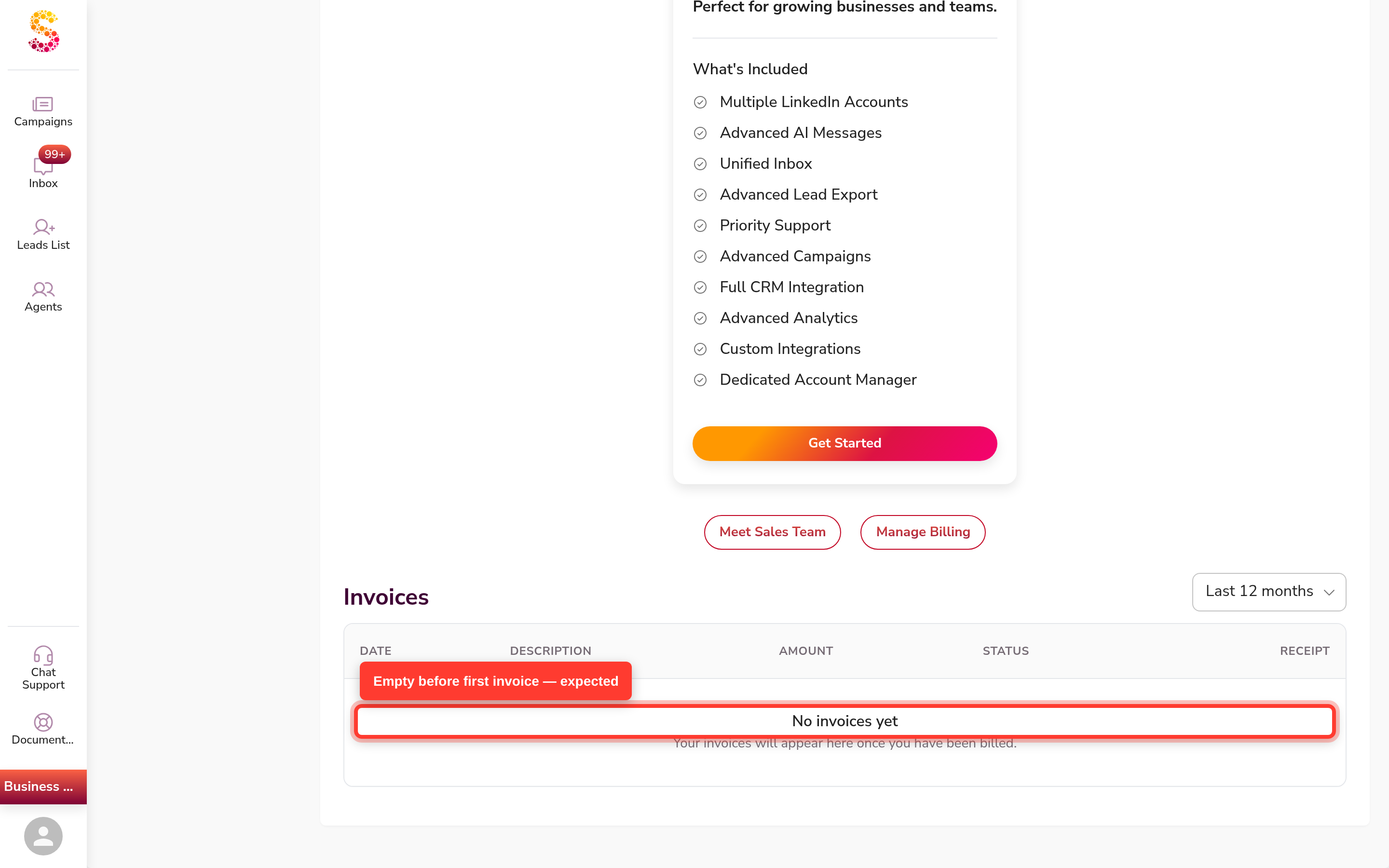
💡 If your Billing page looks empty: The Billing page only shows full details once a plan has been invoiced. If you have not been billed yet, the Invoices table will be empty and the summary cards may show list price figures or "No upcoming charge." To learn about plans and pricing, reach out to our team using the Chat Support button in the left side panel.
Your billing summary cards
At the top of the page you see three cards. They give you a quick health check of your account.
Total monthly
This card shows what you pay each month, followed by /mo. The subtitle counts your active subscriptions. The amount reflects what you are truly charged, not the list price.
Next charge
This card shows your next billing date and the plan behind it. When nothing is due, it reads "No upcoming charge."
Business seats
This card shows your seat use as used / paid, with a colored bar below it. The bar turns amber as you near your limit and red when you reach it.
Your current subscriptions
Below the cards, the Current subscriptions list shows one card per plan. Each card includes:
- The plan name, with a Legacy or Trial badge when it applies
- The current status
- The amount and billing period
- The next billing date
- A Cancel plan button
⚠️ Warning: If you cancel, your plan stays active until the next billing date. After that date, you lose access to SalesMind AI.
Changing your number of seats
You cannot change your seat count directly in the app. To reduce or increase the number of seats on your plan, contact the SalesMind AI team.
Send us a message using the Chat Support button in the left side panel.
💡 Note: The Manage Billing button is for updating your payment method only. It cannot change your seat count.
Your invoices and receipts
Scroll down to the Invoices table. It lists every invoice with these columns: Date, Description, Amount, Status, and Receipt.
Download an invoice PDF
Each row has a Download invoice PDF button in the Receipt column. Click it to open your receipt in a new tab.
Filter by date range
Use the range filter to show the Last 3, 6, or 12 months, or All time. Long histories split into pages.
Manage your payment method
The Manage Billing button opens a secure portal where you update your payment method — your card details. Use it to add a card, switch your default card, or remove an old one.
💡 Note: The Manage Billing button is optional. Some accounts hide it, so you may not see it. Your plan and invoices still live on the Billing page either way.
Why your amounts are accurate
Every amount on this page reflects what you are genuinely charged. SalesMind AI reads your latest paid invoice, so coupons, discounts, and legacy pricing are already included. The list price shows only when a plan has never been invoiced.
Common pitfalls
- Looking inside agent settings. Billing lives in your profile menu, not under an agent.
- Expecting the Manage Billing button. It only edits your payment method, and some accounts hide it.
- Cancelling without checking the date. Always check the next billing date before you confirm.
- Trying to change seats in the app. Seat changes are not self-serve. Message us using the Chat Support button in the left side panel.
FAQ
Can I reduce my plan to fewer seats instead of cancelling?
Yes. Seat changes are not self-serve in the app. To reduce or increase your seats, message us using the Chat Support button in the left side panel. The Manage Billing button handles payment details only — it cannot change seats.
Why is my Billing page empty?
The Billing page only shows full details once a plan has been invoiced. If you have not been billed yet, the Invoices table will be empty and the summary cards may show list price figures or "No upcoming charge." To explore plans, reach out to our team using the Chat Support button in the left side panel.
Does the Billing page show pricing plans, or only my own invoices?
The Billing page shows your own invoices and subscription details only — not a list of available plans or prices. To learn about plans before you sign up, reach out to our team using the Chat Support button in the left side panel.
Do I need admin access to see the Billing page?
Yes. The Billing page is visible to account admins only. If you cannot find it, ask your account admin.
Where do I see my next billing date?
Open your profile settings, then click Billing. The Next charge card shows your next billing date, or "No upcoming charge" when nothing is due.
How do I download a receipt?
In the Invoices table, click the Download invoice PDF button on the invoice's row. The receipt opens in a new tab.
How do I cancel a plan?
Open your profile settings, then click Billing. Find the plan in Current subscriptions and click Cancel plan. Your plan stays active until the next billing date.
What does the Business seats card show?
It shows your seat use as used / paid, with a colored bar. The bar turns amber as you near your limit and red when you reach it.