
Connecting your LinkedIn account to SalesMind AI is the first step before you can run any campaigns. This integration lets the platform send connection requests, messages, and automate your outreach on your behalf.
Prerequisites
- A SalesMind AI account (sign in at SalesMind AI dashboard)
- Google Chrome browser installed
- A LinkedIn account you want to use for outreach
👉 Note: SalesMind AI never stores your LinkedIn credentials directly. The connection works through a secure Chrome extension that reads your active LinkedIn session.
How to Connect Your LinkedIn Account
Step 1: Sign in to SalesMind AI
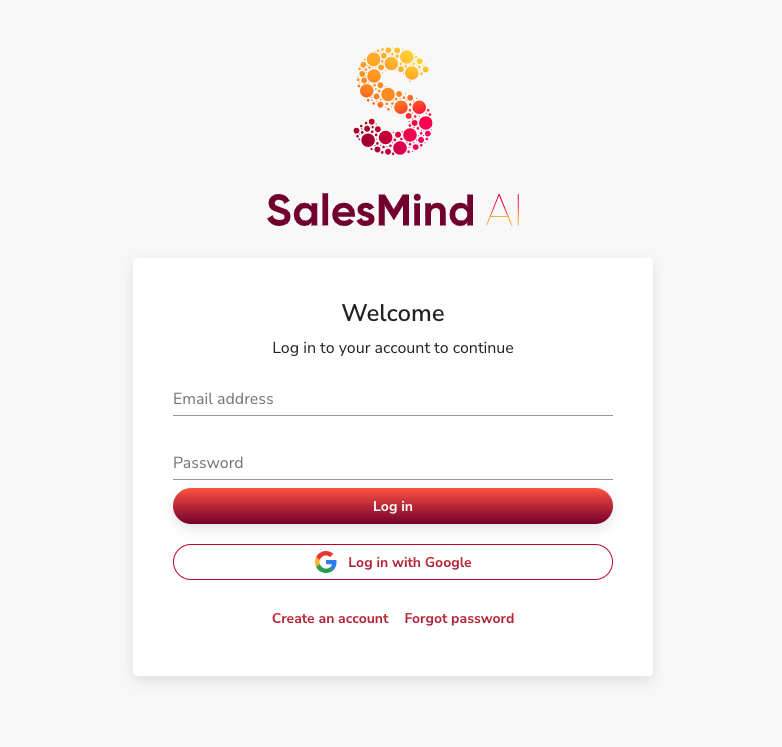
Go to your dashboard and sign in.
Step 2: Go to Agents
From the main menu, open the Agents section. Select the Agent you want to connect a LinkedIn account to. Each Agent can have one or more senders.


Step 3: Click "Add new Sender"
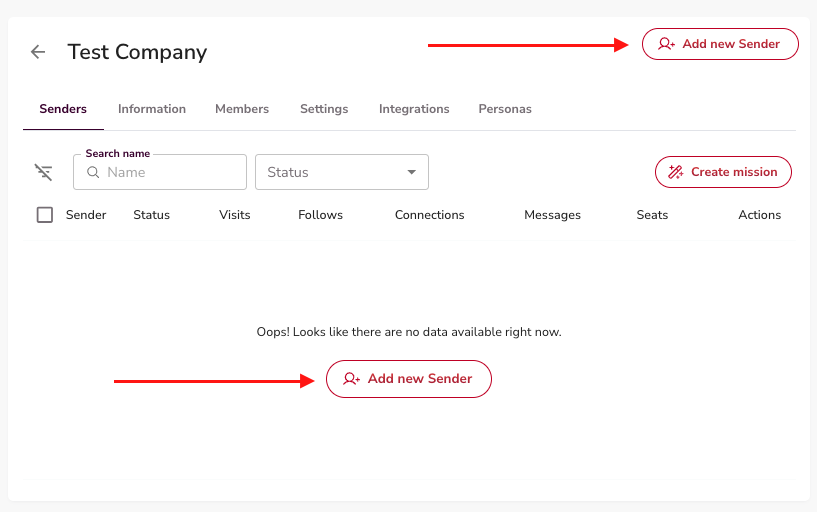
Inside the Agent page, click any Add new Sender button. This opens the LinkedIn connection setup.
Step 4: Install the Chrome Extension
Download and install the SalesMind AI Chrome extension from the link shown in the setup flow. Once installed, the SalesMind AI icon will appear in your browser toolbar.
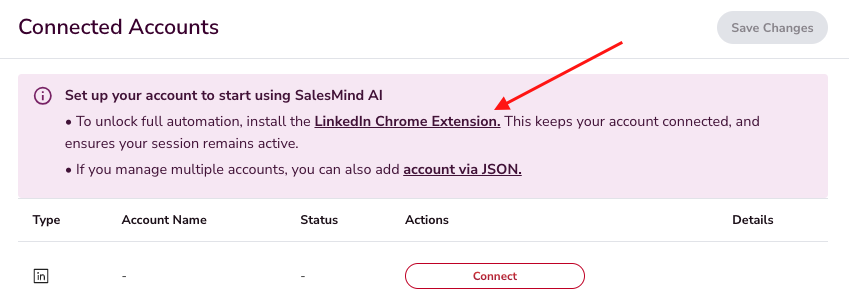
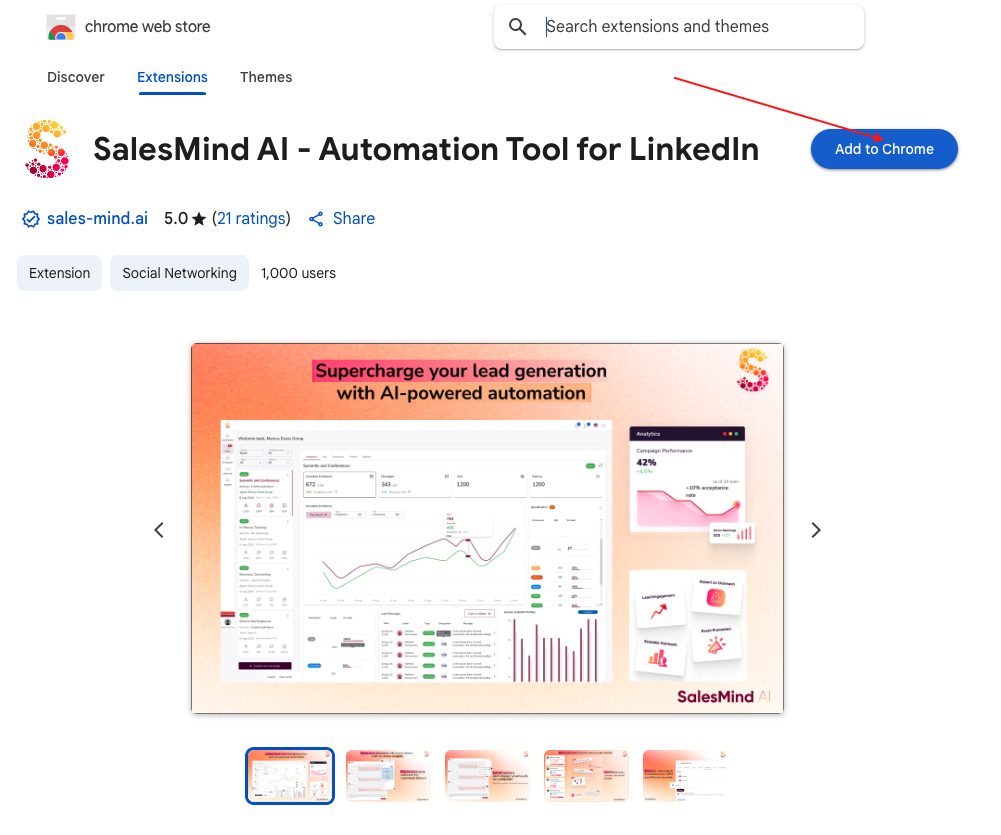
See the How to Install the SalesMind AI Chrome Extension article for detailed installation steps.
⚠️ Warning: Before continuing, make sure you're logged into the LinkedIn account you want to connect — in the same Chrome browser where the extension is installed.
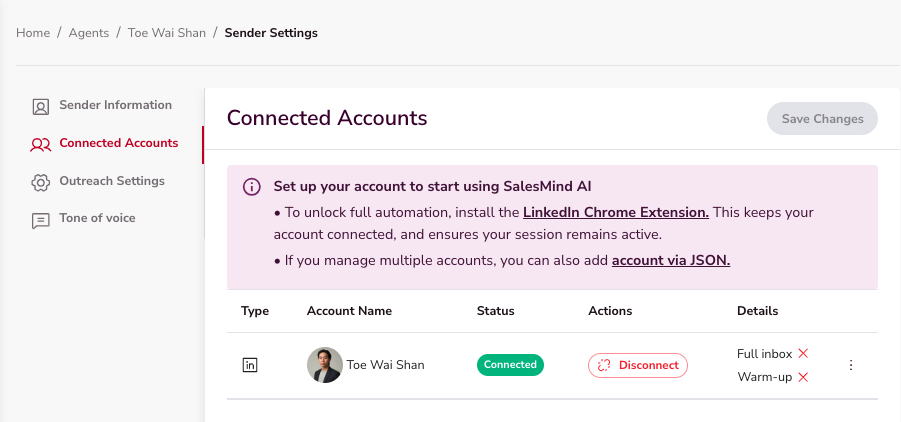
Step 5: Connect the Account
Return to the SalesMind AI dashboard. The system will automatically detect your LinkedIn session through the extension. Click Connect to link the account.
Verify the Connection
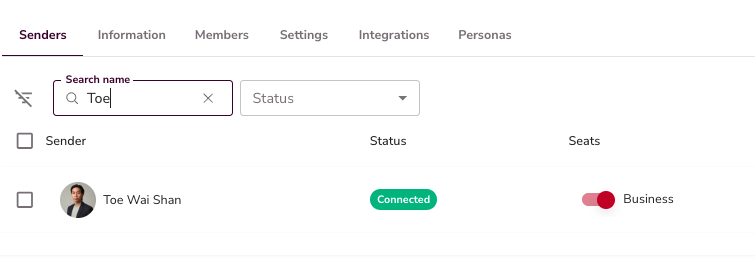
After connecting, your LinkedIn profile will appear under your Agent's Senders section.
- Go to Agents → Senders
- Confirm your LinkedIn profile shows as Connected
💡 Tip: If the status shows Disconnected, see the My Account Has Been Disconnected article to reconnect.
Import Multiple Senders from a CSV
Adding senders one by one is slow when you run many LinkedIn accounts. You can import a batch of senders from a spreadsheet instead. This helps agencies and teams onboard several accounts at once.
Where to find it
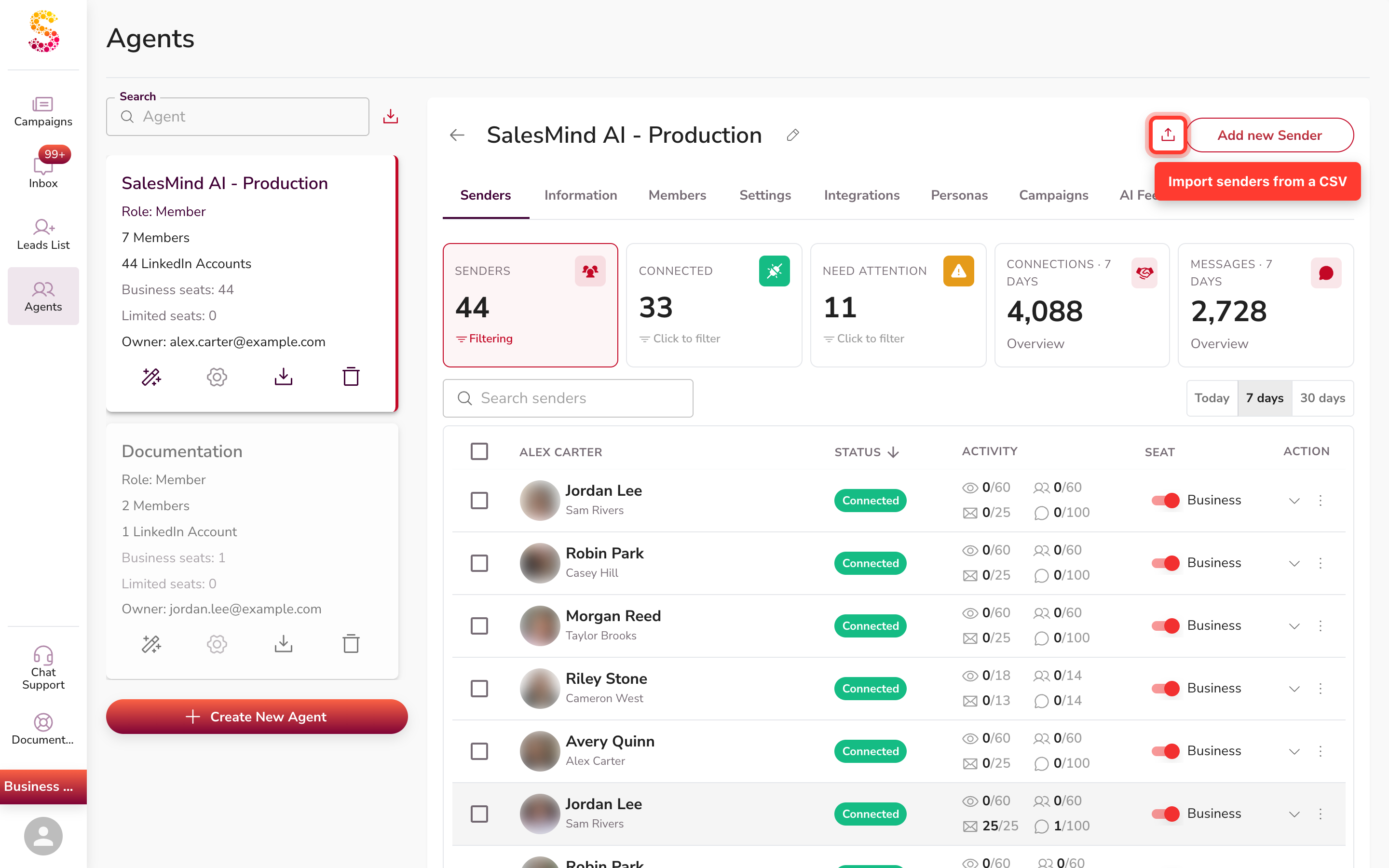
Open the Senders tab. Look for the Import senders from CSV upload icon near the add-account button. It is a separate icon — not inside Add new Sender. Click it to open the import screen.
Import your senders
- Click the Import senders from CSV icon on the Senders tab.
- Upload your spreadsheet. Any export works, using commas or semicolons.
- Map your columns. SalesMind AI auto-detects common columns, and you review or fix each match.
- Check the preview, then start the import.

There is no fixed template. Each row just needs a few details to connect a sender:
- The account cookie (
li_at) - The session cookie (
JSESSIONID) - The browser user-agent
- The account country
A proxy is optional. If your export keeps both cookies together, you can also supply them as a single JSON column.
Using an AdsPower proxy export
If your proxy was exported from an AdsPower profile, SalesMind AI reads that proxy format for you. It accepts host:port values, with an optional user and password, plus a separate proxy-type column. This only maps the proxy from your export. It does not connect a sender through AdsPower, and there is no anti-detect browser integration.
Paste one account instead
For a single account, you can paste its details as JSON on the account form. This fills the cookie fields for you, with no file to upload. Use the CSV import when you have several senders to add at once.
Good to know
- Senders import one row at a time, not as one batch. Some rows can succeed while others fail.
- Watch the per-row result. Fix any skipped or failed row, then import it again.
- A sender still needs valid cookies to stay connected. Warm up new senders, and reconnect any that drop.
Quick Checklist
- Use Google Chrome with the SalesMind AI extension installed
- Stay logged into LinkedIn in the same browser to avoid disconnections
- Check your sender status before launching any campaign
- Reconnect anytime you see the "Disconnected" label
What's Next
Once your LinkedIn account is connected, you're ready to start outreach. Consider enabling Account Warmup if your account is new or hasn't been active recently — see the How to Warm Up Your LinkedIn Account article for details. When you're ready to run campaigns, see the Campaign Creation Step-by-Step Guide.
FAQ
How do I add several LinkedIn senders at once?
Open the Senders tab and click the Import senders from CSV icon. Upload your spreadsheet, map the columns, and start the import.
Is there a required CSV template or exact column names?
No. SalesMind AI auto-detects your columns and lets you remap them. You just need the account cookie, session, user-agent, and country.
What does each sender row need?
At least li_at, JSESSIONID, a browser user-agent, and a country. A proxy is optional.
Can I connect a sender through AdsPower?
Not directly. SalesMind AI only reads a proxy that was exported from an AdsPower profile. There is no anti-detect browser integration.
Some senders imported but others didn't — why?
Senders import one row at a time, so a row can fail on its own. Fix the failed rows and import them again.
Do I still need the Chrome extension if I import from a CSV?
The CSV import uses the cookies in your file, so you don't add each account by hand. Each sender still needs valid cookies to stay connected.
Can I paste one account's details instead of uploading a file?
Yes. Paste the account's cookie JSON on the account form to fill the fields for a single sender.