
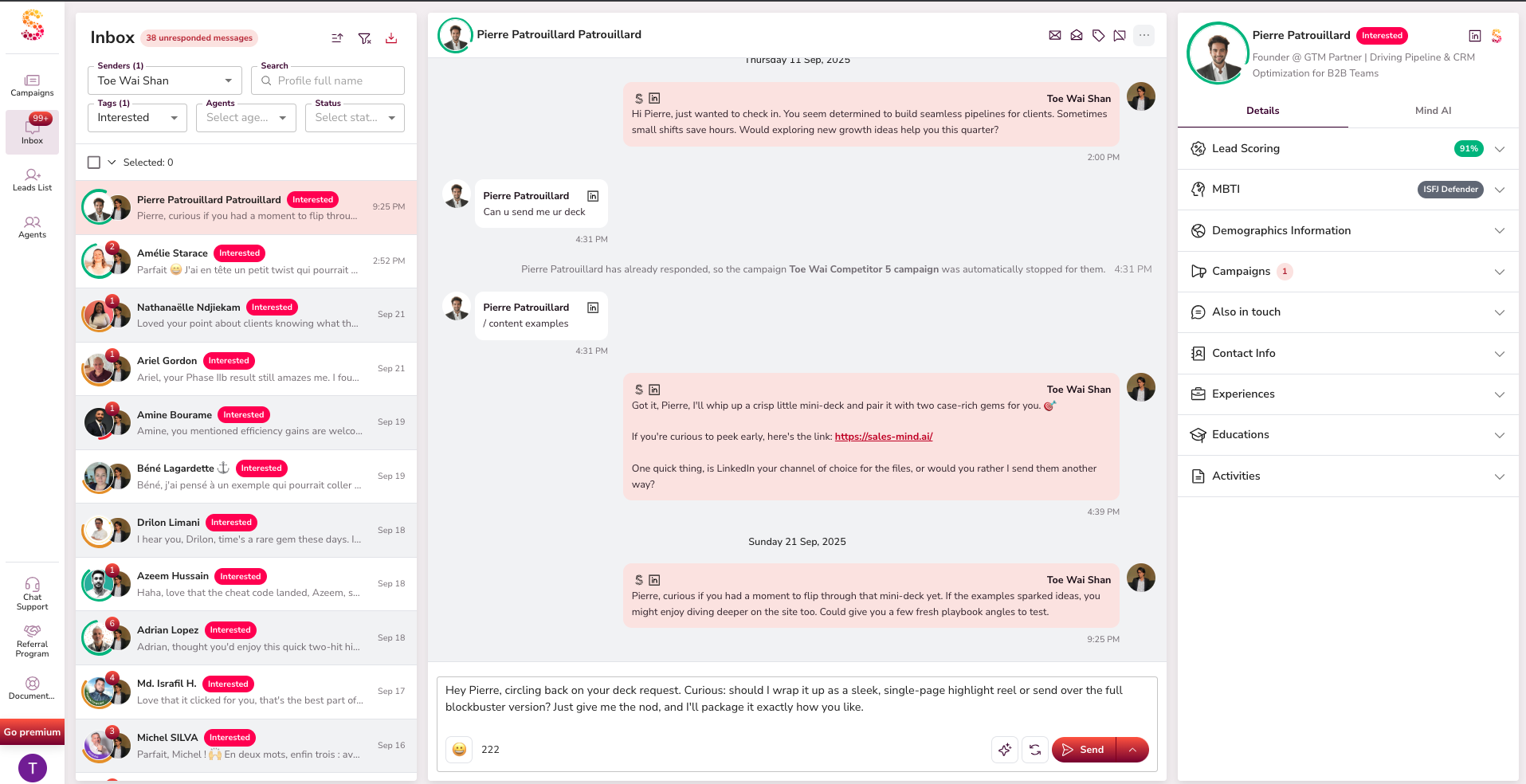
The Inbox is your central hub for managing LinkedIn conversations inside SalesMind AI. Every prospect interaction lives here — messages, statuses, AI drafts, and lead details — all in one workspace.
The interface splits into three panels:
- Left Panel — Senders list, filters, search, and tags.
- Middle Panel — Conversation history and AI drafting tools.
- Right Panel — Prospect profile, persona fit, and qualification analysis.
Conversation Management
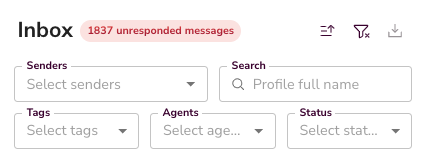
- View all ongoing conversations across every sender in one place.
- Filter, sort, and search by name to find the right thread fast.
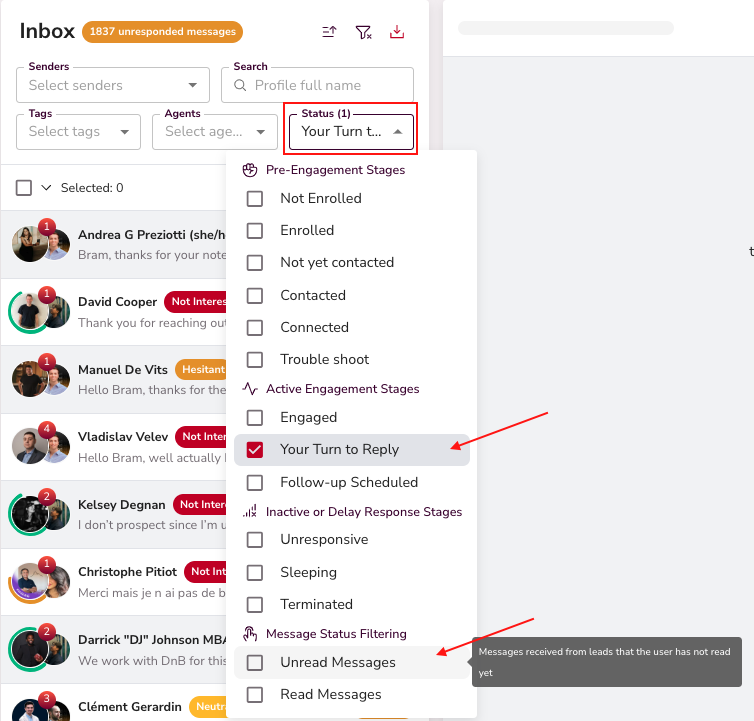
- Unread messages and "Your Turn" replies are highlighted so nothing slips through.
- A "{{count}} waiting on your reply" banner sits at the top of the list. Click it to jump straight to the threads that need you — it toggles the "your turn" filter. The banner disappears when none are waiting.

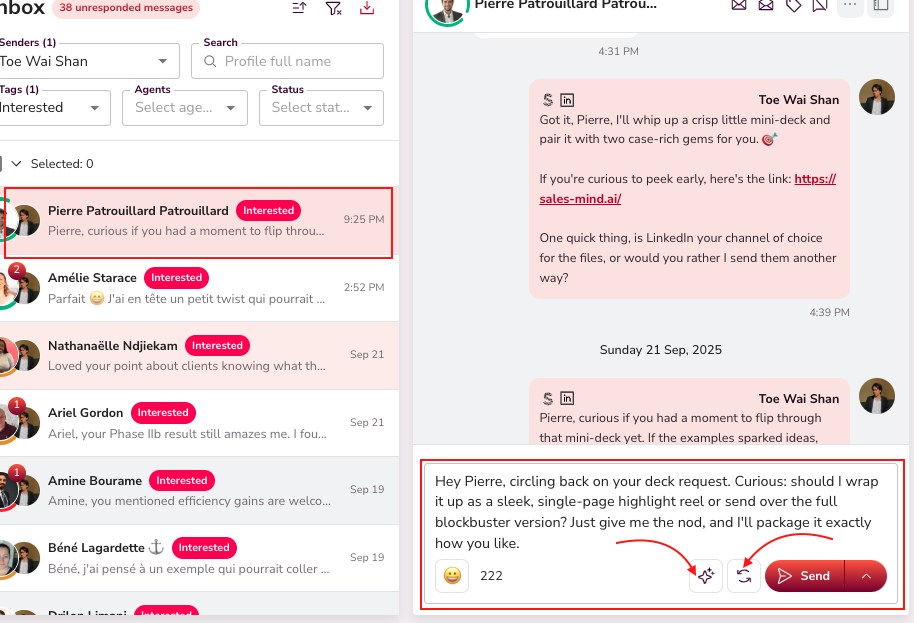
- Open any thread to see the full conversation history alongside AI-generated draft replies ready to validate.

- Star a conversation to flag it as "Follow-up Needed." Use the star in the conversation header to mark threads you want to return to, then filter the inbox to just those. Hover the star to Mark as follow-up needed or Remove follow-up needed. This manual flag is separate from the automatic "Follow-up Scheduled" status (see Lead Status Tracking).
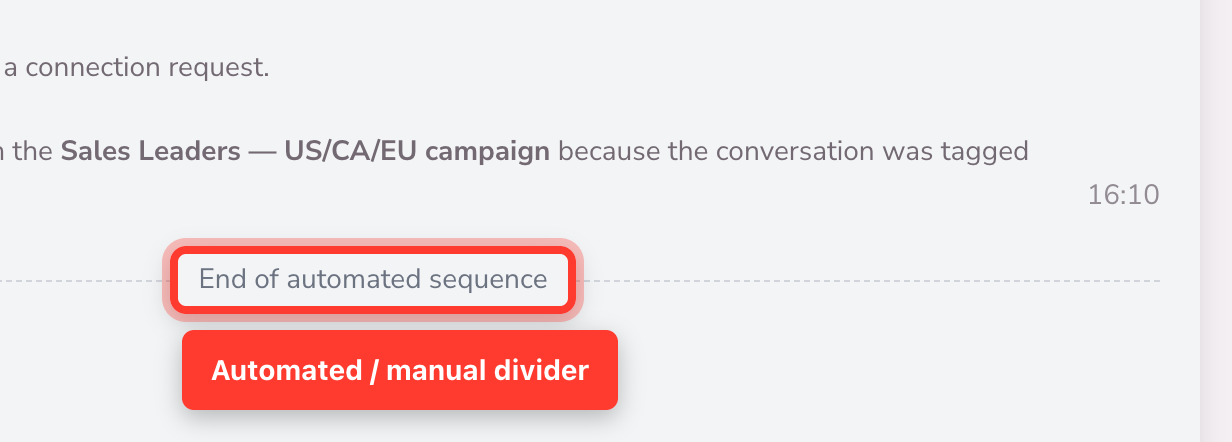
- Inside a thread, a divider marks where automated outreach ends and your manual replies begin. Its label adapts to why the automation stopped: "Excluded from campaign" when the lead was excluded, or "End of automated sequence" when the sequence finished, the lead replied, or you terminated it.
- Autopilot activity now appears in the timeline. When Autopilot sends a reply or a nurturing message, it shows in the conversation with an Autopilot badge, so you can see exactly what was sent automatically.
- Link-click counts show on messages with a tracked link. When you send a tracked link, a badge on that message shows how many times the prospect clicked it, updated live (link tracking must be enabled for your account). For the full breakdown, see the Link tracking article in the help center.
Lead Status Tracking
Each conversation carries a status that updates automatically as prospects engage or go quiet:
- Connected, Engaged, Follow-up Scheduled, Unresponsive, Sleeping, Terminated.
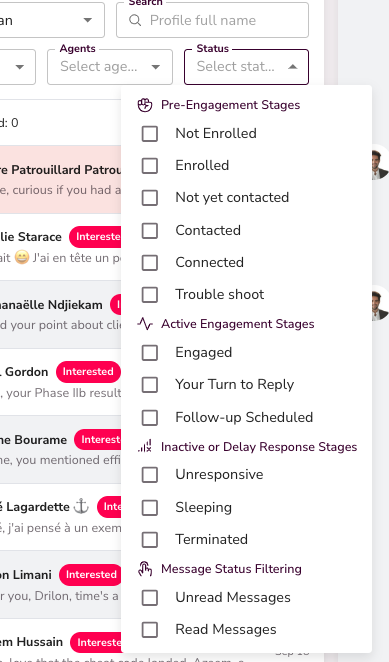

At a glance, you know exactly where every lead sits in the funnel.
There are two follow-up cues — one automatic, one manual. "Follow-up Scheduled" is a status the system sets when a lead has a scheduled follow-up activity. "Follow-up Needed" is the manual flag you set with the star (above); filter the inbox by it to see every thread a teammate marked for a manual follow-up.
Persona & Qualification


Each lead is matched to a persona defined in your Agent. The AI qualifies them — Neutral, Interested, Bad Timing — and shows a fit ratio with reasoning in the right panel.
💡 Tip: Use the persona fit score to prioritize which conversations to reply to first.
Bulk Actions
Select multiple conversations to act on them at once:
- Mark as read/unread
- Edit tags
- Regenerate AI-suggested messages
- Send replies in bulk with one click
- Sync contacts to your CRM
- Retrieve email or phone numbers (requires enrichment integration)
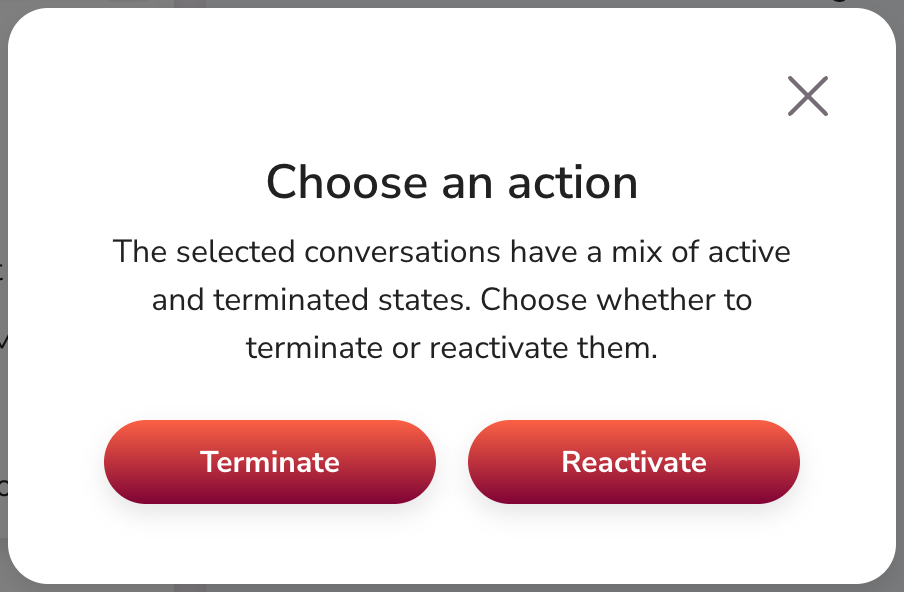
- Terminate or reactivate conversations — now reversible. Choose Terminate to stop working a thread, or Reactivate to bring it back, for a single conversation or a whole selection. A reactivated conversation returns to your inbox and its reply status is recalculated automatically. When a selection is mixed, SalesMind AI asks you to Choose an action — terminate or reactivate them together.


AI Assistance
SalesMind AI gives you four ways to handle replies:
- Co-Pilot — Drafts a reply for you to review and approve before it sends.
- AutoPilot — Sends replies automatically within minutes, no approval needed.
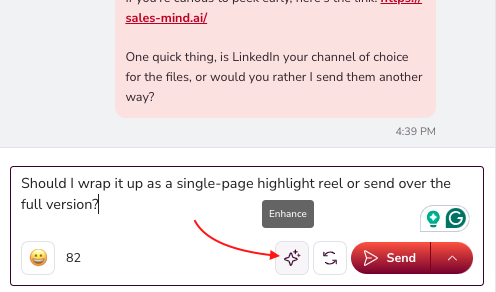
- Enhance — Improves the tone and clarity of a message you've already written.
- Schedule Send — Choose to send now or at a specific time.
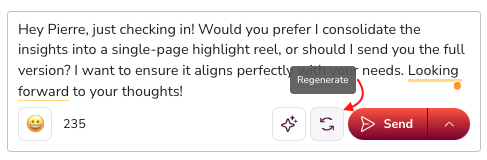
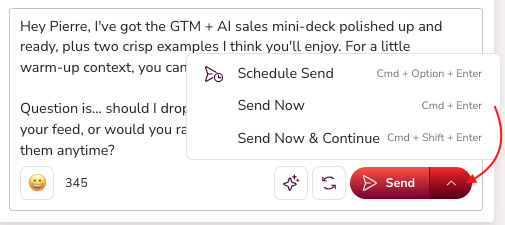
👉 Note: AutoPilot is best for high-volume follow-ups. Use Co-Pilot when a conversation needs a personal touch.
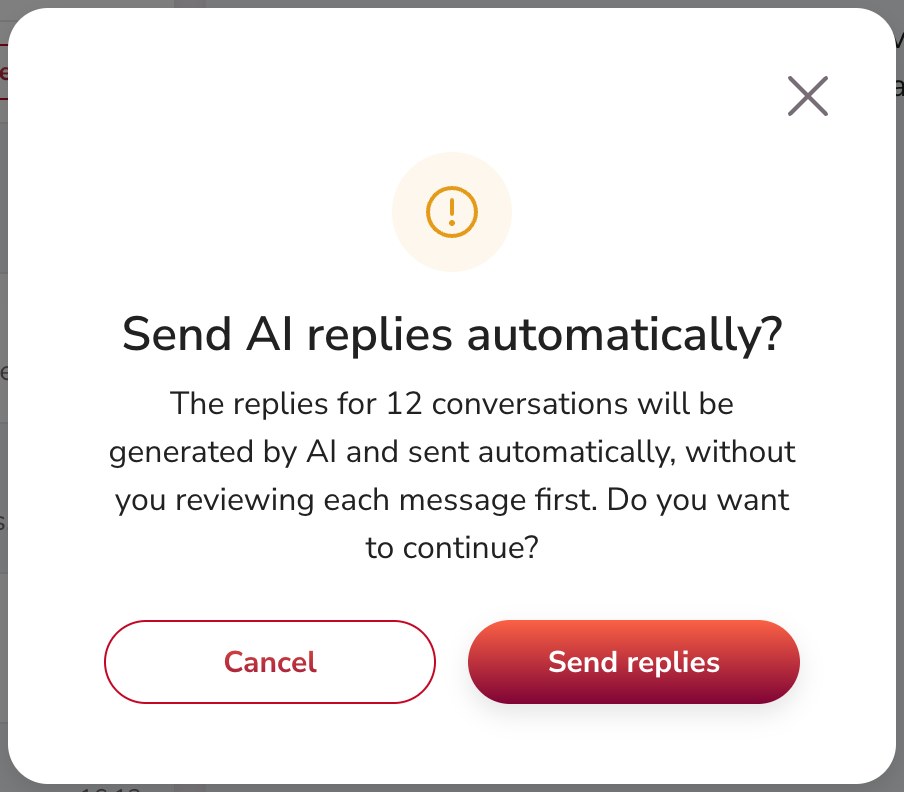
When you send or regenerate AI replies in bulk, SalesMind AI asks you to confirm first — "Send AI replies automatically?" or "Regenerate and send automatically?" — so nothing goes out without your OK. To see how your data is handled when AI writes replies, read the AI privacy and transparency article in the help center.
Prospect Profile Panel
The right panel shows everything you need to personalize your outreach:
- Demographics, education, work history, and recent activity
- MBTI communication style for tailored messaging
- Company profile and mutual connections
- Fit ratio with reasons for qualification


What's Next
- Learn how to use AutoPilot and CRM features in SalesMind AI — see the "Start Using the New AutoPilot & CRM Features" article in the help center.
FAQ
How do I stop automated follow-ups for a lead — and can I undo it if I terminate the wrong conversation?
Open the conversation and choose Terminate to stop further automated outreach. Terminating is reversible: pick Reactivate to bring the thread back to your inbox, one at a time or for a whole selection. Its reply status is recalculated when it returns.
How can I tell whether a message was sent automatically or by me?
Inside a thread, a divider marks where automated outreach ends — labeled "Excluded from campaign" or "End of automated sequence." Autopilot replies and nurturing messages appear in the timeline with an Autopilot badge, so you can see exactly what was sent automatically.
How is flagging a conversation for follow-up different from the automatic "Follow-up Scheduled" status?
The star sets "Follow-up Needed," a manual marker you or a teammate add to revisit a thread. "Follow-up Scheduled" is set automatically when a lead has a scheduled follow-up activity. You can filter the inbox by either.
Is there a quick way to see only the conversations waiting on my reply?
Yes. The "waiting on your reply" banner at the top of the list shows the count. Click it to filter down to just those threads. It disappears when none are waiting.
When I send or regenerate AI replies in bulk, does it confirm before anything goes out?
Yes. SalesMind AI shows a confirmation — "Send AI replies automatically?" or "Regenerate and send automatically?" — before any bulk AI reply is sent, so you stay in control.