
A Persona tells the Agent who you want to reach. You fill in 36 details. The Agent uses them to find the right leads, score each one, and write the right messages.
Prerequisites
- An active SalesMind AI Agent
- A clear idea of who you sell to (or use ChatGPT to help — see the Pro Tip below)
Why Personas Matter
The persona is the most important part of your Agent. It does three things:
- It finds leads. Missions use your persona to search the market.
- It scores leads. When the Agent sees a new lead, it checks each persona. It picks the best fit. Then it gives the lead a score from 0 to 100. High scores get contacted first.
- It writes messages. The persona's pain points, goals, and proof points tell the AI how to talk to each lead. See How AI Assists in Personalization for how this works.
👉 Note: A fuzzy persona gives you fuzzy leads and weak messages. The 36 details help the AI make sharp choices.
Where to Find Personas
- Open your Agent
- Click the Personas tab
- Click Create Persona in the top-right

You can have many personas in one Agent. The Agent picks the best one for each lead.
How to Create a Persona
Personas define who you want to target. Good personas help campaigns reach the right people.
When you add a company website to your Agent, SalesMind AI analyzes it and may automatically create starter personas for you — but only when your team has no personas yet. A website URL change followed by a refresh generates a fresh set. You can edit or delete these auto-created personas at any time.
⚠️ Warning: Always check the auto-created personas before you launch any campaign. Make sure they match the audience you want to reach. Edit anything that looks off, then press Save Changes.
✅ Save confirmation: When you save changes to an existing persona, SalesMind AI shows a message that names it — for example, "Persona Enterprise CMO updated successfully." The name tells you the right persona was saved. (Creating a brand-new persona shows a generic confirmation instead.)
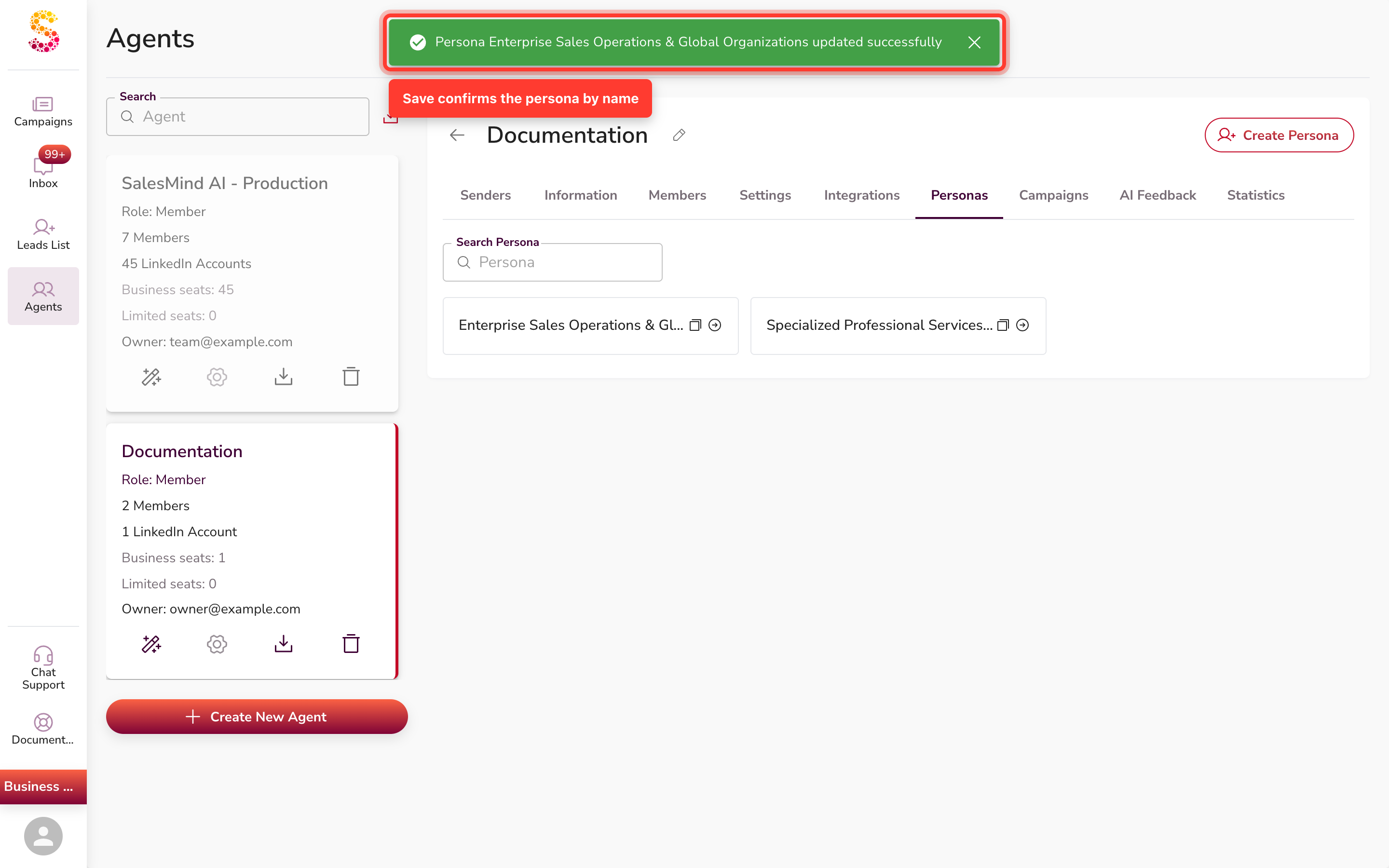
You can also create new personas yourself. Click Create Persona in the top-right. The Generate Persona with AI view opens by default. Pick one of two options:
Option 1: Generate with AI (Recommended)
Type a short description of your ideal customer. You can also paste text from an existing ICP document.
Include details like:
- Who you want to target
- Company size
- Job title
- Industry
- Location
- (Optional) Who you do not want to target
Good prompts also share:
- What you sell and what problem it solves
- 2 or 3 real customers
- The job title you sell to most
- Your average deal size and sales cycle
The AI builds the persona for you.
Want to exclude certain people? Tell the AI in your prompt (e.g., "skip junior roles" or "do not target marketing agencies"). The AI marks those filters as excluded — they show in red on your persona form. Included filters show in green.
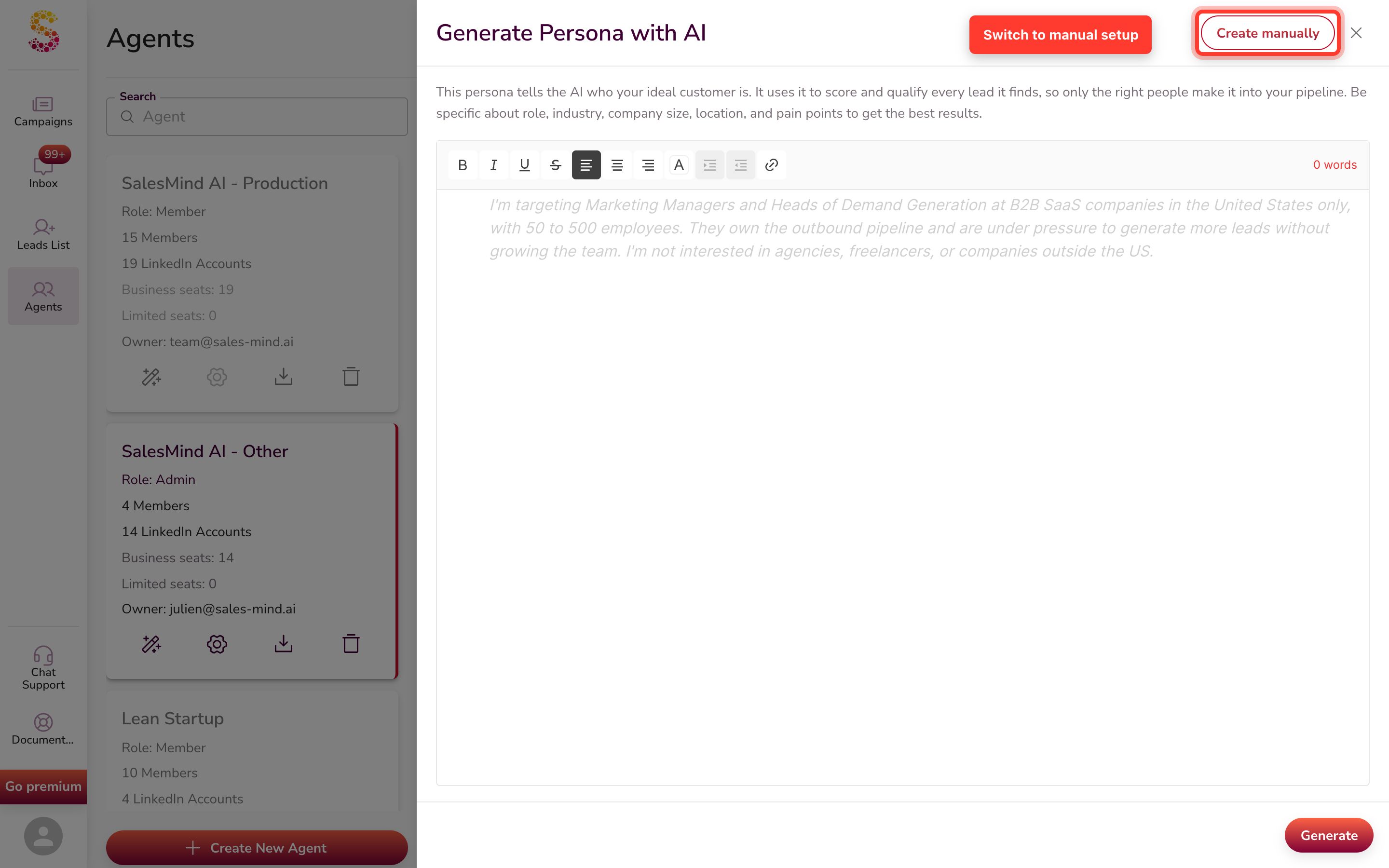
⚠️ Warning: Always review the result and edit what you need. Then press Save Changes.
💡 Tip: Not sure what to write? Scroll down to the Pro Tip section below for a ready-to-use ChatGPT prompt.
Option 2: Create Manually
To switch to manual setup, click Create manually in the top-right of the AI view. Then fill in each field one by one — Full Name, Demographics, Job Title, Seniority Level, Job Function, and more.
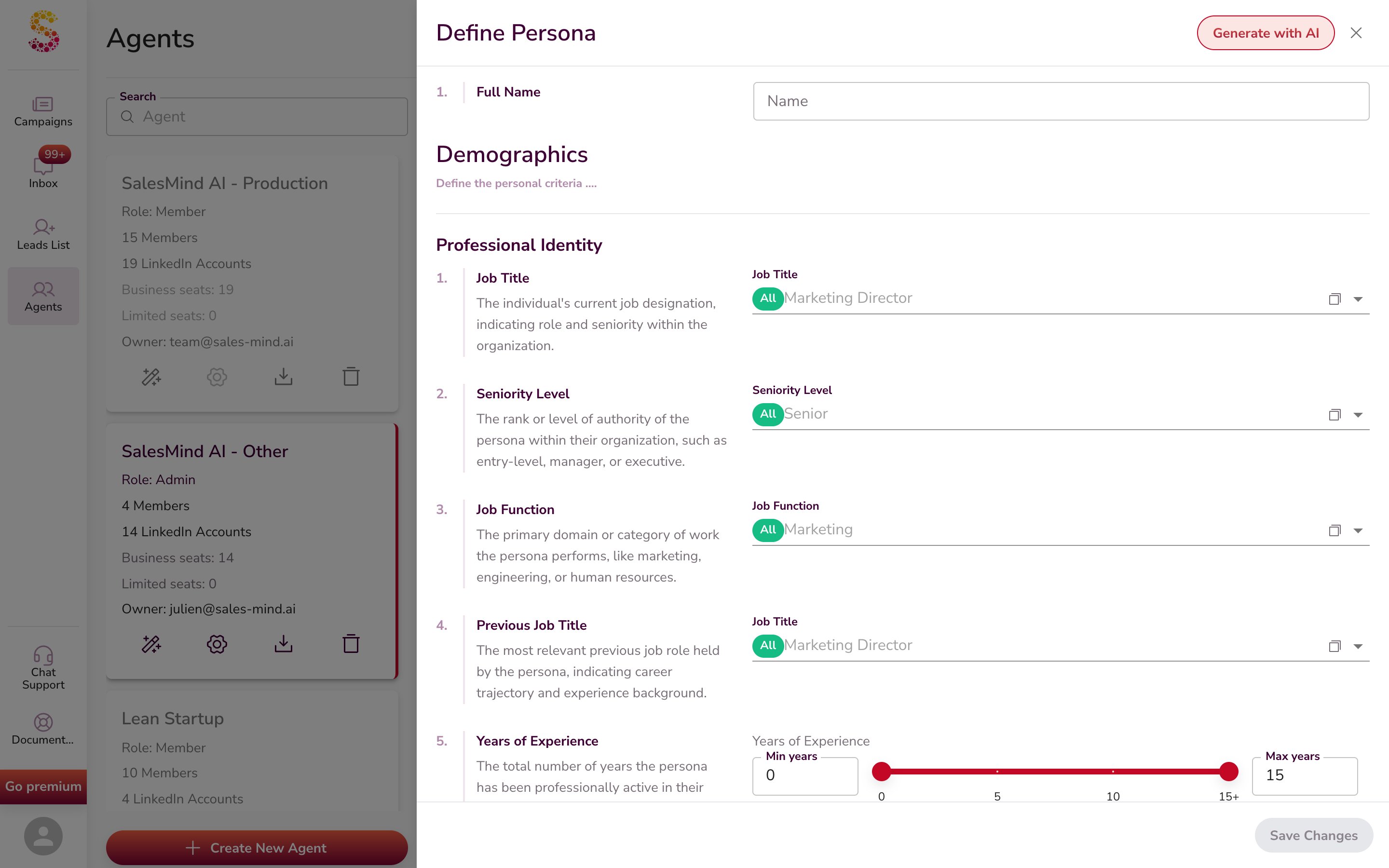
Include or exclude options. Most fields work the same way. Job Title, Industry, Skills — each option has two buttons: Include and Exclude.
- Click Include to add the option to your filter — it shows in green.
- Click Exclude to leave it out — it shows in red.

Excluded options show up as a red chip in the filter field:

Use Exclude to remove specific titles, industries, or companies from your search without losing the broader filter.
How Many Personas Do You Need?
Aim for at least 3 detailed personas. The more detail you add, the better your campaigns will perform.
Create one persona per profile. Different roles and industries have different pain points. They need different services. They reply to different messages. You wouldn't pitch the same way to a CEO and an HR specialist. You wouldn't sell the same service to a hotel owner and an AI engineer.
So:
- Build a separate persona for each job role you sell to
- Build a separate persona for each industry you serve
- Don't be afraid to make many — more personas mean sharper targeting
⚠️ Warning: Don't stack too many narrow filters. One job title + one city + niche industry + tight company size + specific years at company = very few leads.
Rule of thumb: Keep each persona focused on one role in one industry. Stay broad on the other filters (location, company size, years of experience). This gives you sharp targeting AND enough leads to fill your pipeline.
The 36 Details
The form has three main sections: Demographics, Firmographic, and Matching Service. Each has sub-groups. You don't have to fill every field, but more detail means sharper results.
Not every detail works the same way. Each one shapes your lead search in one of three ways. Hover the small ⓘ icon next to a field to see which one it does:
- Filters leads out. Some details act as strict rules. Leads who don't match are never pulled into your search. These include Job Title, Previous Job Title, Job Function, Industry, Location, and Seniority Level.
- Narrows the pool. Some details tighten your search without being strict rules. These include Company Size, Company Type, Years at Company, Years in Current Role, and Years of Experience.
- Only shapes ranking. Most other details never remove anyone. They help the Agent score and sort leads, so the best fits rise to the top. Examples: Skills, Languages, Annual Revenue, Company Followers, Age Range, and Purchasing Role.
Read the tooltip before you fill a field, so you know whether it will cut leads out or just shape the order.
⚠️ A few details are context only. LinkedIn Followers, Current Hiring Status, and Leadership Changes are shown for background. They are not sent to the search yet, so they don't filter leads or reliably change ranking. Don't rely on them to shape who you reach.
🚫 Need a hard exclude list? Persona criteria filter, narrow, or rank at search time — they aren't a block list. To hard-exclude specific people or companies, use a blacklist instead. See Campaign Settings: Scheduling, Blacklists & Advanced Controls.

Demographics
Defines who the person is.
Professional Identity (10 fields)
| # | Field | What it is |
|---|---|---|
| 1 | Job Title | Their current job (e.g., "VP of Marketing", "Head of Growth") |
| 2 | Seniority Level | Rank or authority (C-Level, VP, Director, Manager, IC) |
| 3 | Job Function | Their work area (Marketing, Sales, Engineering, Ops) |
| 4 | Previous Job Title | The last role they held |
| 5 | Years of Experience | Total years in their field |
| 6 | Years in Current Role | How long in this exact role |
| 7 | Years at Company | How long at this employer |
| 8 | Skills | Tools and skills they list on LinkedIn |
| 9 | Licenses / Certifications | Professional credentials they hold |
| 10 | Services Offered | What their team or company sells |
Location & Work Style (3 fields)
| # | Field | What it is |
|---|---|---|
| 11 | Location | Country, region, or city they work in |
| 12 | Work Style | Remote, in-office, hybrid, agile, etc. |
| 13 | Languages Spoken | Languages they use at work |
Education & Social Presence (2 fields)
| # | Field | What it is |
|---|---|---|
| 14 | Education Level | Highest degree (Bachelor's, Master's, PhD) |
| 15 | LinkedIn Followers | Size of their LinkedIn audience |
Psychographics (4 fields)
| # | Field | What it is |
|---|---|---|
| 16 | Age Range | Min and max age |
| 17 | Gender | Gender identity |
| 18 | MBTI Personality Type | Myers-Briggs type (e.g., ENTP) |
| 19 | Astrological Sign | Zodiac sign |
Firmographic
Defines the company they work for.
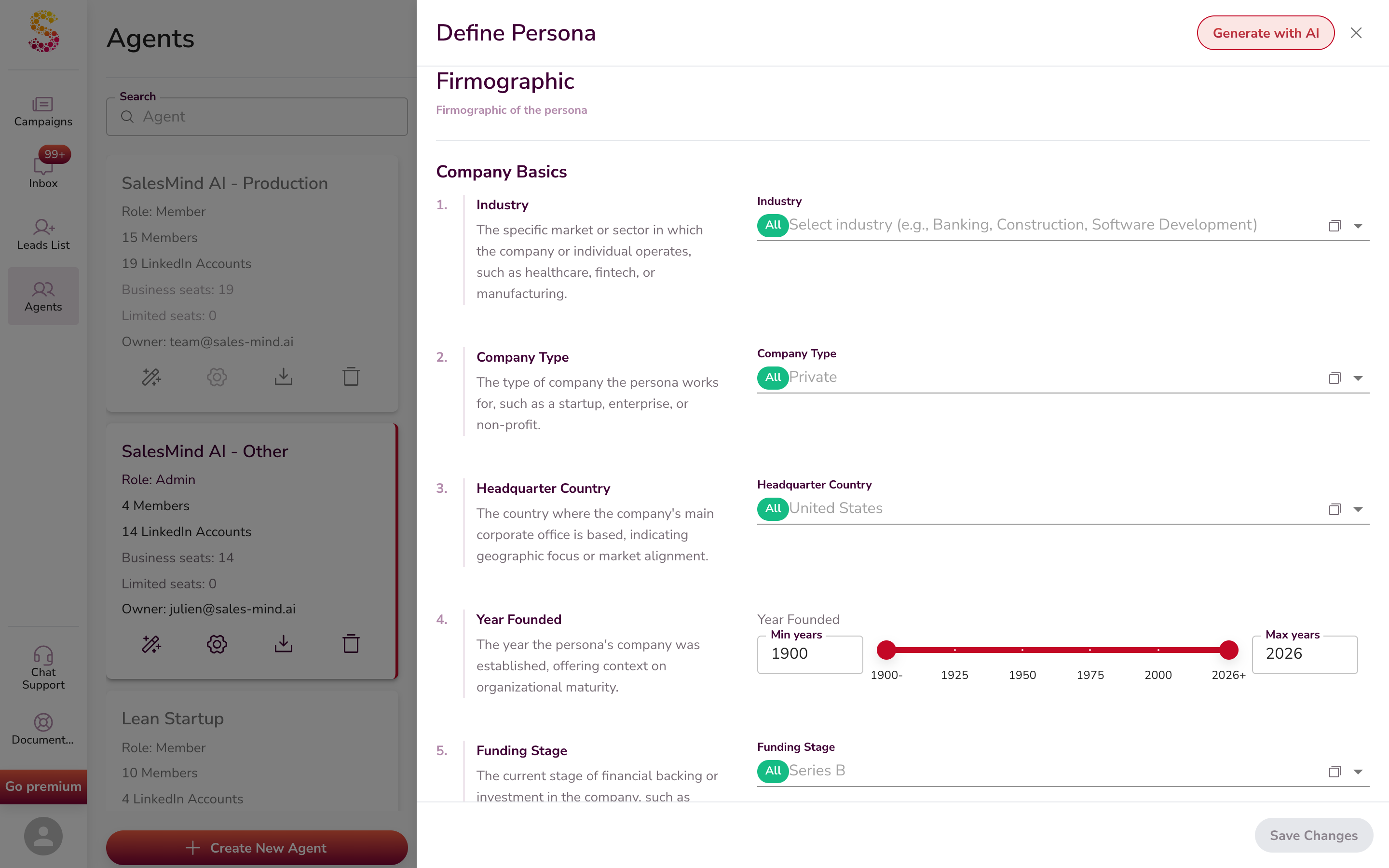
Company Basics (5 fields)
| # | Field | What it is |
|---|---|---|
| 20 | Industry | The LinkedIn industry the company is in. For the full list and how to handle niches like UCaaS, CCaaS, or channel resellers, see Import Leads by AI Lead Finder. |
| 21 | Company Type | Private, Public, Startup, Non-profit |
| 22 | Headquarter Country | Where the main office is |
| 23 | Year Founded | When the company started |
| 24 | Funding Stage | Seed, Series A, Series B, IPO, etc. |
Company Size and Revenue (5 fields)
| # | Field | What it is |
|---|---|---|
| 25 | Company Size | Number of employees |
| 26 | Annual Revenue | Yearly income |
| 27 | Department Size | People in their specific department |
| 28 | Department Growth | Is their team growing? |
| 29 | Company Followers | The company's social media followers |

Company Operations and Focus (5 fields)
| # | Field | What it is |
|---|---|---|
| 30 | Technology Stack | Tools the company uses (HubSpot, Salesforce, AWS, etc.) |
| 31 | Current Hiring Status | Are they hiring right now? |
| 32 | Leadership Changes | Recent C-suite changes |
| 33 | Target Market | Who their customers are (B2B, SMB, enterprise) |
| 34 | Solution Specificity | How custom their solutions need to be |
Matching Service
How the persona buys, and which of your services they need.
Matching Service (2 fields)
| # | Field | What it is |
|---|---|---|
| 35 | Purchasing Role | Decision Maker, Influencer, Budget Holder, End User |
| 36 | Services Needed | Which of your services or products they want |
Pro Tip: Draft Your ICP With ChatGPT First
Not sure where to start? Use ChatGPT to draft your ICP.
👇 The dark box below is the ChatGPT prompt. Highlight all the text inside it, copy it, and paste it into ChatGPT. Then fill in your product details. ChatGPT will walk you through the 36 fields one by one.
You are a B2B sales coach. Help me build my Ideal Customer Profile (ICP)
that I can paste into SalesMind AI's persona form.

I will tell you what I sell. You give me one ICP field at a time, with a
short concrete answer (no "it depends"). Wait for me to say "next" between
fields. If a field does not fit my case, say so and move on.

MY PRODUCT / SERVICE:
[What do you sell? What problem does it fix? Name 1-2 real customers.
What is your average deal size and sales cycle?]

Fields to fill (in order, matching the SalesMind AI persona form):

DEMOGRAPHICS — PROFESSIONAL IDENTITY
1. Job title (5-10 LinkedIn-style titles)
2. Seniority level (C-Level / VP / Director / Manager / IC)
3. Job function
4. Previous job title
5. Years of experience
6. Years in current role
7. Years at company
8. Skills (5-10 LinkedIn-style skills)
9. Licenses / certifications
10. Services offered by their team

DEMOGRAPHICS — LOCATION & WORK STYLE
11. Location
12. Work style
13. Languages spoken

DEMOGRAPHICS — EDUCATION & SOCIAL PRESENCE
14. Education level
15. LinkedIn followers range

DEMOGRAPHICS — PSYCHOGRAPHICS
16. Age range
17. Gender
18. MBTI personality type
19. Astrological sign

FIRMOGRAPHIC — COMPANY BASICS
20. Industry (3-5 LinkedIn industries)
21. Company type
22. Headquarter country
23. Year founded range
24. Funding stage

FIRMOGRAPHIC — COMPANY SIZE & REVENUE
25. Company size (employees)
26. Annual revenue
27. Department size
28. Department growth signs
29. Company followers

FIRMOGRAPHIC — COMPANY OPERATIONS & FOCUS
30. Technology stack
31. Current hiring status
32. Leadership changes
33. Target market they serve
34. Solution specificity

MATCHING SERVICE
35. Purchasing role
36. Services needed from us

Start with field 1.
Once ChatGPT walks you through all 36 fields, paste each one into the matching field in SalesMind AI. Or paste the full output into Generate Persona with AI and let SalesMind AI structure it.
💡 Tip: Give ChatGPT real names. Pick 2–3 actual people on LinkedIn who fit your ideal client. Paste their LinkedIn profile URLs too if you can. Real names and profile links give ChatGPT a much sharper picture than vague words.
How Personas Drive Lead Scoring
Each time the Agent looks at a new lead — from AI Lead Finder, a LinkedIn import, or your inbox — it does this:
- It matches the lead to one of your personas. It picks the best fit, based on the 36 details.
- It scores the lead from 0 to 100. The score shows how well the lead fits.
- It contacts the top scores first. High-fit leads get your time first.
Remember the three kinds of details from The 36 Details above, because they play different roles here:
- Filter-out details decide who even enters the search.
- Narrowing details shrink the pool that gets scored.
- Ranking details shape the 0 to 100 score — they never remove anyone, they just move fits up or down.
So a lead's score comes mostly from the ranking details, while the filter-out and narrowing details control who gets scored at all.
So your persona shapes:
- Which leads enter your pipeline
- Which leads get contacted today
- What angle the AI picks for the message
A sharp 36-detail persona gives you sharp scores. A two-line persona gives you noisy scores.
For more on how the Agent sources and scores leads end to end, see How AI Assists in Lead Sourcing.
Editing a Persona After a Campaign Starts
You can edit a persona at any time. A campaign that is already running treats your edits in two different ways. Here is the split.
What updates on its own — no relaunch needed. Your persona's messaging content updates live. That means its playbook, its pitch and positioning, its tone, and its description. SalesMind AI reads the current persona when it writes outreach or scores a lead you haven't contacted yet. So a saved edit shapes your future messages and scores. You don't need to relaunch for this.
What needs a relaunch — any filter change. Your persona's targeting filters define the lead list, and that list is locked the moment you launch. These filters include location, industry, job title, seniority, and company size, among others. If you change any filter, that change does not apply on its own — SalesMind AI won't pull new people into a running campaign, and it won't re-target the leads already in it. To apply a filter change, launch a new campaign or mission so a fresh lead list is built. In short: change any filter → launch a new mission (or campaign).
⚠️ Audience/targeting edits don't re-score leads already in a running campaign. Editing a persona's audience or targeting criteria won't re-evaluate leads that have already been scored. Those changes apply to new campaigns and newly-scored leads. Renaming or deleting a persona can disrupt running campaigns.
⚠️ Renaming is not the same as editing. SalesMind AI matches each lead to its persona by name when it sends. If you rename a persona, leads already stamped with the old name lose the match. Edit the fields inside a persona freely, but avoid renaming one that is already in a live campaign.
🚫 Deleting a persona is permanent. There is no confirmation step — the delete takes effect immediately. It removes the persona, its targeting attributes, and its AI description. It also detaches the persona from any campaigns using it. Your team's knowledge base, sales playbook, and lead lists are not deleted — those are shared at team level and stay intact.
Active vs Ended Campaigns for a Lead
When you open a lead — in your inbox or the lead panel — SalesMind AI splits that lead's campaigns into two groups:
- Active for this lead — campaigns still running for them.
- Ended for this lead — campaigns that have stopped for them.
Each campaign shows a small badge that explains why it sits where it does. Common badges include:
- Replied — the lead answered, so the Agent paused outreach for them.
- Skipped — the lead was skipped because they're already in another campaign.
- Ended — the campaign was stopped for this lead.
You may see other badges too, depending on what happened with the lead.
When a lead is skipped because they're already enrolled elsewhere, the badge can also name the blocking campaign — for example, "Already in Q3 Enterprise Outreach." SalesMind AI works this name out from the lead's other active campaign, so it may not always appear.
This view helps you see, at a glance, which campaigns are working a lead, which have stopped, and why.
Common Pitfalls
- Too broad — "Marketing folks at growing companies" matches half of LinkedIn. Add industry, headcount, and revenue.
- Too narrow — One job title in one industry in one city gives very few leads. Widen where you can.
- Niche not on LinkedIn — UCaaS, CCaaS, MSP, channel resellers don't exist as standalone LinkedIn industries. Pick the closest match (like Telecommunications or IT Services and IT Consulting) and add Keywords for the niche. See the AI Lead Finder article for the full mapping table.
- Two personas in one — If you sell to both VP Marketing and VP Sales, that's two personas. Split them so the scoring stays clean.
Key Takeaways
- A Persona is a 36-detail map of your best customer plus a sales plan
- Find it under Agent → Personas tab
- The Create Persona button is in the top-right
- Generate Persona with AI opens by default — Create manually is in the top-right of that view
- Use the ChatGPT prompt above to draft your ICP step by step
- Personas drive lead finding, lead scoring, and messaging — they shape your whole funnel
- Make more than one persona when you sell to more than one audience
What's Next
- Learn about Agents: What is an Agent in SalesMind AI?
- Set up a mission to source leads for this persona: What is a Mission and How to Create One
- Learn how the persona shapes sourcing: How AI Assists in Lead Sourcing
- Pick the right industries from LinkedIn's list: Import Leads by AI Lead Finder
- See how the AI personalizes messages: How AI Assists in Personalization
- For Sales Navigator users, see the related setup: Defining Your Ideal Buyers and Accounts
- Brand new to SalesMind AI? Start here: Getting Started with SalesMind AI
FAQ
Why am I seeing leads that don't match my persona?
Only some details are strict filters. Job Title, Industry, Location, and a few others cut non-matching leads out. Most other details only shape ranking, so a lead can still appear but with a lower score.
I added more criteria but my leads didn't change — why?
Some fields are context only right now. SalesMind AI shows them for background, but does not send them to the search, so they don't filter or reliably rank leads. Use the strict filters and narrowing details to shape your audience.
How many personas should I create?
Aim for at least 3, and make one per role and per industry you sell to. Keep each persona focused on one role in one industry, and stay broad on the other filters so you still get enough leads.
Did my persona changes actually save?
When you save an edit to an existing persona, SalesMind AI shows a message that names it, like "Persona Enterprise CMO updated successfully." A brand-new persona shows a generic confirmation instead.
Why is this lead marked Replied, Skipped, or Ended?
Replied means the lead answered, so outreach paused. Skipped means the lead is already in another campaign. Ended means that campaign was stopped for the lead. You may see other badges too.
Why is this lead "Already in" another campaign?
That lead is already enrolled in a different campaign, so this one skipped them to avoid double outreach. SalesMind AI works out the blocking campaign's name from the lead's other active campaign, so the name may not always show.
If I edit a persona after a campaign is launched, does the campaign update, or do I need to relaunch?
It depends on what you change. Edits to the persona's messaging — its playbook, pitch, tone, and description — shape messages and scores for leads you haven't contacted yet, with no relaunch. But any targeting filter — location, industry, job title, seniority, company size, and the rest — defines the lead list, which is locked at launch. Change any filter and you must launch a new campaign or mission for it to take effect. One catch: renaming a persona breaks the match for leads already in the campaign, so edit its fields instead of renaming it mid-campaign.
I deleted a persona by mistake — can I recover it?
No. Deleting a persona is permanent and cannot be undone. There is no confirmation step before the delete happens. Your team's knowledge base, sales playbook, and lead lists are safe — those are shared at team level and are not deleted. Only the persona itself (its targeting criteria and AI description) is removed.
SalesMind AI created personas I didn't set up — where did they come from?
When you add a company website to your Agent, SalesMind AI analyzes it and may automatically create starter personas. This happens only when your team has no personas yet. If you change your website URL and refresh your Agent, a fresh set is generated. You can edit or delete any of these auto-created personas.
How Your Playbook Is Used at Writing Time
Before writing, your persona's playbook is distilled into a compact strategy summary (about 1,000 characters) that preserves every section as essential points — specific numbers, names, differentiators and competitors survive; filler does not. Two practical consequences:
- Lead with what matters. Structure the playbook so your critical angles, proof points and differentiators are explicit — they are what the distillation keeps.
- Rules do not belong here. Message-level rules ("no CTA", "always include this link") are enforced only as touchpoint instructions — the playbook carries strategy, not enforcement.