
Account warm-up protects your LinkedIn account when you're starting fresh or returning after a break. SalesMind AI automates the whole process — you turn it on, pick a pace, and let it run.
What Is Account Warm-up?
Warm-up is an automated process that slowly increases your LinkedIn activity limits. Instead of jumping straight to high outreach volumes (which can trigger LinkedIn's security systems), warm-up starts with low daily limits and raises them in small steps until your account reaches safe maximums.
Your limits grow every 3 days in random increments — roughly:
- Profile visits: +3–8 per step, up to 60/day
- Follows: +3–8 per step, up to 60/day
- Connection requests: +3–6 per step, up to 25/day
- Messages: +3–10 per step, up to 100/day
How long the full ramp takes depends on the warm-up speed you choose (see below).
SalesMind AI handles everything automatically once warm-up is enabled — including finishing on its own. No manual adjustments needed.
Warm-up Speeds
When you enable warm-up, you pick a speed:
| Warm-up speed | Time to full activity | Best for |
|---|---|---|
| Cold | ~5 weeks | Brand-new accounts |
| Warm (Recommended) | ~3 weeks | Most accounts — this is the default |
| Hot | ~2 weeks | Established, active accounts |
A slower speed is safer because your activity rises more gradually. Warm is the recommended default for most accounts.
When to Use Warm-up
Enable warm-up if any of these apply:
- New LinkedIn account — fewer than 300 connections
- Returning from a restriction — LinkedIn previously flagged your account
- Inactive account — you haven't used LinkedIn actively for several weeks or months
- Newly connected to SalesMind AI — you just linked your account and want to start safely
💡 Tip: If your account is already active with steady daily engagement and 500+ connections, you can skip warm-up and set your limits manually.
How to Enable Warm-up
- In the left sidebar, go to Agents
- Select the agent that owns the LinkedIn account
- Open the Senders tab, find your sender, and open its Sender Settings
- In Sender Settings, click your sender's profile picture to open the account panel on General
- Find section "3. Warm Up Automatically" and tick "I want all my account's activities to increase automatically."
- Choose a Warm-up speed — Cold (~5 weeks), Warm (~3 weeks, recommended), or Hot (~2 weeks)
- Click Save Changes
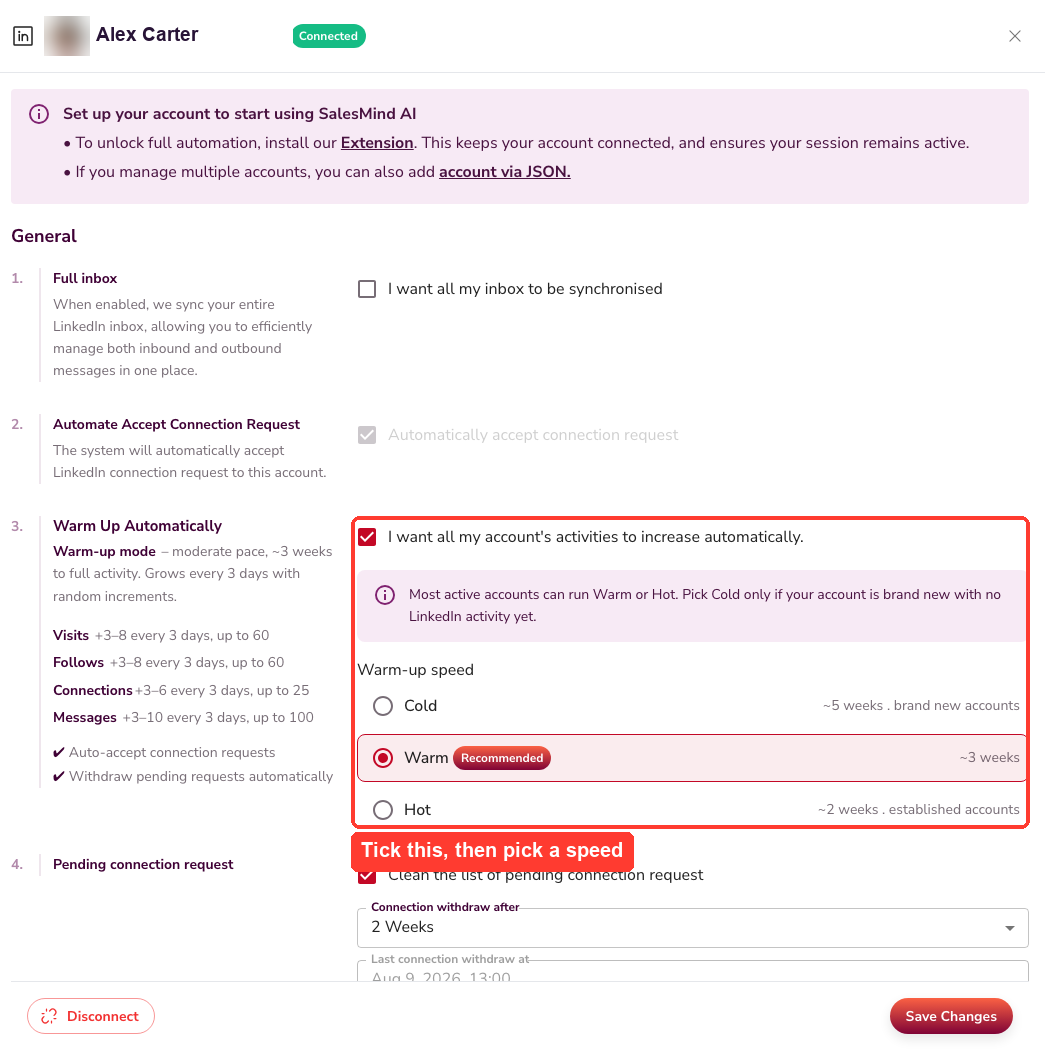
💡 Note: When you turn warm-up on, SalesMind AI also adjusts a few related settings for safety: "Automatically accept connection requests" is locked on (greyed out), and pending connection requests are automatically withdrawn after 2 weeks to keep your list clean. Your daily limits are controlled by the warm-up ramp while it runs.
How to Check Warm-up Status
There's no day-by-day progress screen — warm-up runs and finishes on its own. To confirm a sender's warm-up state:
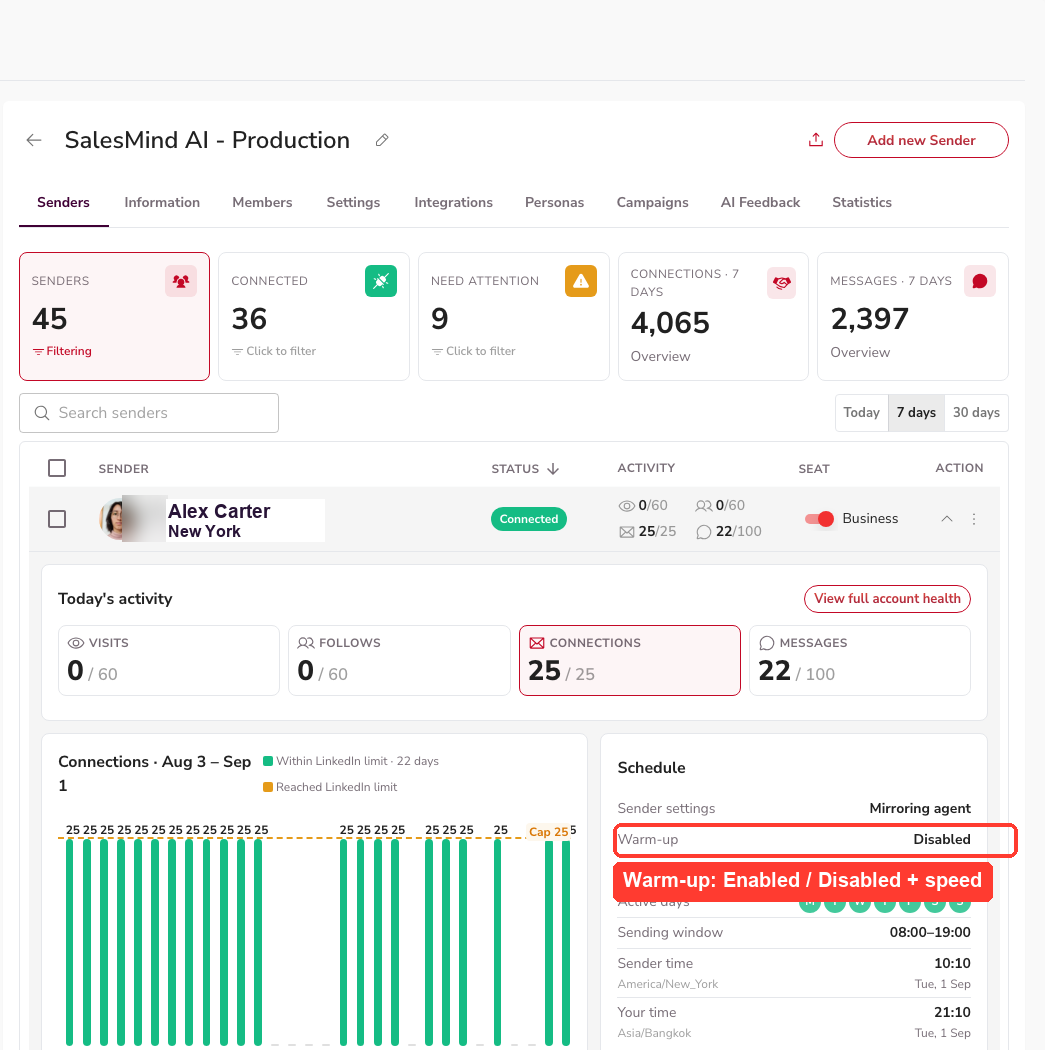
- Open the sender's Account Health view
- In the Schedule panel you'll see Warm-up: Enabled (or Disabled) and the Warm-up speed
That's the warm-up status surface today: a simple Enabled/Disabled indicator plus the speed. There is no countdown, start date, or finish date — the clearest sign that warm-up has finished is behavioral: it switches itself off and your daily limits settle at their safe caps (see below).
When Warm-up Finishes
You don't need to do anything to end warm-up. When the ramp reaches its safe maximums, SalesMind AI:
- Finishes warm-up by itself and switches it off automatically
- Settles your daily limits at safe caps — up to 60 profile visits, 60 follows, 100 messages, and 25 connection requests per day
- Resumes your normal outreach on its own — no idle sender, no manual step
After this, your daily limits sit at the safe caps and your sender keeps working automatically.
Ending Warm-up Early (Optional)
Letting warm-up finish on its own is the normal, recommended path. If you deliberately want to stop early:
- Go to Agents → Senders → Sender Settings → click your sender's profile picture → General
- In "3. Warm Up Automatically," untick "I want all my account's activities to increase automatically."
- Click Save Changes
⚠️ This is an early-exit, not a clean finish. Turning warm-up off before the ramp completes abandons the ramp and does not settle your limits cleanly — they stay at whatever partial level they had reached, rather than the safe caps a full finish applies, and your sender won't get the automatic resume that a natural finish provides. Only end early if you truly need to; otherwise let warm-up complete itself.
Safe Daily Limits After Warm-up
Once warm-up completes, your limits settle at these safe maximums automatically:
| Action | Safe cap after warm-up |
|---|---|
| Profile Visits | Up to 60/day |
| Follows | Up to 60/day |
| Messages | Up to 100/day |
| Connection Requests | Up to 25/day |
Account Security Best Practices
Profile Integrity
- Use a real-looking profile photo
- Fill in all profile sections: Headline, Experience, Skills, About
- Add 3–5 work experiences and 5–10 relevant skills
- Post 2–3 industry insights or engage with content before starting outreach
- Don't change your profile picture, name, or headline frequently
Proxies and Anti-Detect Browsers
If you're managing multiple LinkedIn profiles:
- Use an anti-detect browser (Multilogin, GoLogin, or AdsPower)
- Give each account its own separate proxy — SalesMind AI provides secure proxies
- Never use multiple LinkedIn profiles in Chrome's profile manager — LinkedIn detects shared cookies and local storage
⚠️ Warning: Never log in to multiple LinkedIn accounts from the same device without an anti-detect browser. Sharing browser profiles between accounts is one of the fastest ways to trigger LinkedIn's detection systems.
Outreach Best Practices
- Personalize every message — use the prospect's name, company, or recent activity
- Use 3–5 message variations per campaign to avoid pattern detection
- Space out your outreach — don't send all messages in a short window
- Follow up thoughtfully — wait 2–3 days between follow-ups, no more than 3 total
- Engage naturally — like posts, leave comments, and view profiles before sending connection requests
Recommended Workflow
| Phase | When | What to Do |
|---|---|---|
| Setup | Day 0 | Connect your LinkedIn account, complete your profile, enable warm-up and pick a speed |
| Warm-up | Until it finishes (~2–5 weeks by speed) | Let SalesMind AI raise your limits automatically — it finishes on its own |
| Soft Launch | After warm-up finishes | Start your first campaign with conservative messaging |
| Scale | Once responses look healthy | Increase outreach volume gradually based on response rates |
Troubleshooting
My daily limits are very low at the start. This is normal early in warm-up. Limits increase in steps every 3 days and reach their safe maximums by the time warm-up finishes.
My account got restricted during warm-up. This is rare but can happen if your account was already flagged before warm-up started. End warm-up early, wait for the restriction to lift, then re-enable warm-up to start fresh.
I finished warm-up but my limits seem off. When warm-up finishes on its own, your limits settle at safe caps (60 visits, 60 follows, 100 messages, 25 connection requests). If they look partial, warm-up may have been ended early — which stops the ramp without settling limits cleanly. Re-enabling warm-up lets it complete and settle properly.
Where do I see how far along warm-up is? There's no progress bar or countdown. Check Account Health → Schedule to confirm warm-up is Enabled and at which speed. You'll know it's finished when it switches itself off and your limits settle at the safe caps.
Summary
- Warm-up is an automated process that gradually raises your LinkedIn activity limits — growing every 3 days in random increments up to safe caps
- How long it takes depends on speed — Cold ~5 weeks, Warm ~3 weeks (recommended), Hot ~2 weeks
- Enable it in the connected account's General panel, section "3. Warm Up Automatically" → tick the checkbox → pick a speed → Save Changes
- Check status in Account Health → Schedule (Warm-up: Enabled/Disabled + speed) — there's no countdown or progress bar
- Warm-up finishes by itself, switches off, settles limits at safe caps (60/60/100/25), and your sender resumes outreach automatically — that finished state is how you know it's done
- Turning warm-up off early is an optional early-exit that leaves limits partial — not the normal path
What's Next
Once warm-up finishes, you're ready to scale your outreach. See the Campaign Creation Step-by-Step Guide to build your first campaign.
FAQ
How long does warm-up take?
It depends on the speed you choose: about 5 weeks on Cold, 3 weeks on Warm (the recommended default), and 2 weeks on Hot. Your limits rise gradually — every 3 days in small random increments — until they reach the safe caps.
Where do I see warm-up progress, and how do I know when it's finished?
There's no progress bar or countdown in the app. Open Account Health → Schedule to see whether warm-up is Enabled and at which speed. You'll know it has finished when SalesMind AI switches it off by itself and your daily limits settle at the safe caps (60 visits, 60 follows, 100 messages, 25 connection requests).
Do I need to turn warm-up off myself when it's done?
No. Warm-up completes automatically, switches itself off, and your sender resumes normal outreach on its own. No manual step is needed.
My limits look off after warm-up.
When warm-up finishes on its own, SalesMind AI settles your daily limits at safe caps: 60 profile visits, 60 follows, 100 messages, and 25 connection requests per day. If your limits look partial, warm-up was likely ended early — that stops the ramp without settling limits cleanly. Re-enable warm-up to let it complete.
Can I stop warm-up early?
Yes — untick "I want all my account's activities to increase automatically" in the account's General panel and Save. This is an optional early-exit: it abandons the ramp and does not settle your limits cleanly, so they stay at the partial level they'd reached, and you won't get the automatic resume a natural finish gives. Let warm-up finish on its own whenever you can.