
LinkedIn is strict. Their algorithms watch every account for signs of automation. Whether you're new to outreach or scaling fast, this guide is the playbook for keeping your account safe.
We'll cover what triggers warnings, what SalesMind AI does to protect you, the daily limits to respect, and what to do if you hit a cap or get flagged.
Where Your Account Sits Right Now
Since the 2025 LinkedIn algorithm rollout, every account falls into one of three groups. These aren't fixed by geography — they're states your account is in. Behavior, not country, drives the transitions. An account anywhere can be in Group 1 today and Group 2 tomorrow if it starts looking spammy.

🟢 Group 1 — Untouched
The new AI moderation hasn't reached your account yet. You can send 400–800 connection requests per month without friction.
Who: Group 1 accounts exist everywhere — not just one region. They're statistically more common in LATAM, Indonesia, Pakistan, and other regions LinkedIn is still working to grow, but plenty of US, EU, UK, and Canada accounts are still in Group 1 too. What they share is clean behavior history and no suspicious patterns.
How to recognize it: sending volumes feel the same as 2023. No "you've reached your weekly limit" messages.
Strategy: keep sending at your usual pace. Just don't get cocky — any account, anywhere, can flip into Group 2 or Group 3 the moment it triggers spam signals (mass templates, sudden spikes, multiple tools, recipient blocks).
🟡 Group 2 — Capped
Your account repeatedly hits the daily or weekly cutoff. Volume is down and erratic — varies week to week, sender to sender.
Who: most accounts in the US, EU, UK, and Canada by mid-2025.
How to recognize it: the "you've reached your weekly limit" message shows up multiple times a week. Sending volumes dropped from ~400+ to ~150–250 per month.
Strategy: turn on Warm Up (Cold), add manual engagement, wait it out. See "If You Keep Hitting LinkedIn Caps" below for the full recovery sequence.
🔴 Group 3 — Shadow-banned
The account is alive but barely lets anything through. Volume drops to ~20–80 per month, down from 400+.
Who: accounts that recently triggered a strong spam signal — mass-templated messages, sudden spikes, multiple automation tools, or several recipient blocks in one week.
How to recognize it: acceptance rate collapses. Most invites sit pending. You may not see a warning, but the math says you've been throttled.
Strategy: full pause for 1–2 weeks. Manual engagement only. Then restart with Auto Warm Up on Cold. If volumes don't lift in 30 days, contact support.
👉 Which group is mine? Check your sending dashboard. Consistent 400+ a month → Group 1. Hitting the cap message regularly → Group 2. Acceptance rate below 10% AND total sends below 100/month → likely Group 3.
Does Your Subscription Type Matter?
A common question: does upgrading to Premium or Sales Navigator unlock higher caps? Yes — but less than most people expect.
Based on the data across thousands of accounts (these are averages — individual accounts vary widely):
| Subscription | Average monthly caps | Cost |
|---|---|---|
| Free | Baseline (the new normal) | $0 |
| Premium Career / Business | Up to ~40% higher than free (varies per account) | ~$30–60/mo |
| Sales Navigator | Roughly tied with Premium (within 2%) | ~$100/mo |
Key findings:
- Premium and Sales Navigator give roughly the same cap boost. If you're choosing between them for sending volume alone, Premium is the better deal.
- Sales Navigator's real value is search + filtering. If you don't need advanced lead search, Premium is enough.
- Paid plans don't protect you from being capped. Many Premium accounts still hit limits. Upgrading is a buffer, not a shield.
The country pricing hack
Sales Navigator costs ~$100/mo in the US, EU, and UK. But LinkedIn shows local pricing based on your account's stated country. Some users change their country to Argentina or Brazil before subscribing to pay ~$25–35/mo for the same plan.
⚠️ Use this carefully. Changing your country can trigger an identity verification request from LinkedIn. Only do it if:
- Your name in your profile matches your government ID exactly
- You haven't already been verified at your current country
- You're prepared to verify if LinkedIn asks
What actually matters more than the subscription
LinkedIn's new algorithm watches behavior, not subscription tier. The biggest cap-influencing factors:
- Message quality — personalized > templated
- Targeting relevance — invites to people likely to accept
- Acceptance rate — above 25% = healthy, below 15% = warning sign
- Randomization — sending patterns that look human (varied timing, mixed actions)
- Account trust score — built over months, not days
- Profile completeness — full headline, photo, work history
Bottom line: a free account with a strong profile, careful targeting, and 25%+ acceptance rate will outperform a Sales Navigator account spraying templates.
What LinkedIn Doesn't Like
LinkedIn flags accounts that look like bots. Here are the five red flags they watch for:
- Too many connection requests, too fast. Sending 60 requests in a day on a fresh account is a giant red flag. Spread them out.
- Spam reports. If a handful of people mark your messages as spam in a week, LinkedIn notices.
- Multiple automation tools on one account. Running SalesMind AI alongside another tool creates conflicting patterns. Pick one and stick with it.
- Sudden spikes. 1 connection today, 60 tomorrow looks fake. Real humans don't behave that way.
- Shared IPs. Three accounts on the same IP looks like a farm. Each sender needs its own.
How SalesMind AI Protects Your Account
We've built six layers of protection that run quietly in the background. You don't have to think about them — they just work.
🔒 1. Unique dedicated IP per sender
Each LinkedIn account gets its own IP. No shared pools, no overlap. Your sender looks as real as if you were typing from your own laptop.
🕒 2. Send during business hours
We schedule messages for your prospects' working hours, not yours. A message landing at 9 AM their time gets opened. One landing at 3 AM gets ignored — or worse, flagged.
⏱️ 3. Randomized timing
No two actions happen within five minutes of each other. The intervals are random, just like a real person checking LinkedIn between meetings.
✍️ 4. Personalized messages
Every message is built around the recipient — their job, their recent posts, their interests. No templates, no spam.
📈 5. Organic growth patterns
We never go from 1 connection request to 60 overnight. The ramp-up is gradual and natural — 1 today, 3 tomorrow, 5 the day after.
🚫 6. One tool at a time
We strongly recommend you don't run SalesMind AI alongside another LinkedIn automation tool. The conflicting patterns are too easy for LinkedIn to catch.
Safe Activity Limits
Start small. Grow slowly. Here are the numbers we recommend, especially for fresh accounts:
| Action | Start | Increment | Frequency | Max per day |
|---|---|---|---|---|
| Profile visits | 5 | +2–5 | every 4 days | 60 |
| Follows | 5 | +2–5 | every 4 days | 60 |
| Connection requests | 5 | +2–4 | every 4 days | 25 |
| Messages | 5 | +2–6 | every 7 days | 100 |
Tip: Vary the timing — never increase on the same day or at the same hour. SalesMind AI can handle the whole ramp-up for you via the Warm Up feature (next section).
The Three Settings That Keep You Safe
Every LinkedIn sender in SalesMind AI has three protective settings on the General tab. Together they form a safety net so you can focus on prospects, not babysitting limits.
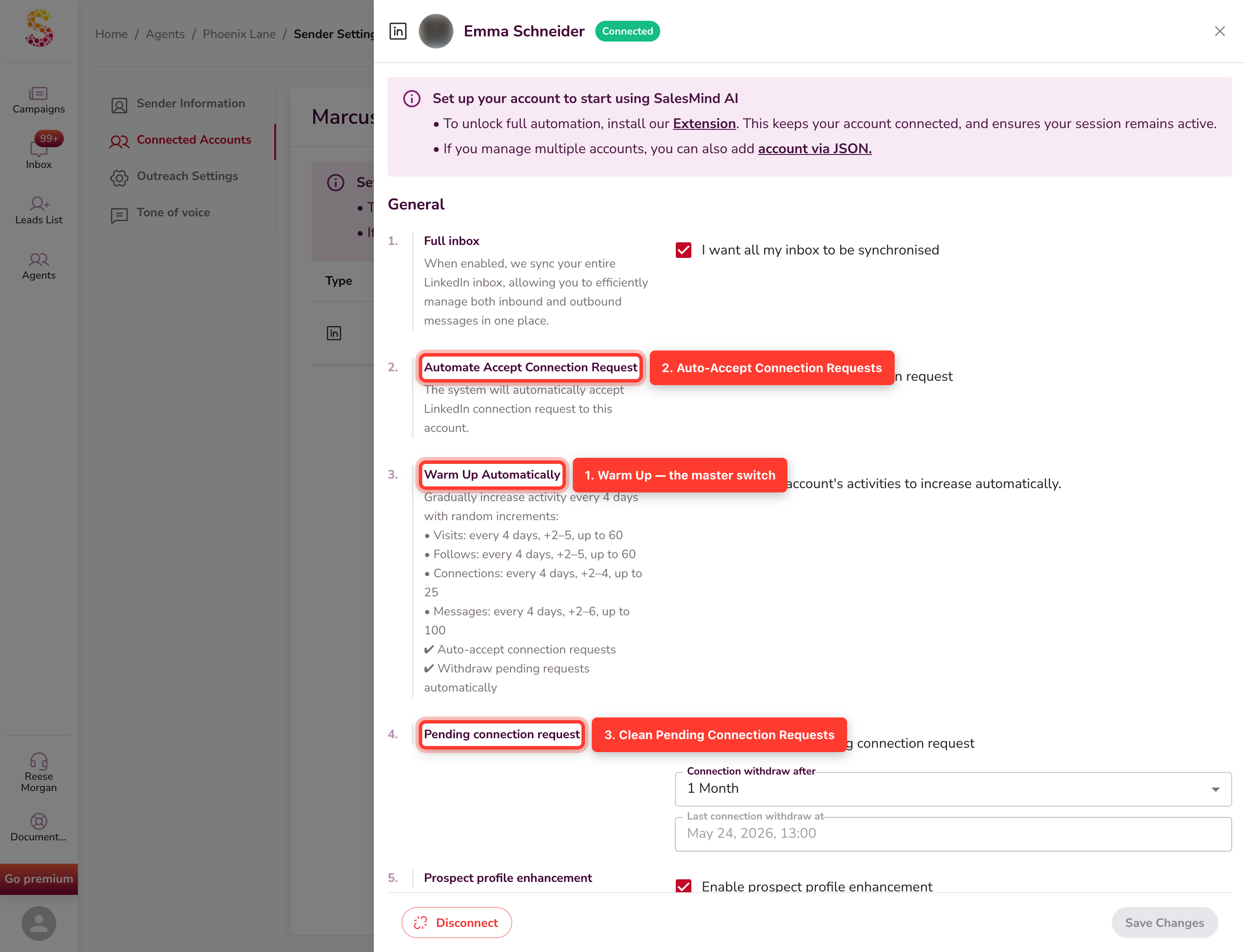
1. Warm Up — the master switch
What it does: drops your daily limits to safe starting values (5 visits, 5 follows, 2 connections, 5 messages) and rebuilds them gradually.
When to use it: every fresh sender, every account coming back from a break, and any time you've been hitting caps.
💡 Tip: Warm Up is the one setting we recommend turning on for almost every account, almost every time.
2. Auto-Accept Connection Requests
What it does: accepts incoming connection requests for you, spread across the day so it never looks like a script.
Why it matters: a profile that responds to invitations looks alive. A profile that ignores them looks abandoned — and LinkedIn notices.
3. Clean Pending Connection Requests
What it does: withdraws invitations that haven't been accepted after two weeks.
Why it matters: a long list of pending invites is a strong "spammer" signal to LinkedIn. Keeping it low keeps you invisible to their detection.
👉 Bonus: Turn on Warm Up and the other two activate automatically. One click, three protections.
Pick your Warm Up speed: Cold, Warm, or Hot
When Warm Up is enabled, you choose how fast to rebuild your limits. Three speeds:
| Speed | Best for | How fast it grows |
|---|---|---|
| Cold (default) | Fresh accounts, or accounts recovering from a warning | Adds 2–5 actions every 4 days until you hit the cap |
| Warm | Healthy accounts that just need a confidence reset | Adds 3–6 actions every 3 days |
| Hot | Established accounts that only need a brief cool-down | Adds 4–6 actions every 2 days |
All three end at the same daily ceiling (25 connections, 60 visits, 60 follows, 100 messages) — they just take more or less time to get there. If you're not sure, pick Cold. Patience always wins on LinkedIn.
Bonus: AI-personalized outreach
Beyond these three toggles, every message and connection request is built around the recipient's profile, job, and interests. Personalization lifts acceptance rates and avoids the repetitive, bot-like patterns LinkedIn flags.
Behave Like a Human
LinkedIn doesn't just count actions — it watches HOW you behave. To stay invisible to their detection systems:
- No spikes. Never go from low to high activity in one day. SalesMind AI ramps gradually.
- Mix actions. Visits, follows, connections, messages — variety looks human. Sending only connection requests looks like a bot.
- Lean on personalization. Unique messages get fewer spam reports than templated ones.
Get Started Safely: A 5-Step Playbook
- Start small. New profile? Enable Auto Warm Up and let it ramp for two weeks.
- Ramp gradually. Increase activity every 4–7 days, never every day.
- Turn on the safety trio. Warm Up, Auto-Accept, Clean Pending — see "The Three Settings" above.
- Personalize. Use AI-generated messages, not raw copy-paste.
- Watch and adjust. Track replies and engagement. Throttle back the moment warning signs appear.
If You Keep Hitting LinkedIn Caps
If your sender hits the daily or weekly cap more than once a week, treat it as an early warning — not normal. Accounts that pin the limit every day are far more likely to get a warning or a soft restriction in the following weeks.
Here's the recovery sequence.
1. Re-enable Auto Warm Up to reset your activity baseline
This is the single most powerful step. Here's the full walkthrough.
Step 1 — Open your agent

In the left sidebar, click Agents and select the agent whose sender has been hitting caps.
Step 2 — Find the sender and open its three-dot menu
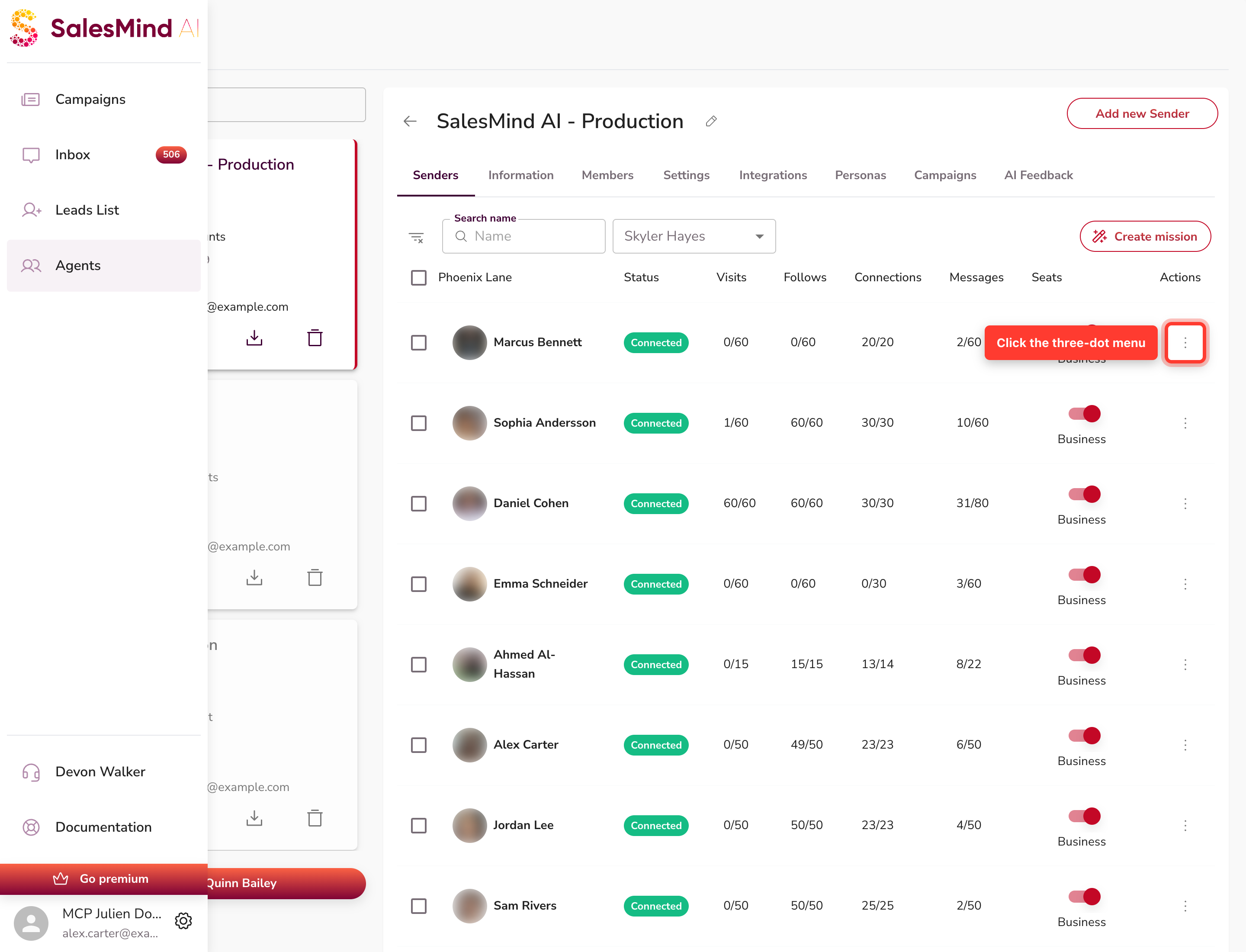
Open the Senders tab inside the agent. Find the row of your capped sender. On the right side, in the Actions column, click the three-dot menu (⋮).
Step 3 — Select "LinkedIn Settings"

The menu opens with seven options. Pick LinkedIn Settings — that's where every safety toggle lives.
Step 4 — Turn on Warm Up + choose your speed
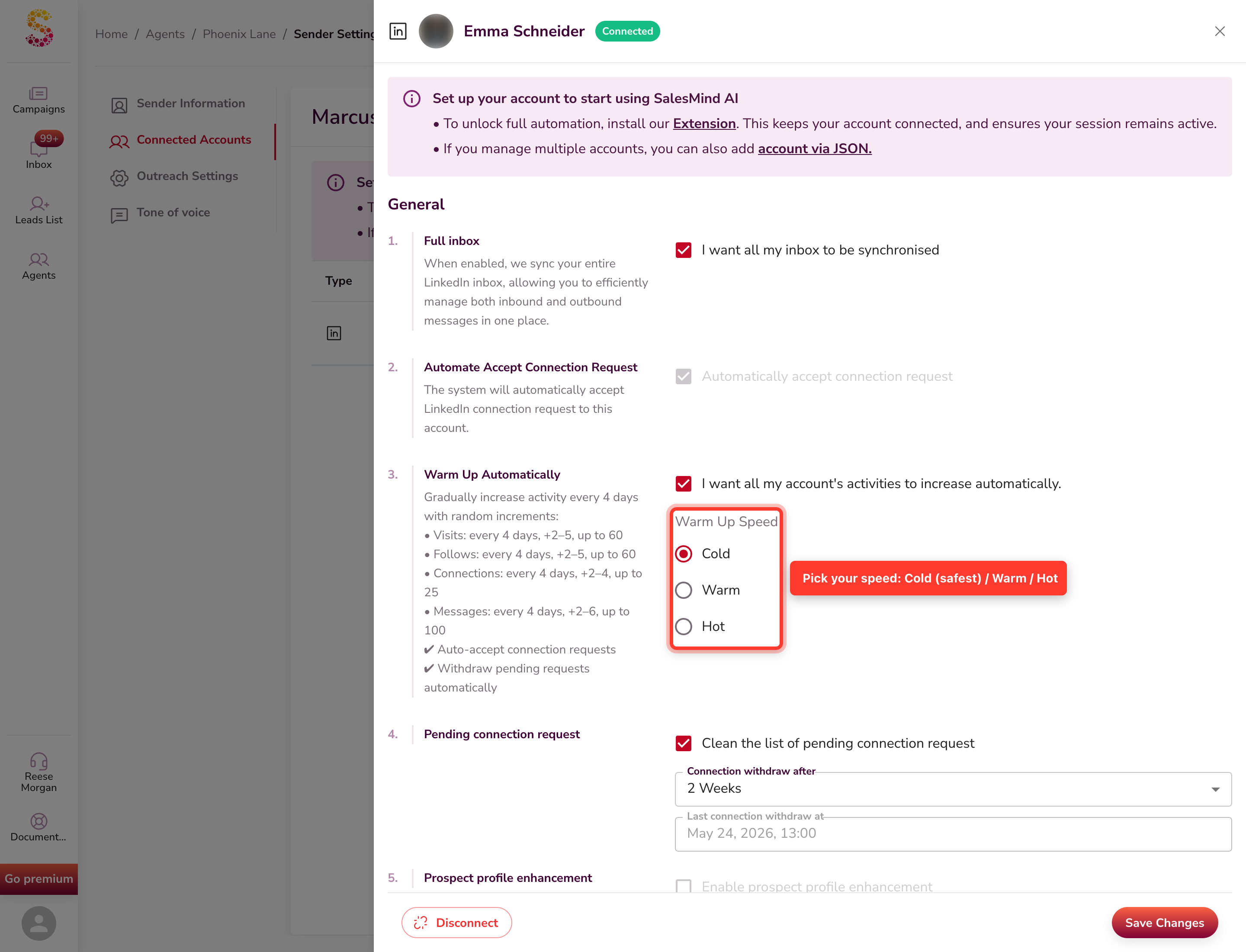
Scroll to the General section. Check the Warm Up Automatically box. The Cold / Warm / Hot picker appears below — pick Cold if you just got a cap warning. Click Save Changes.
That's it. SalesMind AI drops your daily limits to safe starting values (5 visits, 5 follows, 2 connections, 5 messages) and rebuilds back up at the speed you chose. The sliders lock during this period so the account can't be pushed past the schedule.
💡 Tip: Warm Up doesn't just slow down sends — it actively re-trains LinkedIn's reading of your account by replacing high-volume outreach with a gradual, controlled pattern.
2. Engage manually with prospects' content
Automated outreach alone signals "send-only" behavior. Add a manual layer for a few days:
- Open 3–5 prospect profiles per day from your existing pipeline
- Read their latest posts and leave a genuine comment on at least one
- React to a post or two from people already in your network
- Visit a few profiles without sending anything
This rebalances your account's signal back toward "engaged human" — which LinkedIn rewards. Side effect: prospects who see your comment before your connection request accept at a higher rate.
👉 Why this matters: LinkedIn now scores accounts on relevance and engagement, not just send volume. Two days of focused commenting often does more for cap recovery than a week of paused activity.
3. Wait 7 days, then re-evaluate
After enabling Auto Warm Up and adding manual engagement, leave the setup alone for a full week. Then:
- Check whether the cap warning has cleared
- Review your acceptance rate — if it's still below 15%, your messaging or targeting needs work, not just your limits
- If the cap is still triggering, contact SalesMind AI support before disabling Warm Up
If Your Account Gets Flagged or You Receive a Warning
If LinkedIn flags your account or sends you a warning, follow these steps:
-
Stop all automation immediately. Pause every outreach activity in SalesMind AI.
-
Read the warning carefully. LinkedIn will tell you what triggered it. Note the specific issue.
-
Scale back activity. Drop to minimal activity and restart the gradual ramp-up.
-
Complete identity verification if requested. LinkedIn may ask you to verify with an ID or passport. Do it promptly — they'll restore access.
👉 Locked out completely? Submit an appeal at linkedin.com/help/linkedin/ask/sdsupport. LinkedIn typically responds in 3–5 business days. See the Recovering a Restricted LinkedIn Account guide (linked below) for the full appeal walkthrough with email templates.
-
Contact support. If you're unsure what to do next, reach out to our team for guidance.
Key Takeaways
- LinkedIn flags sudden spikes, spam reports, and multiple automation tools. Avoid all three.
- SalesMind AI protects you with dedicated IPs, business-hours scheduling, randomized timing, personalization, and gradual growth.
- Use the three settings: Warm Up, Auto-Accept, Clean Pending. Pick Cold speed if you're not sure.
- If you hit caps repeatedly: re-enable Warm Up (Cold), engage manually for a few days, wait 7 days.
- If you get a warning: stop, read, scale back, verify identity if needed, contact support.
✅ With SalesMind AI, you can grow your network and scale your outreach without risking your account.
Check out our guide on how to set up your LinkedIn profile for success.
How LinkedIn Got Here: A Quick Timeline
LinkedIn's limits have shifted a lot since launch. Knowing the pattern helps you understand why today's rules feel stricter than what you remember.
- 2003 — LinkedIn launches with no caps. You can connect with anyone, as fast as you want.
- ~2014 — First soft cap appears: roughly 3,000 lifetime invites per account.
- ~2018 — Daily request limits introduced (~100/day for most users).
- 2020 — Limits tighten quietly. Automation tools start hitting walls more often.
- April 2021 — "The Great Squeeze." LinkedIn drops the weekly cap to ~100 connection requests. Mass-outreach playbooks break overnight.
- 2022 — LinkedIn forces several major automation tools (Linked Helper, others) off the platform via legal action.
- 2024 — Connection requests with notes now require Premium for most users.
- 2025 — AI moderation goes live. Instead of one global cap, LinkedIn now scores accounts dynamically using AI. Limits vary per account, day to day. Most accounts see fewer sends than before.
The pattern: every year LinkedIn tightens. The days of "one rule for everyone" are over. Your daily limit now depends on your account history, behavior, IP, subscription, country, and message quality — and it can change week to week.
Happy prospecting!