
The Google Sheets method lets you import a curated list of LinkedIn profile URLs directly into SalesMind AI. If you already have a list of prospects — from a CRM export, a research spreadsheet, or a manual list — this is the fastest way to get them into a campaign.
Only a Google Sheets URL is accepted. CSV files, .xlsx files, and direct file uploads are not supported. If your data is in a CSV or Excel file, paste it into a new Google Sheet first, then follow the steps below.
Before you start — requirements checklist
Make sure your sheet meets all of these before you paste the link:
- Native Google Sheet — must be a file created in Google Sheets, not an .xlsx file opened or uploaded in Sheets. If it is an .xlsx, open it in Sheets and save it as a Google Sheet first.
- Sharing set to "Anyone with the link can view" — not "Editor", not "Restricted". SalesMind AI can only read sheets that are publicly viewable.
- Row 1 is a header or blank — SalesMind AI always skips row 1. Put your first LinkedIn URL in row 2.
- Each lead has a LinkedIn profile URL in the format
https://www.linkedin.com/in/username— company pages, job listings, and Sales Navigator URLs are silently skipped. - Other columns are fine to leave in — names, emails, notes, and any other columns are ignored. Only the LinkedIn profile URL column is read.
Don't have LinkedIn URLs yet? The Google Sheets import only works with LinkedIn profile URLs. If you only have names and company names, use the LinkedIn People Search or AI Lead Finder instead — these tools find the right profiles for you.
Steps
1. Prepare your Google Sheet
Create or open a Google Sheet. Make sure at least one column contains LinkedIn profile URLs in this format:
https://www.linkedin.com/in/username
⚠️ Row 1 is always skipped. SalesMind AI treats it as a header row. Put your first profile URL in row 2 or below.
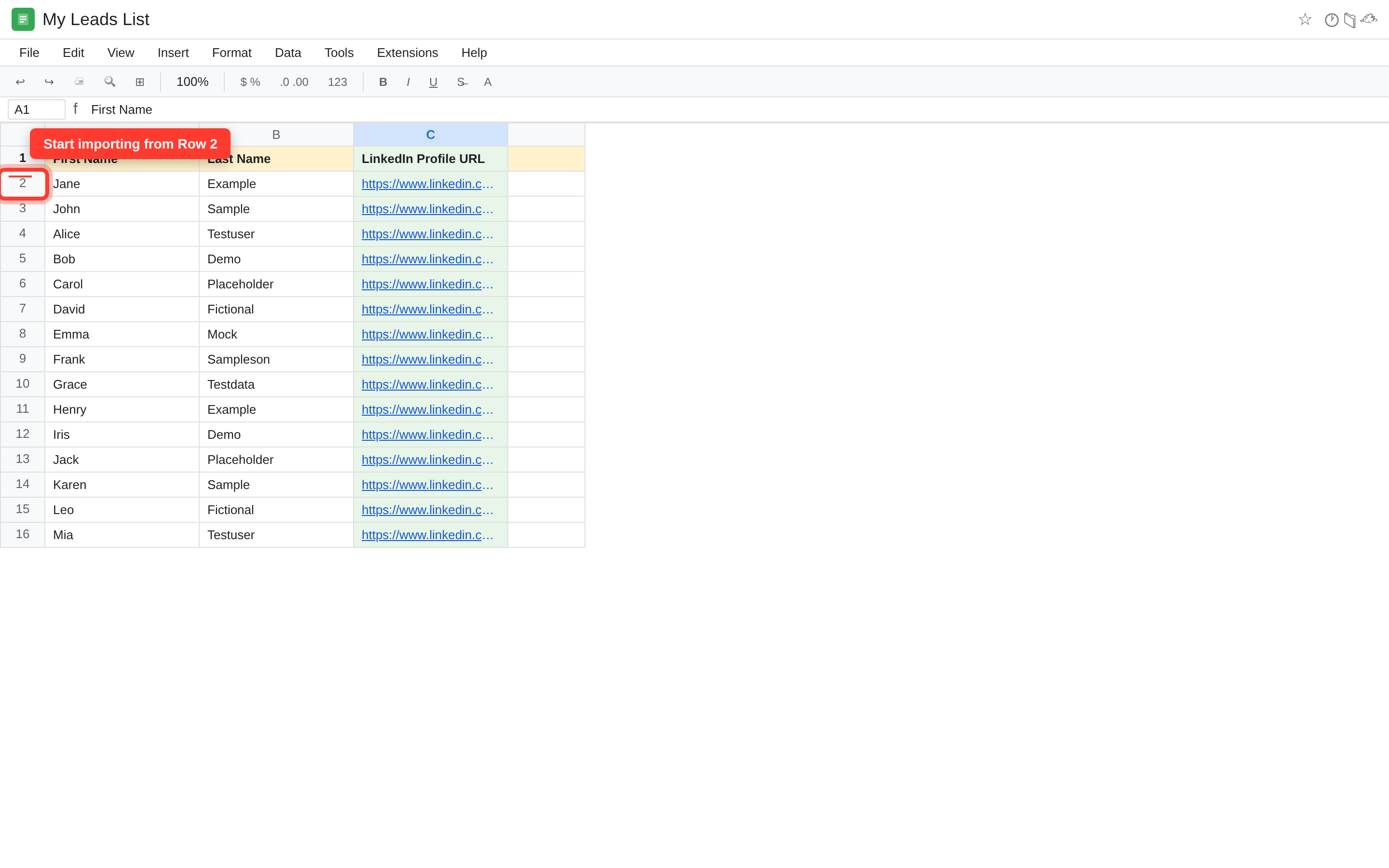
Other columns — names, emails, notes — are ignored entirely.
2. Set sharing to "Anyone with the link can view"
Open the sheet's sharing settings. Change access to "Anyone with the link can view" and copy the shareable link.
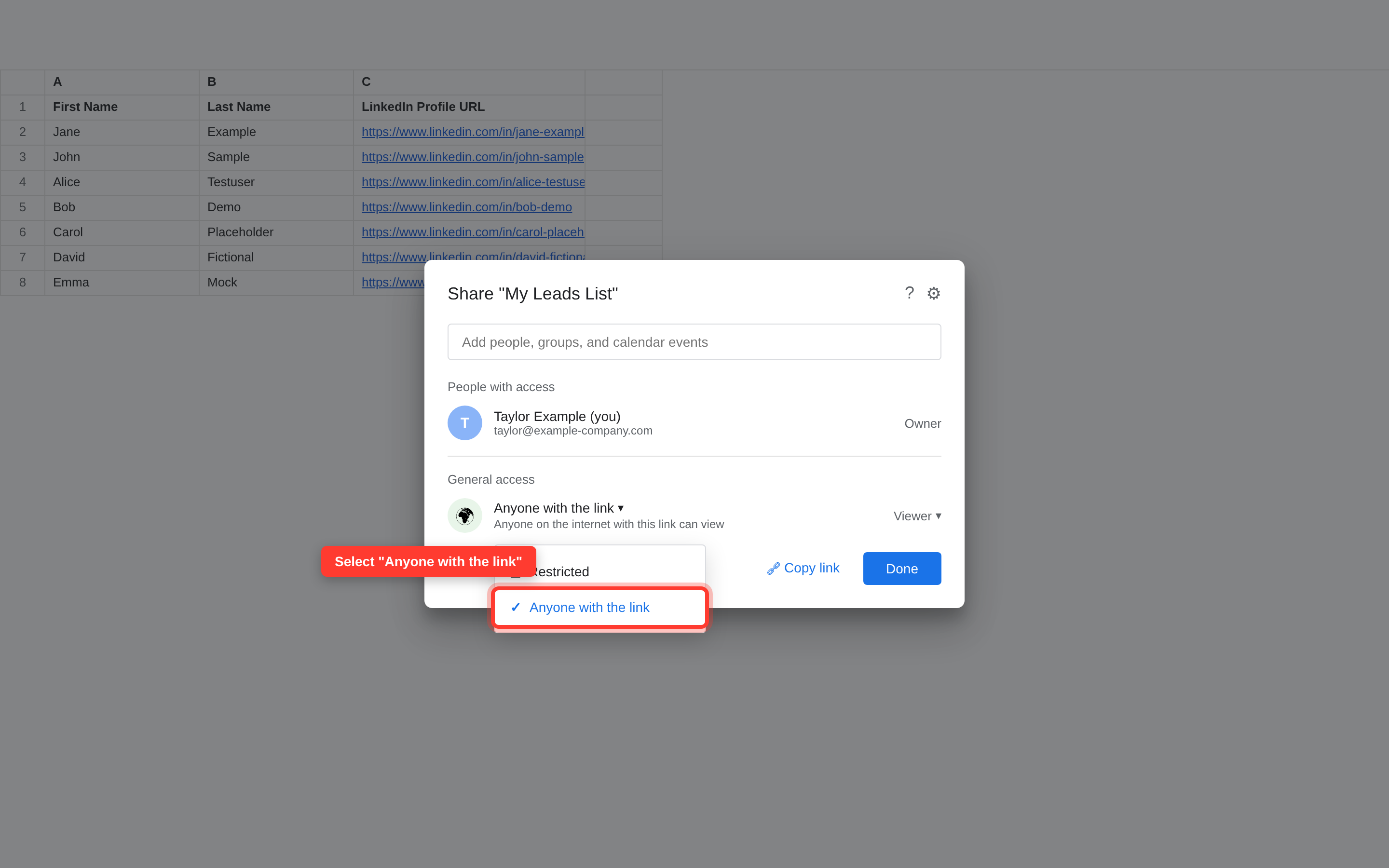
⚠️ If the sheet is private or restricted, SalesMind AI cannot access it and the import will bring in 0 leads.
3. Paste the link into SalesMind AI
In your campaign's Import Leads step, select Google Sheet Import. Paste the sheet link into the input field.
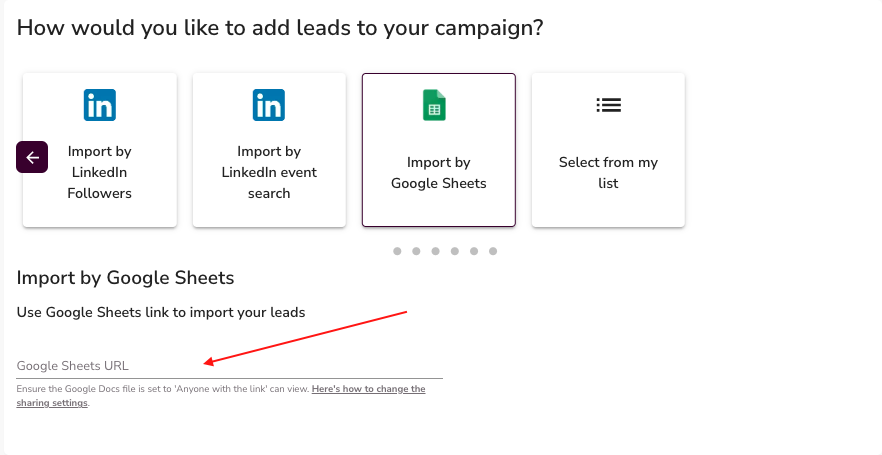
SalesMind AI reads your sheet once at this moment and imports every valid LinkedIn profile URL it finds, starting from row 2.
Important — the campaign does not watch for changes. SalesMind AI reads your sheet once, at the moment you paste the link. If you update the sheet later, come back to the import step and paste the link again. The campaign will not pick up the new rows automatically.
I only have names and company names, not LinkedIn URLs
The Google Sheets import only works with LinkedIn profile URLs. If you have names and companies but no URLs, you have two options:
- LinkedIn People Search — search LinkedIn directly inside SalesMind AI and add matching profiles to your campaign.
- AI Lead Finder — describe your target audience and let SalesMind AI find the right leads for you.
Both methods build your lead list without needing URLs upfront.
Troubleshooting
My import brought in fewer leads than my sheet has
A few things cause partial imports:
- Row 1 is always skipped. Never put a LinkedIn URL in row 1 — it will always be ignored.
- Only
https://www.linkedin.com/in/usernameURLs count. Company pages, job listings, Sales Navigator profile URLs, and any other LinkedIn URL types are silently skipped. Check your sheet for mixed URL types. - Leads show as "Unknown" right after import — this is normal. SalesMind AI imports the URLs but does not fetch each profile's name and photo until the campaign is active. Once your campaign is running, profiles are enriched one by one. If you pause the campaign immediately after starting it, enrichment stalls and the count looks low. Let the campaign run for a while to see the real enriched count.
- The sheet is .xlsx, not a native Google Sheet. An .xlsx file opened in Google Sheets can cause 0-lead imports. Save it as a native Google Sheet first.
If your count still seems unexpectedly low after checking all of the above, contact support with your sheet link and campaign name.
My campaign is stuck in "Initializing" and I can't pause it
"Initializing" is a normal, temporary state. When you launch a campaign, SalesMind AI builds it in the background. This usually takes a few minutes to a couple of hours. You do not need to do anything while it is initializing.
If the campaign stays on "Initializing" for several hours, cannot be paused (only archived), or returns to "Initializing" after a refresh, the background build has failed. Here is what to do:
- Duplicate the stuck campaign. Use the campaign menu to create a copy.
- Re-add your leads to the duplicate campaign by pasting the Google Sheets link again.
- Wait a few hours for the new campaign to finish initializing.
- Contact support if the new campaign is still stuck after 24 hours.
Do not keep creating new campaigns from the same sheet without resolving the underlying issue first — repeated re-imports on a stuck account will not fix the root cause.
FAQ
My import brought in fewer leads than my file has — what happened?
Row 1 is always skipped as a header. Also, only https://www.linkedin.com/in/username URLs count — company pages, job listings, and Sales Navigator URLs are silently ignored. Check your sheet for rows with the wrong URL format.
Why do my leads show as "Unknown" with no photo after import?
This is normal. SalesMind AI imports the URLs first and enriches each profile (name, photo) one by one while your campaign is active. Let the campaign run and the unknowns will fill in. If you pause the campaign right away, enrichment stalls.
My campaign is stuck in "Initializing" and I can't pause it — only archive it. What do I do?
"Initializing" is a normal build state, but if it persists for several hours or returns after a refresh, the build has failed. Duplicate the campaign, re-add your leads, and wait a few hours. Contact support if it is still stuck after 24 hours.
Do I need a LinkedIn URL for every lead, or can I just upload names and company names?
You need a https://www.linkedin.com/in/username URL for every lead. The importer only reads LinkedIn profile URLs — names and company names alone will not produce any leads. If you do not have URLs yet, use LinkedIn People Search or AI Lead Finder instead.
If I update my Google Sheet, does the campaign update automatically?
No. SalesMind AI reads your sheet once, at the moment you paste the link. If you add or change rows later, go back to the import step and paste the link again.
Can I upload a CSV file instead of a Google Sheets link?
No. SalesMind AI only accepts a Google Sheets URL. If your data is in a CSV or Excel file, paste the data into a new Google Sheet, set sharing to "Anyone with the link can view", and paste the URL.
My Google Sheet is set up correctly but the import brings in 0 leads — why?
The most common cause is that the file is an .xlsx opened in Google Sheets rather than a native Google Sheet. Open a blank Google Sheet, copy your data into it, and try again. Also confirm sharing is set to "Anyone with the link can view" — a restricted or private sheet returns 0 leads.