
People who register for a LinkedIn event self-select into a topic — they're already interested in the subject. That makes event attendees some of the warmest prospects you can find, and gives your outreach a shared context that dramatically improves reply rates.
This guide shows you how to find a LinkedIn event, filter the attendee list to your ideal prospects, and import them into your SalesMind AI campaign.
Prerequisites
- An active LinkedIn account
- An active SalesMind AI campaign in progress
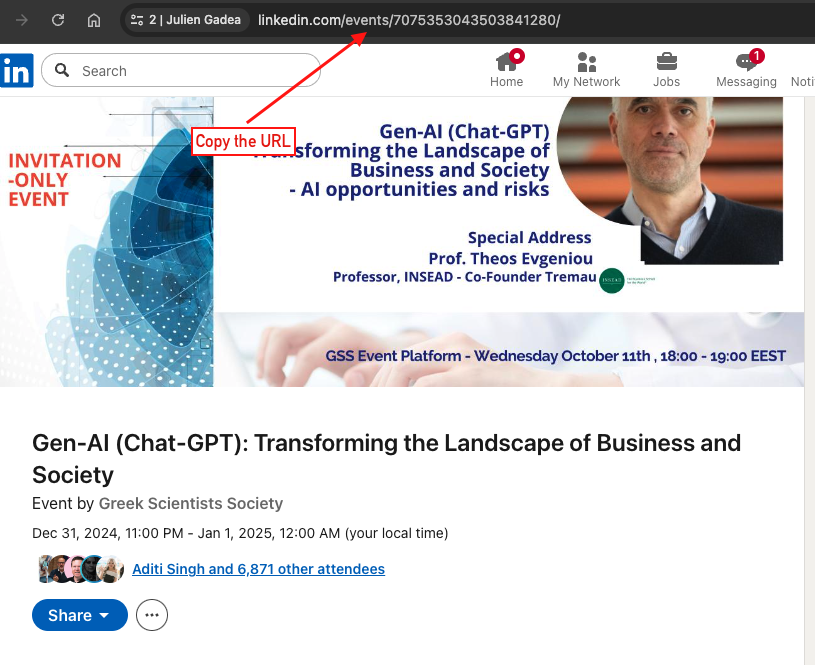
- The LinkedIn event URL you want to target
- You must be a registered participant in the event — SalesMind AI can only retrieve attendees for events you've joined
Step 1: Find and Join the LinkedIn Event
- Go to LinkedIn and search for the event by name, or open the event page directly from a link.
- Click Attend if you haven't already.
⚠️ Warning: You must have joined the event yourself. SalesMind AI can only access attendee lists for events where you're a registered participant. You can only see attendees who have their profile set to visible — LinkedIn does not expose private profiles in event attendee lists.
Step 2: Access and Filter the Attendee List on LinkedIn
-
On the event page, click Attendees (shown near the event header).
-
LinkedIn opens a search results page filtered to people attending that event.
-
Apply LinkedIn's People filters to tighten the audience before importing:
- Title — target specific roles (e.g., "Head of Marketing")
- Location — focus on a specific region or city
- Industry — narrow to your target sector
- Company — focus on or exclude specific organizations
- Connection degree — 2nd degree for warm outreach, 3rd for broader reach
💡 Tip: Filter by 2nd-degree connections to prioritize people you have a mutual connection with. They tend to accept connection requests at higher rates.
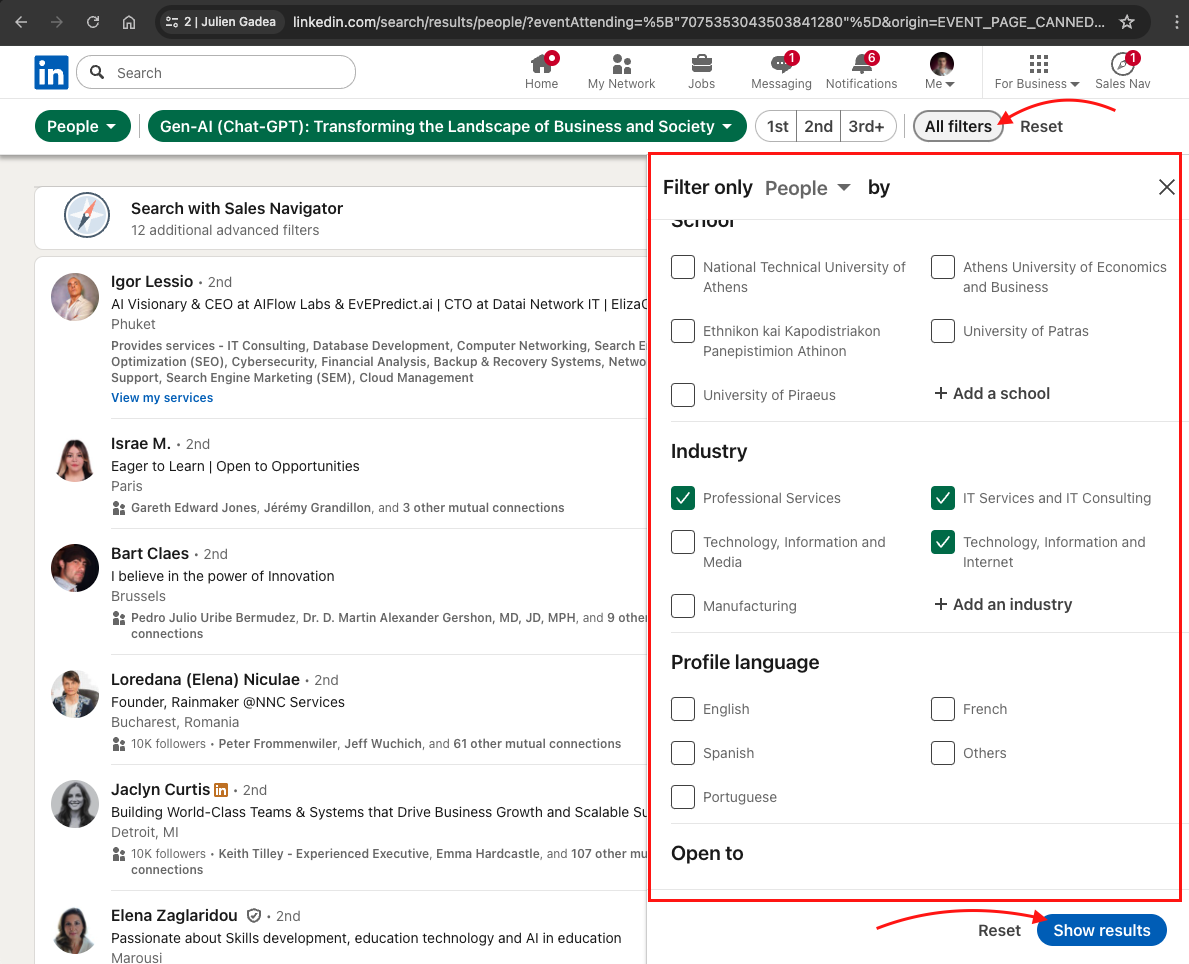
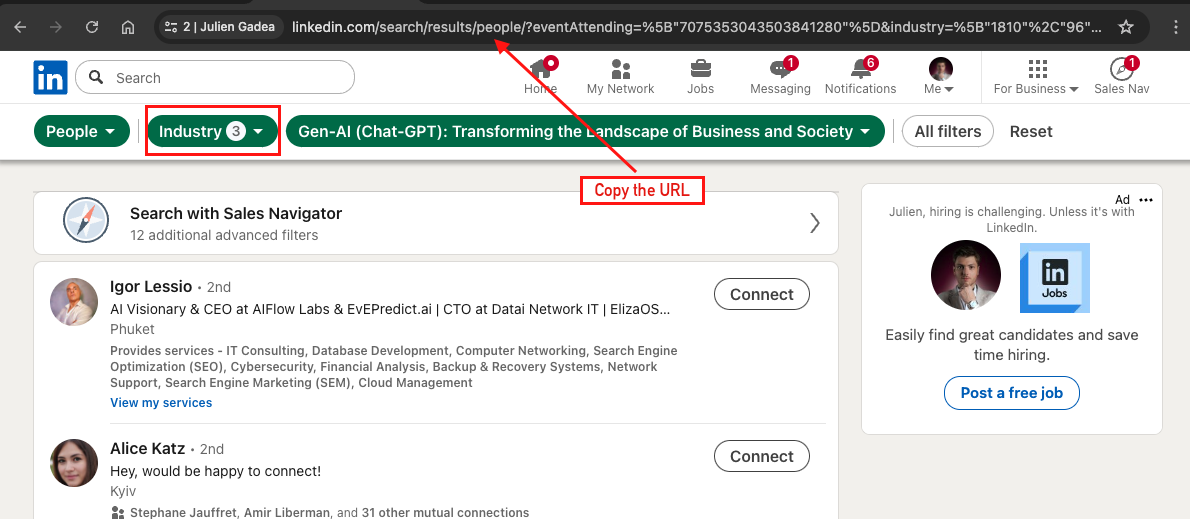
⚠️ Warning: Event attendee lists can be large. Applying filters before importing keeps your campaign focused and your messaging relevant.
Step 3: Handle Large Events (Over 1,500 Attendees)
SalesMind AI imports up to 1,500 attendees per import. If the event has more than 1,500 attendees, segment the list using LinkedIn's filters and import each segment separately.
Useful filter combinations:
- Industry — narrow to a specific sector
- Location — focus on a region or city
- Job title — target a specific role
- Connection degree — work through 2nd-degree first, then 3rd-degree
Import each filtered segment separately to cover the entire audience without losing prospects.
💡 Tip: Filtering by industry or role before importing gives you a tighter, more relevant list — and better reply rates.
Step 4: Import the List Into SalesMind AI
- Once your filtered attendee list looks right on LinkedIn, copy the URL from your browser's address bar.
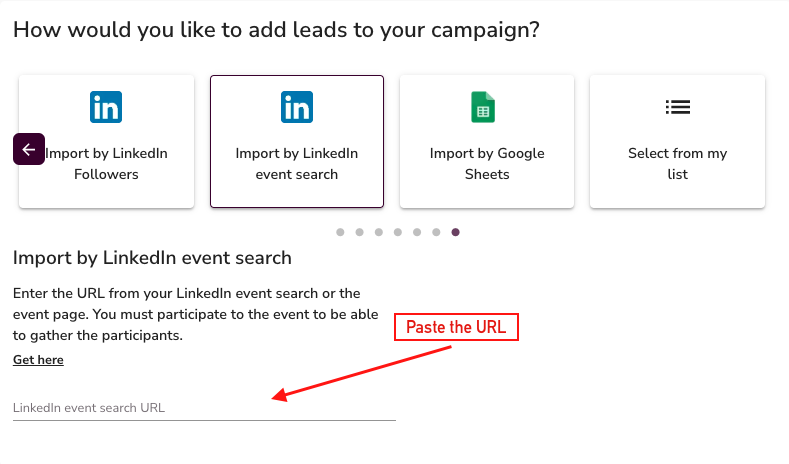
- Open SalesMind AI and go to your campaign's Import Leads step.
- Select Event Search.
- Paste the LinkedIn event URL into the input field.
- SalesMind AI will import up to 1,500 leads from that filtered list.
💡 Tip: Mention the event in your outreach message — "I saw you're attending [Event Name]…" The shared context dramatically improves reply rates compared to a generic cold message.
Why It Works
Event attendees self-selected into a topic. They showed up because they care about the subject — which means your outreach lands in a context they're already thinking about. These leads convert significantly better than generic searches.
What's Next
- Add more leads with other import methods — Sales Navigator, People Search, Profile Followers, Post Likes, or Google Sheets
- Personalize your message sequence around the event topic for higher relevance
- Review your campaign settings before launching
- Learn How to Succeed on LinkedIn with SalesMind AI