
Your Agent is the control center for all outreach in SalesMind AI. This guide shows you what an Agent is. It then walks through how to set up every part: senders, team members, knowledge base, integrations, and personas.
What is an Agent?
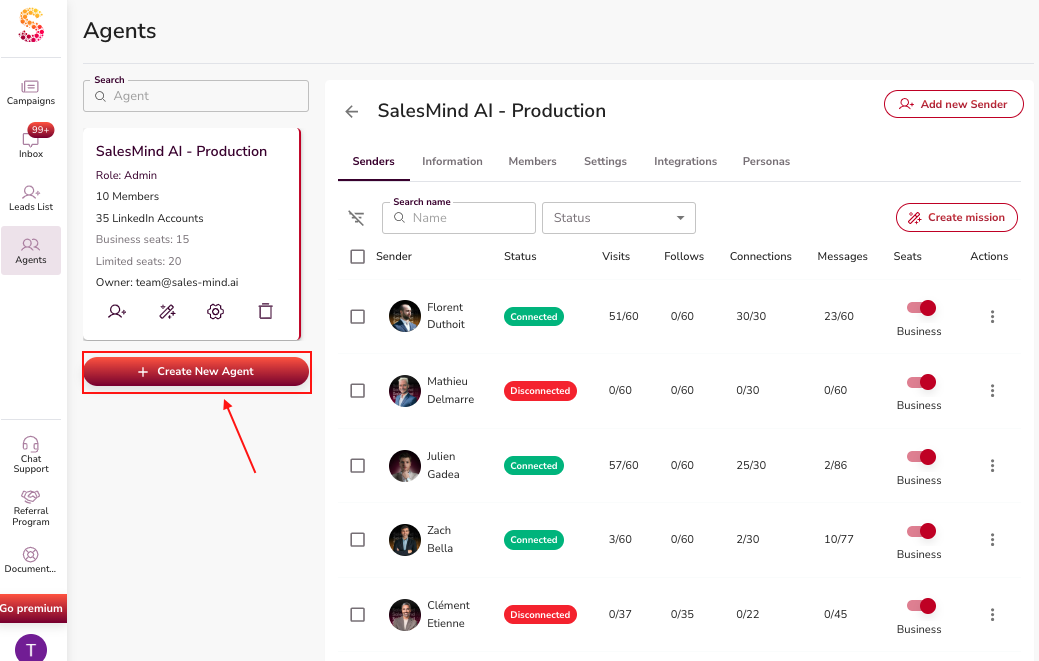
An Agent is the top-level unit in SalesMind AI. Think of it as a box. It holds all you need to run outreach for one group. That group can be:
- Your whole company
- A specific department (e.g., Sales vs. Recruitment)
- Or, if you are an agency, one of your clients
For example, your sales team can use one Agent. Your recruitment team can use another. Agencies often use one Agent per client.
Inside the Agent, you set up everything that shapes outreach: senders, team roles, company knowledge, integrations, and personas. Set it up well, and the AI has all it needs to run good campaigns.
1. Senders
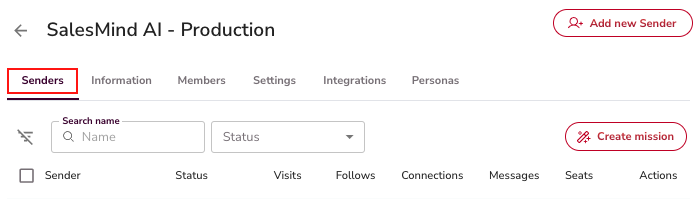
A Sender is the identity that does the outreach. It is most often a LinkedIn account. One sender = one person's identity (first name, last name, contact info).
You can add many senders to one Agent. Each sender uses the Agent's settings by default. You can change them at the campaign level. Over time, senders will work with channels beyond LinkedIn too.
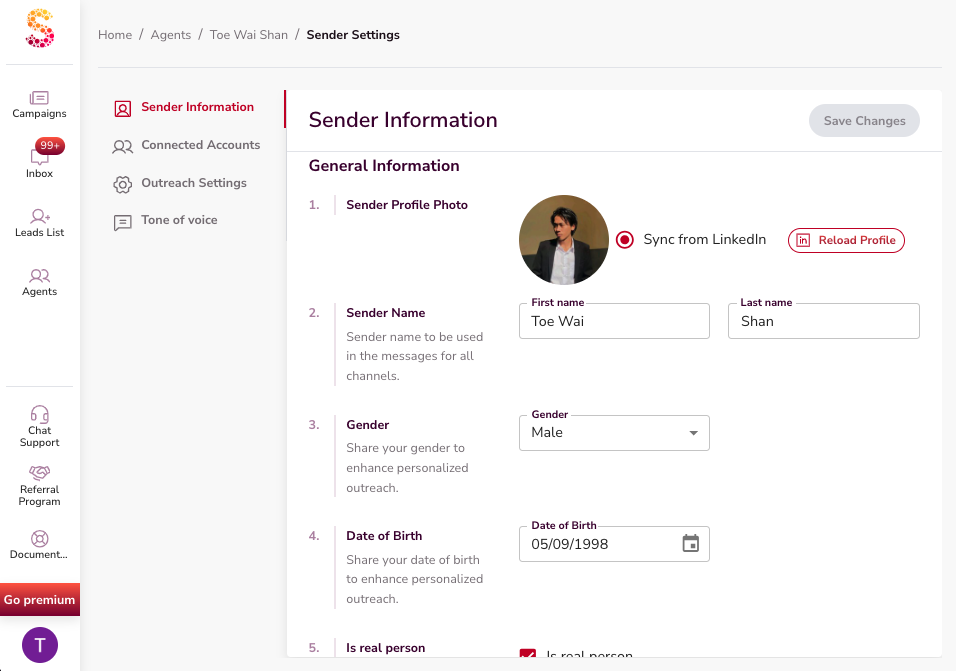
⚠️ Warning: In languages where gender or tone affects writing (French, Thai, etc.), make sure sender details are correct. The AI uses this info when it writes messages.
👉 Note: For step-by-step setup, see the How a Teammate Becomes a Sender article.
2. Team Members and Roles
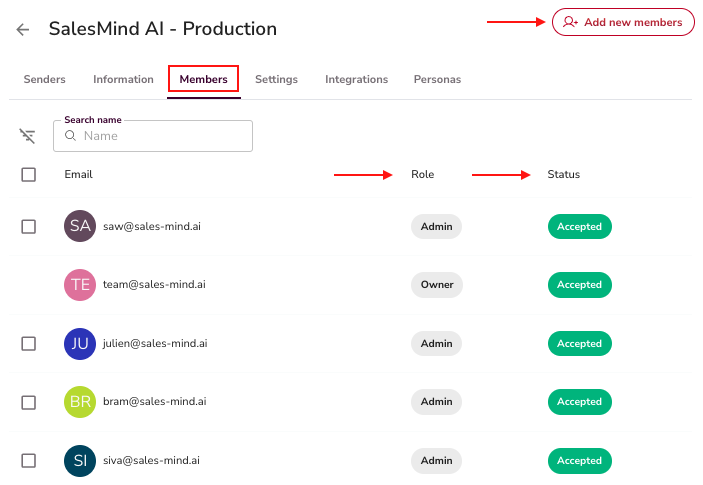
Each Agent has a list of members. Each one has a role. Roles like Owner, Admin, and Member control what each person can see and do. You can invite, edit, or remove members at any time.
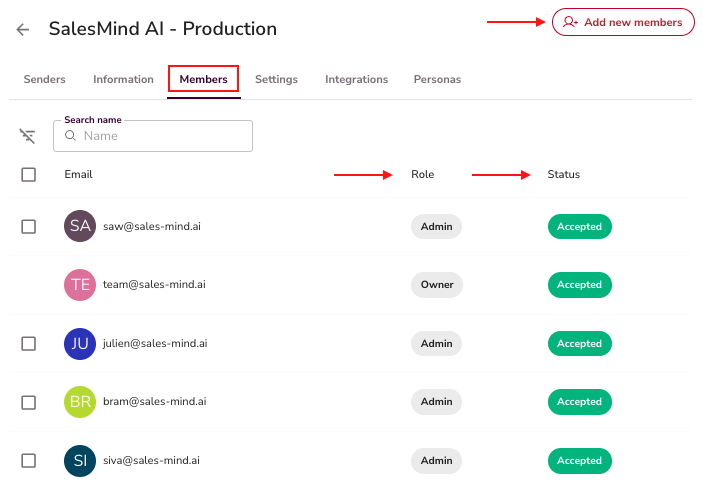
⚠️ Warning: You cannot delete or move the Owner role.
For a full walkthrough, see Inviting Teammates to Your Agent and Member Roles and Permissions in Agents.
3. Information (Knowledge Base)
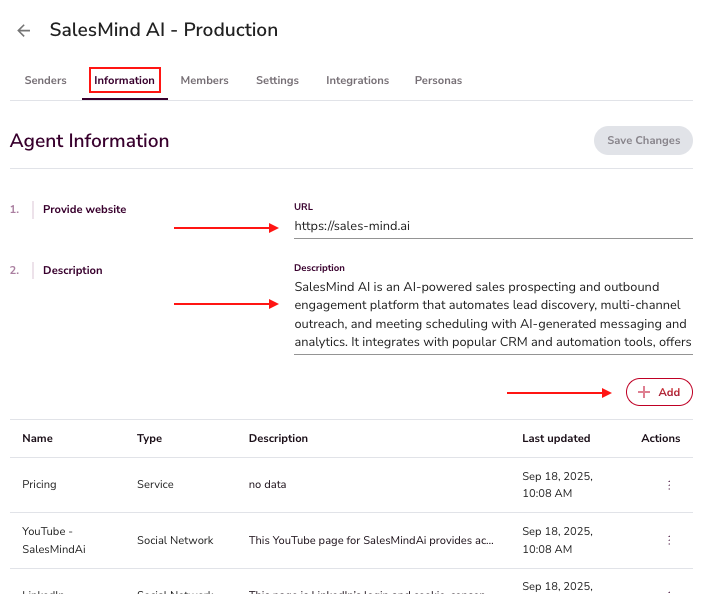
The Agent's info hub is what the AI uses during chats. Keep it current with:
- Services and features (e.g., AI Lead Finder, White Label)
- Competitor LinkedIn URLs
- Sales decks, case studies, and testimonials
- Booking links and social media pages
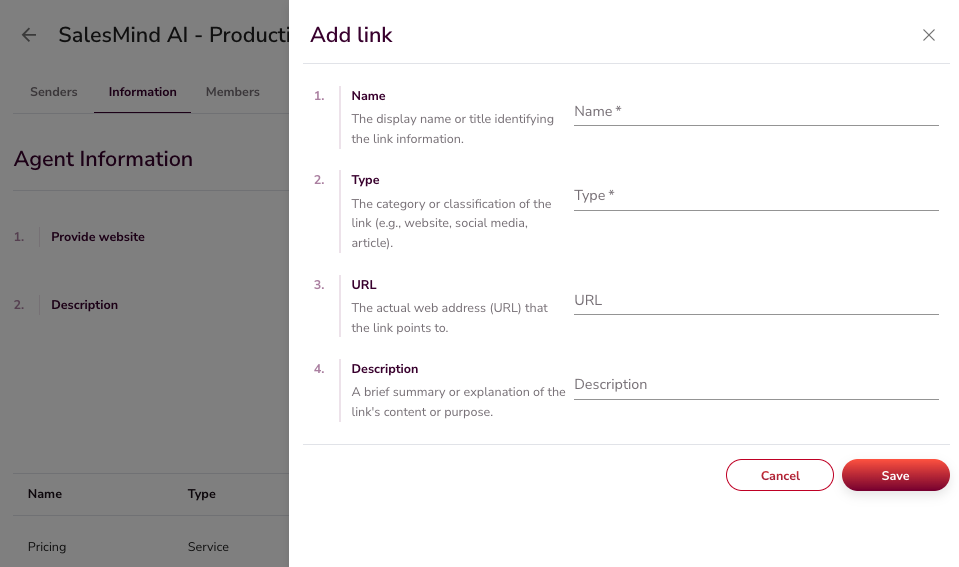
This makes sure the AI always has the right link to share — a blog post for early nurturing, or a demo link when a lead is ready.
💡 Tip: The fuller your base, the better the AI works. Add case studies, pricing pages, and customer logos.
4. Settings and Integrations
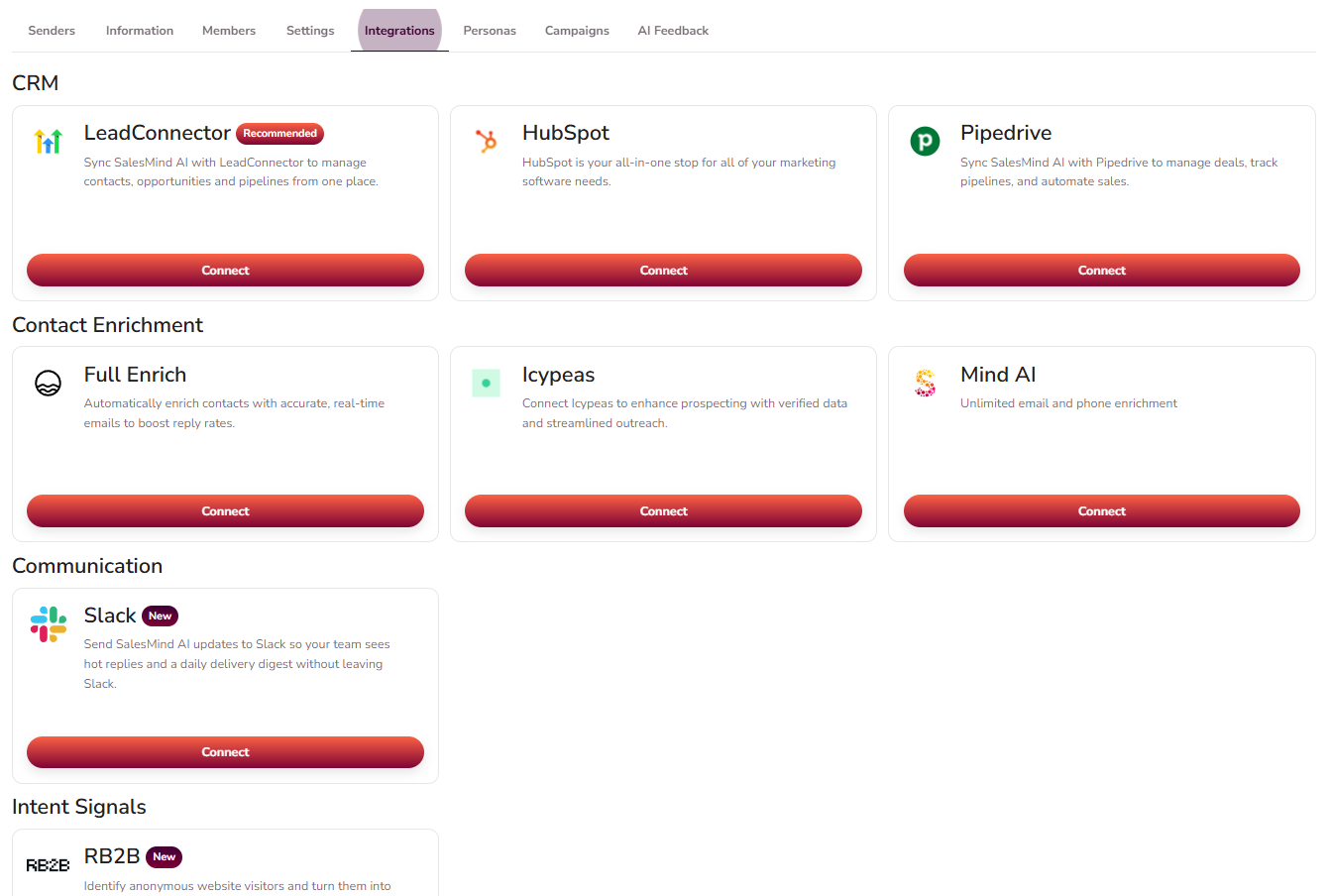
Agents connect to outside tools to keep SalesMind AI in sync with your sales stack:
- Outreach Settings — Set schedules, inactive days, and time zones.
- CRM Integration — Connect one CRM per Agent (LeadConnector, HubSpot, Pipedrive, etc.). The AI can build deals and tasks, and sync contacts on its own.
- Contact Enrichment — Use built-in partners or SalesMind AI's unlimited enrichment to fill in missing emails and phone numbers.
- Zapier and Automations — Connect Zapier from the integrations section to link SalesMind AI with other tools in your stack.
5. Personas
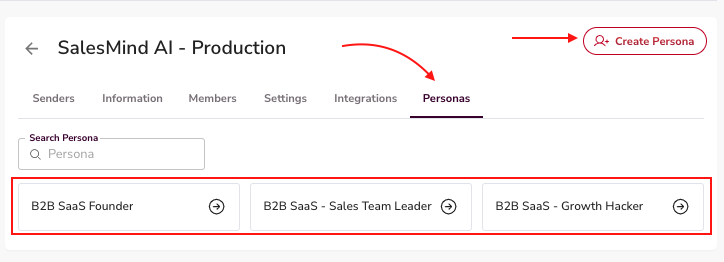
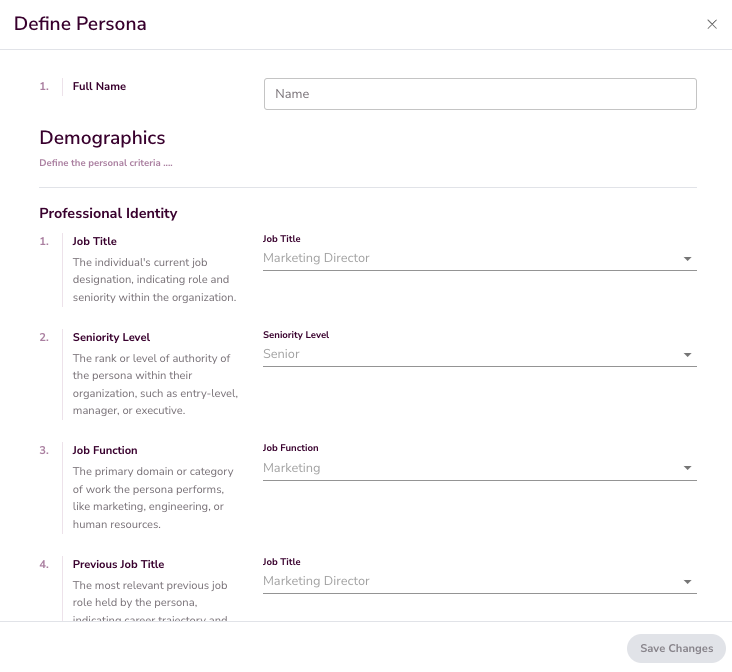
Personas tell the agent who you want to reach. They define your ideal customer segments. Each Agent can hold many personas. Each persona uses 36 details (job title, seniority, industry, company size, tools, pain points, buy criteria, and more). The AI uses them to find the right leads, score each one, and write the right message.
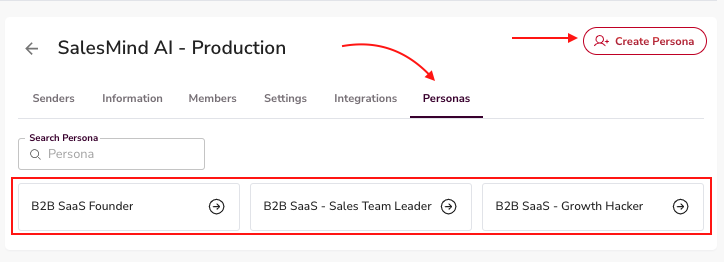
Be sharp. "B2B SaaS Founder" or "Sales Director at a 50–200 person company" works much better than "decision makers." Sharp personas make the AI sound right.
You don't need to update personas often. But refine them as campaign data comes in. If CEOs reply better than Owners, update the persona to reflect that. Better targeting means better AI work.
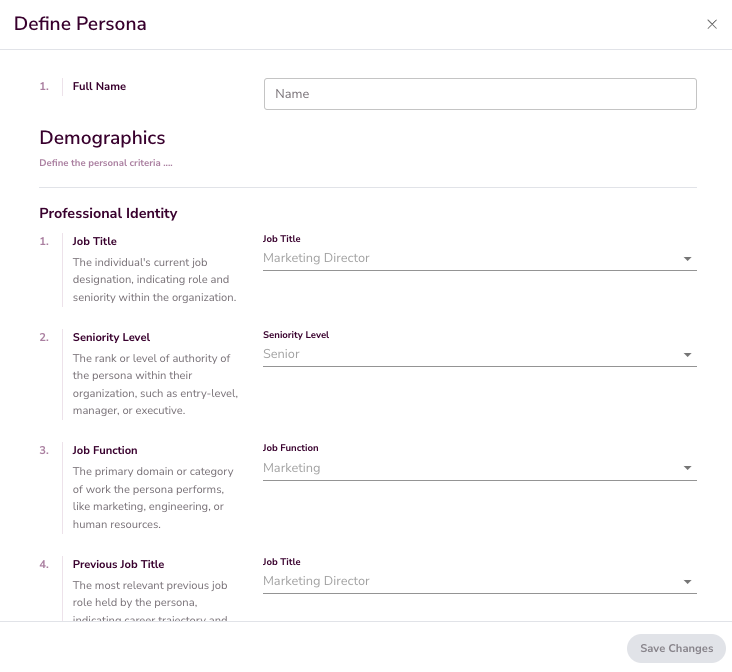
💡 Tip: Use real campaign data to refine personas over time. Small tweaks to job titles and seniority levels can lift reply rates.
👉 Note: See Setting Up Your Persona for the full 36-detail breakdown, a manual vs. AI walk-through, and a copy-paste ChatGPT prompt to draft your ICP.
6. Create and Export from the Agent View
Your Agent view does more than hold settings. From here, you can start new outreach and pull campaign reports. Most of these tools live in the Campaigns tab inside your Agent.
Start a campaign or mission
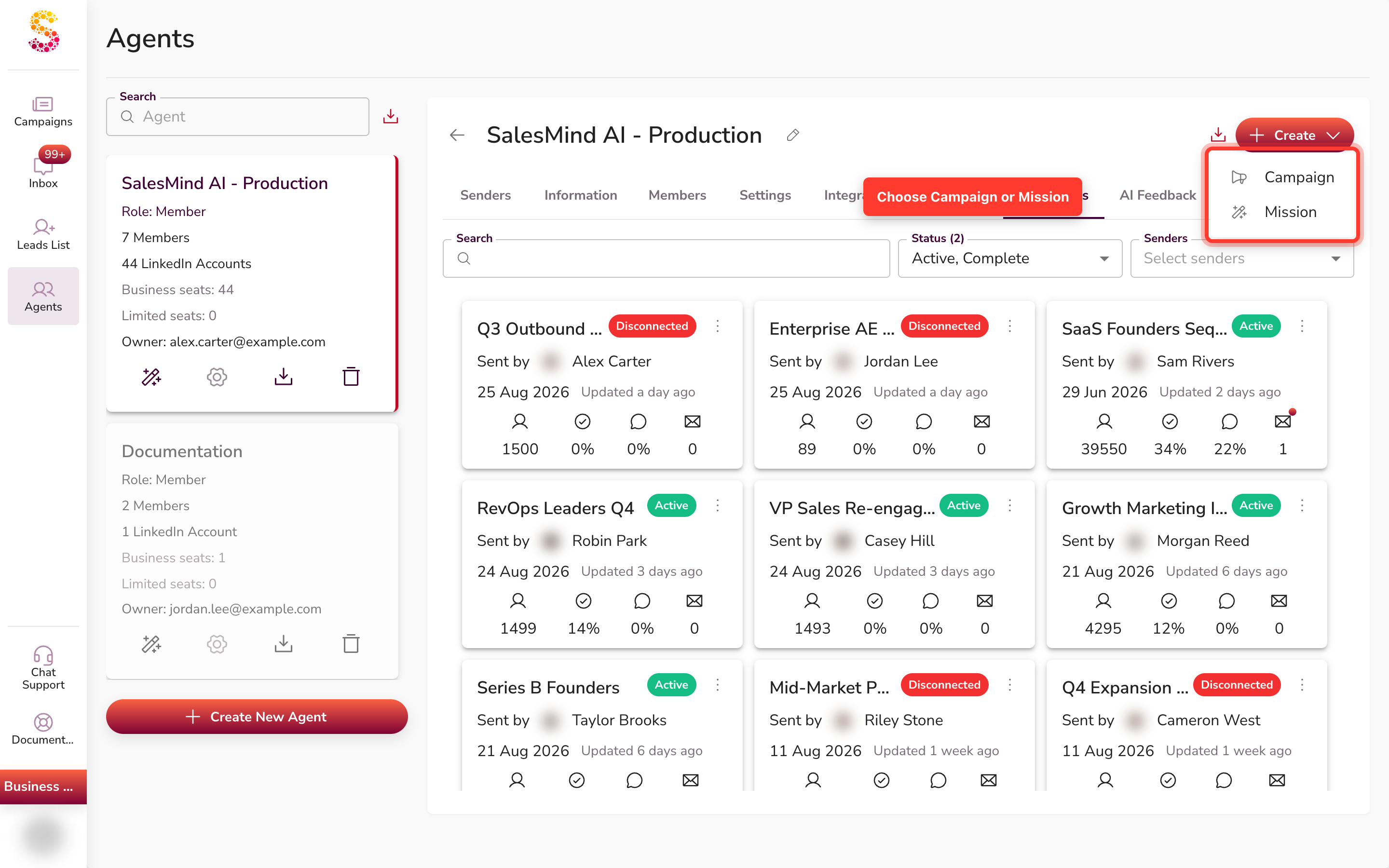
Open the Campaigns tab. In the toolbar, click Create ▾. A short menu opens with these choices:
- Campaign — opens the single-campaign wizard. Pick this to launch one campaign.
- Mission — opens the multi-sender wizard. Pick this to launch many campaigns at once.
Download one agent's campaign data
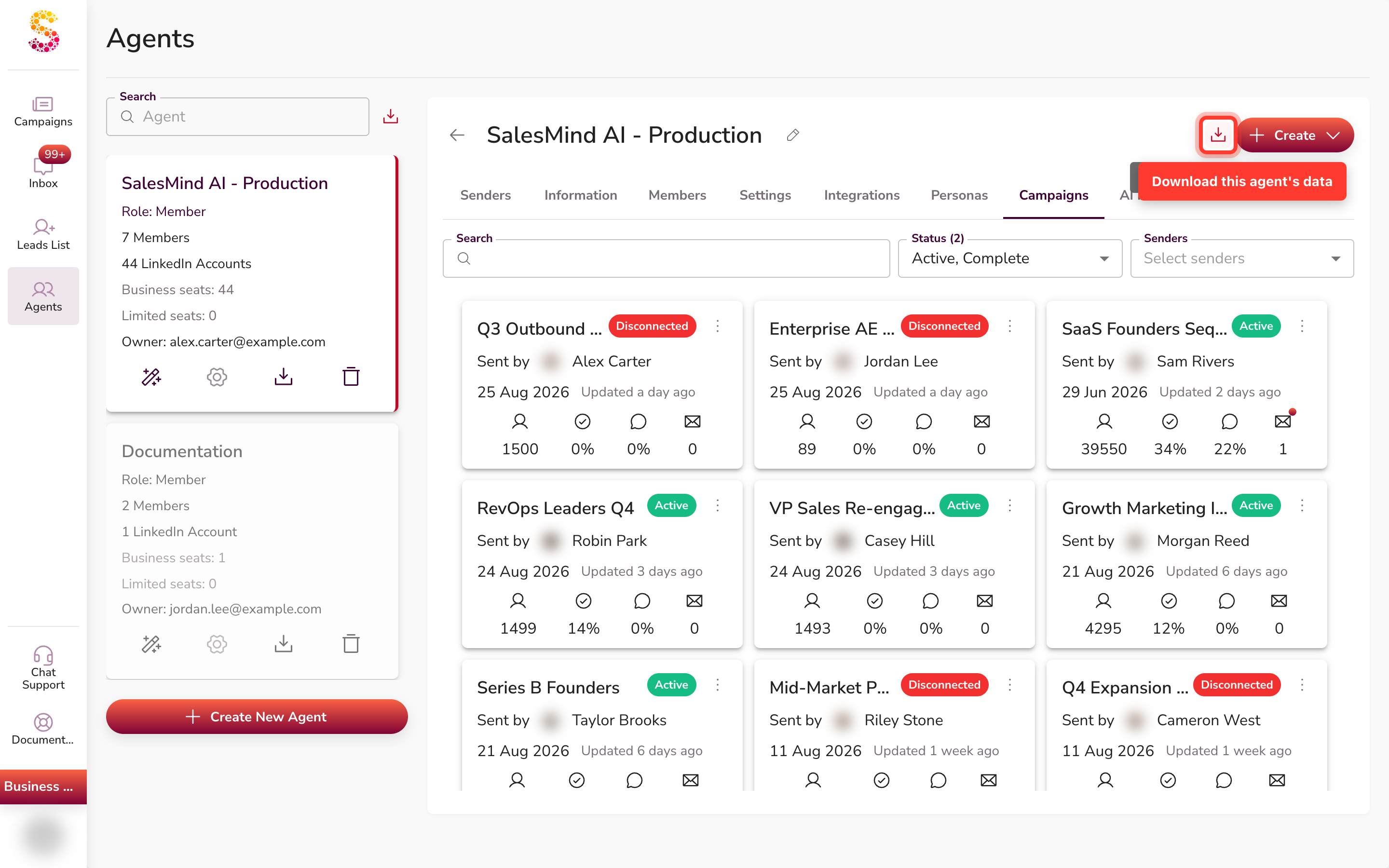
Next to the Create menu, you'll find the Download agent's campaign data icon. Click it to export that agent's campaign stats.
We build the file for you, then email you the download link. You'll see this message: "Your export is on the way! Please check your email." Look in your inbox for the link — the file does not download in your browser. You can also start this download from the agent card in the sidebar.
Export stats for many agents at once
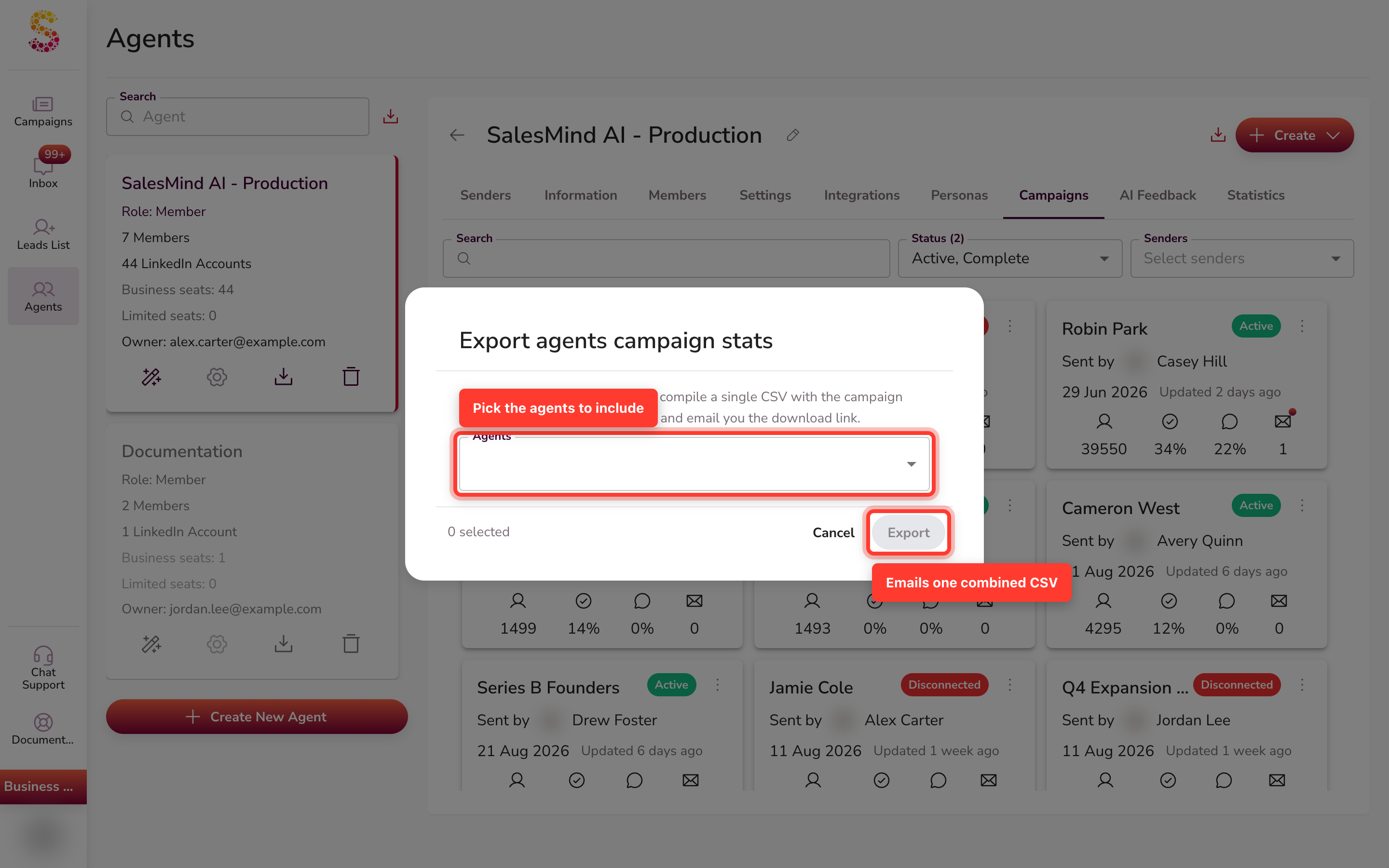
Need stats across several agents? Open the Agents sidebar header. Click the download icon next to the search box. The Export agents campaign stats dialog opens.
Select one or more agents, then click Export. We compile one combined CSV for every agent you chose. Then we email you the download link, just like the single-agent export.
What's Next
With your Agent set up, you can:
- Create your first campaign — see Campaign Creation: Step-By-Step Guide.
- Or set up a Mission to launch many campaigns at once — see What is a Mission and How to Create One.
FAQ
Why do I get an email instead of the file right away when I download campaign data?
When you start a download, we build the CSV in the background. Then we email you a link to it. You'll see the message "Your export is on the way! Please check your email." The file does not download straight to your browser.
Can I download the CSV directly instead of waiting for the email?
Right now, every export arrives as an emailed link. There is no option yet to download the file straight to your browser. After you start an export, watch your inbox for the link.
My export email never arrived — what should I do?
First, check your spam folder and any email filters. Make sure the email on your account is correct. Then re-run the export from the same button. If it still does not arrive, contact support.
Can I export stats for several agents at once, and do I get one combined file?
Yes. Open the Agents sidebar header and click Export agents campaign stats. Select the agents you want, then click Export. We compile one combined CSV for every agent you picked and email you the link.
What's the difference between creating a Campaign and a Mission?
Campaign opens the single-campaign wizard, so you launch one campaign. Mission opens the multi-sender wizard, so you launch several at once. To pick the right one, see the Mission vs Campaign guide in the related links below.