
When to use this guide
- Your campaign was working, then went silent with no new invites or messages.
- The campaign's Activities tab says "No activities yet", even though the campaign is running.
- A teammate's sender sends nothing and you are not sure why.
- You added a new sender and it never starts sending.
- You rebuilt a campaign several times and it still shows no activity.
- You want to move a sender from Limited to Business.
What a seat is
Every sender in SalesMind AI needs a seat to send. A seat is the paid license that turns a sender on.
There are two seat states: Limited and Business. A Limited sender cannot send anything. A Business sender is active and sends normally.
Your plan gives you a set number of seats. You assign a seat to a sender to make it a Business sender.
How to tell your sender has no seat
The main sign is silence. Your campaign quietly stalls. No invites go out. No messages send. Nothing shows a loud error — the outreach just never leaves.
Check for these signs:
- Your campaign has been "running," but nothing has sent for a day or more.
- New actions never move from planned to sent.
- The sender shows as Limited in the Sender Health dashboard.
- The campaign's Activities tab says "No activities yet", even though the campaign is running.
- Most leads in the campaign stay on Unknown — because a Limited sender cannot start outreach, so leads never advance past their initial status.
- The sender's daily quotas in Sender Health all show 0 (visits, connections, messages, follows) — a Limited sender has zero quota for all four activity types.
- Rebuilding the campaign or changing the sequence order (visit first, connect first, message first) makes no difference — the sender cannot send regardless of campaign setup.
Fix: give your sender a Business seat
Step 1 — Make sure a paid seat is available
A Limited seat means no paid seat is assigned to that sender. You cannot add a paid seat yourself in the app. To get one, contact SalesMind AI support.
Open Account Settings → Billing and use Meet Sales Team. (Manage Billing is for payment details only, not seat changes.)
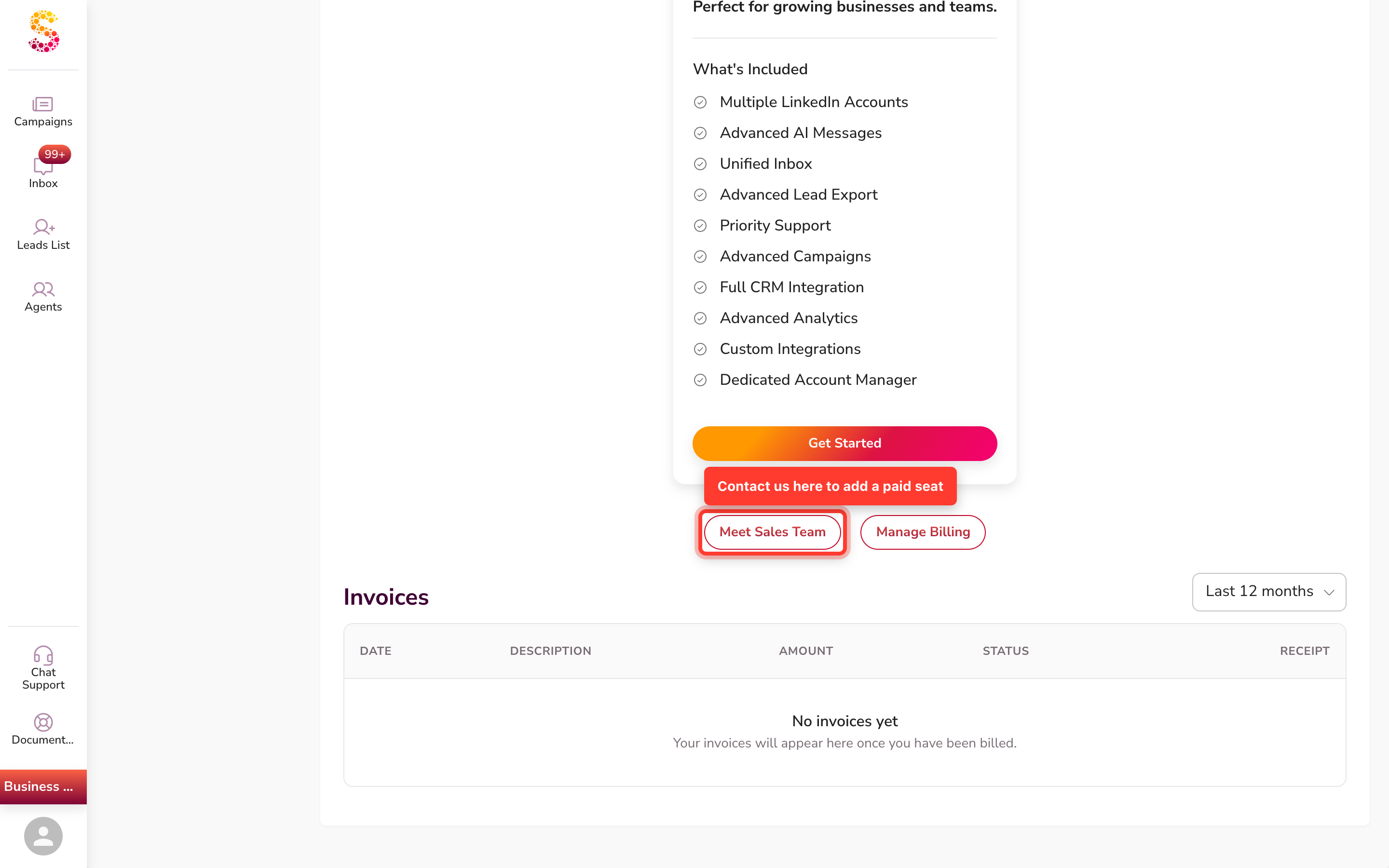
Once a paid seat is free on your account, move on to Step 2.
Step 2 — Switch the sender from Limited to Business
- Open the Sender Health dashboard.
- Find your sender in the list.
- In the Seat column, switch the toggle from Limited to Business.
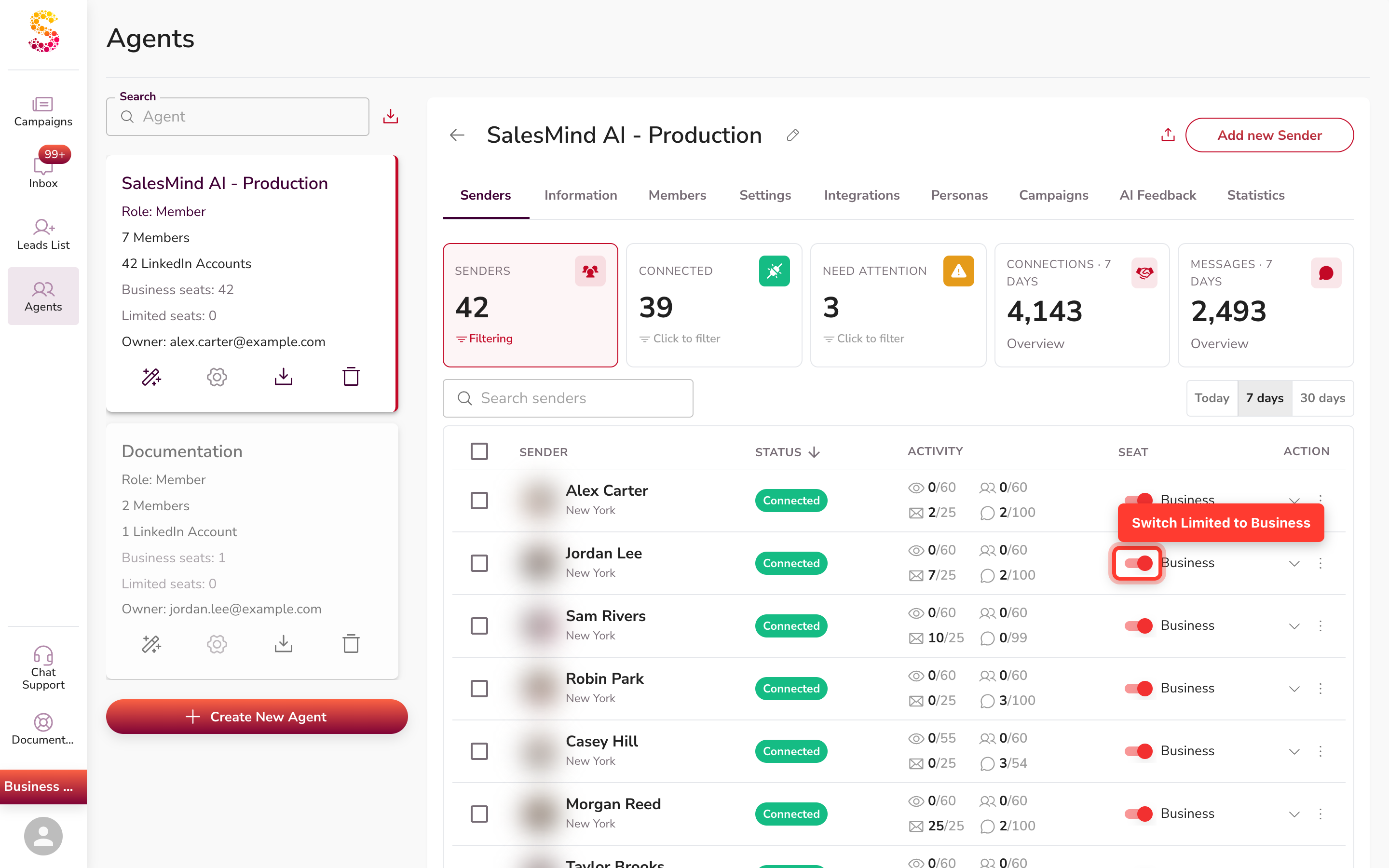
When you assign a seat, SalesMind AI reschedules that sender's outreach, so sending starts again.
If no seat is free, the toggle will not turn on and you will see a "no seat available" message. Free up a seat from another sender, or contact support to add one (Step 1), then try again.
If the sender belongs to someone else
Sometimes a sender is owned by another person's account, so you cannot seat it yourself. Fix the ownership first:
- Invite the license owner to your team as a Member.
- Ask the current owner to transfer the sender's ownership to you. Only the current owner sees the transfer option.
When ownership transfers, SalesMind AI re-syncs seats for both accounts and turns on free seats for the team's senders automatically.
Using more than one seat
Your seat budget lives on the owner account. It is shared across all the teams you own. Each Business sender uses one seat.
When a seat frees up, SalesMind AI gives it to another sender that was waiting, oldest first. Senders you turned off on purpose stay off — they do not grab a freed seat.
Limits and things to know
- A Limited sender sends nothing. There is no partial sending — daily limits drop to zero.
- You cannot add a paid seat yourself. Contact SalesMind AI support to add one.
- Only the current owner can transfer a sender's ownership. A regular member will not see that option.
FAQ
My campaign shows "No activities yet" even though it is running. Why?
Your sender is likely on a Limited seat. A Limited sender has zero activity quota, so no outreach goes out and the Activities tab stays empty. Open the Sender Health dashboard, find your sender, and check whether it shows Limited. If it does, switch it to Business.
Why do most of my leads show "Unknown" status?
Leads move from Unknown when the sender starts taking action on them. If your sender is on a Limited seat, it cannot send anything, so leads never advance past their initial status and stay on Unknown. Assign a Business seat to the sender and leads will start to progress.
I rebuilt the campaign three times and changed the sequence order. Nothing changed. Why?
The campaign setup is not the problem. A Limited sender is blocked from sending entirely — no matter how the sequence is ordered, no outreach leaves until you assign a Business seat. Go to Sender Health and check whether the sender shows Limited.
What does "activity quota 0" mean for my sender?
A Limited sender has zero daily quota for all four activity types — visits, connections, messages, and follows. That is why Sender Health shows 0 next to every quota. The quota goes back to normal the moment you switch the sender to Business.
My campaign says it is running, but nothing is sending. Why?
Your sender may be on a Limited seat. A Limited sender cannot send, so the campaign quietly stalls. Open the Sender Health dashboard, and if the sender shows Limited, switch it to Business.
I switched the toggle to Business, but it will not turn on. What is wrong?
You have no free seat. The toggle only turns on when a seat is available. Contact SalesMind AI support to add a paid seat (Billing → Meet Sales Team), or free one up from another sender, then try again.
The sender belongs to a teammate. How do I give it a seat?
Invite the license owner to your team as a Member. Then ask the current owner to transfer ownership to you. After the transfer, free seats turn on automatically.
How many seats do I have?
Your seats come from your plan. To see how many you have, go to Account Settings → Billing — you will see the number of seats used versus available. If you need more, contact SalesMind AI support.